3.11 Links between Pages

Assessment components created with em CBA ItemBuilder can consist of a single page or of multiple pages. If multiple pages are used, then Links attached to components can be used to switch between pages.
Links vs. Conditional Links: Links between pages in the CBA ItemBuilder can either be static (i.e., the same target page is always addressed). Or the link’s target is defined by conditions (i.e., the evaluation of the conditions decides which page is addressed). Accordingly, the CBA ItemBuilder differentiates between Links and Conditional Links.
The following example in Figure 3.125 illustrates simple Links and a Conditional Link.
Figure 3.126 graphically illustrates the distinction between Links and Conditional Links that is demonstrated in the item in Figure 3.125.
FIGURE 3.126: Schematic display of links in Figure 3.125.
The button on Page A always links to Page B. Similarly, the buttons on Page C and Page D always link back to Page B. The difference between these simple links and a conditional link is illustrated on Page B. Here, the button Link to Page A has a simple link, always referring back to Page A, while the button Link to Page A or C is configured with a conditional link that points either to Page C or to Page D.
The condition defined for this example has two parts, separated in the two lines:
The first line defines the link to pageD (the page name of Page D), if the component of type Checkbox with the UserDefinedId: CheckBoxID is selected. If this Checkbox is selected, then the conditional link refers to pageD. If the component of type Checkbox with the UserDefinedId: CheckBoxID is not selected, the first line is ignored and the second line is evaluated. Since not CheckBoxID is true, the conditional link will link to pageC (the page name of Page C) in this example.
Conditions for Conditional Links are stored as syntax in the CBA ItemBuilder in the form shown. This is introduced in detail in section 4.1 and described specifically for Conditional Links in section 4.3.
The next section 3.11.1 describes how Links for switching between pages can be connected to various components in the Page Editor. Links between pages and xPages are covered in section 3.11.4, including an overview of links between pages of different page type.
Connecting multiple pages using links is a central concept of the CBA ItemBuilder, which is needed to create complex items. Analogous to hypertext, it is used to switch (whole) pages. With the help of special page types (e.g. WebChild pages, see section Y) it can also be used to change sections of the visually presented information. Finally, links can also be used to display content in the form of dialogues (see section Y). Additional possibilities to switch between pages are:
Pages can be linked to States. In this case, a page is displayed when the particular state that is linked to that page becomes the current state. More on this option can be found in section 4.4.9.
Pages in
PageArea-components (see section 3.5.4) can also be switched with a special operator (setEmbeddedPage (PageArea,PageName)). For more on this option, see section 4.3.4 (conditional links) and section 4.4.6.
Links vs. Commands: Links are used for switching between pages within a CBA ItemBuilder Task (see section 3.6 for task definition and section 8.2 for more information on splitting assessment components into individual tasks). To switch and navigate between CBA ItemBuilder tasks, Runtime Commands are used (see section 3.12).
Links vs. Events: Finally, the CBA ItemBuilder also allows to assign Events to components (see section 4.4.3). Events can be used to trigger Transitions in the Finite-State Machine of a project (see section 4.4), and operators within transitions (see section 4.4.6) or pages assigned to states (see section 4.4.9) can also be used to change pages.
3.11.1 Simple Components to Link Pages
Various components can be used to trigger switching between pages as links. Almost exclusively for switching between pages, the dedicated component Link is used, which is described first in the next section.
Dedicated Link-Component: During the execution of an assessment component created with the CBA ItemBuilder, components of type ‘Link’ are displayed as text. Clicking on the text will switch to the linked page. If a mouse is positioned over a link as a pointing device for a short time, a mouseover text can be displayed:
Adding a component of type Link to a page in the Page Editor requires selecting the container in which the Link should be placed first. If a container allows hosting components of type Links (such as, for instance, Panels), the pallet will show the component Link (see section 3.1.3). After selecting the component Link (see the small symbol  ) in the palette, a rectangle can then be drawn in the Drawing Area and its position adjusted with the properties
 X and Y (and Width and Height) if necessary. Font family, font size, font color of Links can be configured, as well as border and background (see 3.1.4).
The Link text and the target page can be configured using the Context Menu that is available using right-click on a component of type Link, as shown in Figure 3.128.
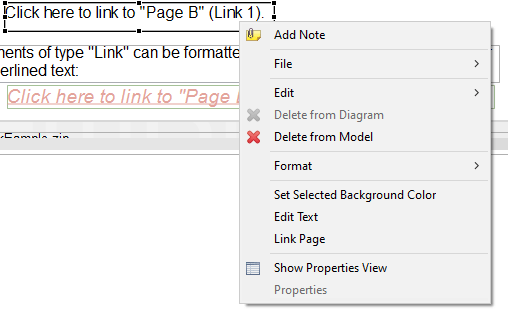
FIGURE 3.128: Context Menu for components of type Link.
Edit Link Text: To change the text that is shown as Link, the entry Edit Text in Figure 3.128 can be used. The built-in editor of the CBA ItemBuilder allows you to edit the single or multline link text, as shown in Figure 3.129.
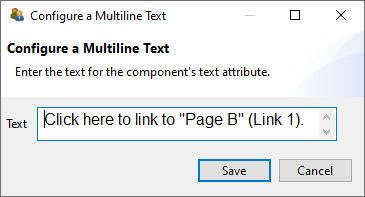
FIGURE 3.129: Dialog Configure a Multiline Text.
Link Page: Using the context menu shown in Figure 3.128 the dialog to Link Pages can be requested. The dialog for linking pages (see Figure 3.130) is structured the same for all components that support this feature. In the section Select page on the left side of the dialog, all available pages are listed that can be used as link-targets in the current context. Defining a link is possible by selecting one of the pages before confirming the dialog with OK. The selected page can be changed by selecting a new page. Removing a defined link is possible by de-selecting the select link target-page.
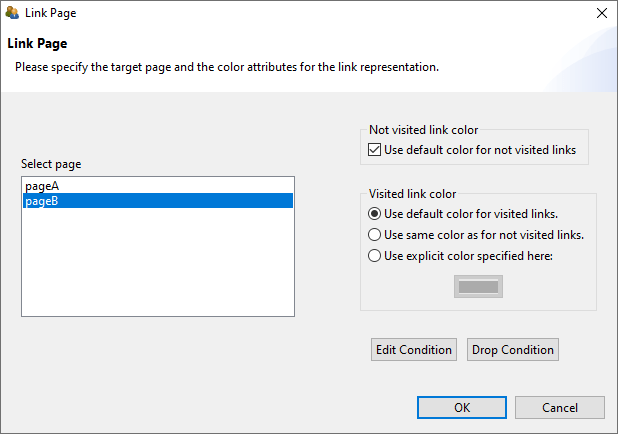
FIGURE 3.130: Dialog Link Page used for components of different type.
Visited Link Color: On the right side of the Link Page-dialog shown in Figure 3.130 different colors for visited and not-visited links can be defined. The default values for link colors can be defined in the Global Properties of a CBA ItemBuilder project file (see section 6.3).
Conditional Links: The buttons Edit Condition and Drop Condition in the lower right part of Figure 3.130 can be used to edit a Conditional Link as described in detail in section 4.3. It is important to note that if Conditional Links are used, the one or multiple target pages are not marked as selected in the Select page section of the dialog shown in Figure 3.130.
3.11.2 Button-Component
Components of type Button play an essential role in designing interactive assessment components with the CBA ItemBuilder. Typically, at least one button is used to navigate to the following Tasks (connected to the NEXT_TASK command, see section 3.12.1). Buttons can not only be used for links but also to collect click responses and to trigger FSM events (see section 4.4.3).
Component for (Image)Buttons: General-purpose components that also can be used to link between pages are buttons. Adding a component of type Buttonto a page requires selecting a container that can host Buttons (e.g., a Panel) first. If the element selected in the Drawing Area can contain a button, the Palette shows the icon to add a Button (see the small symbol  ).
).
The example item in Figure 3.131 illustrates for components of type Button two important properties: The use of images to style Buttons and the property Toggle.
As with all components, the context menu (right mouse button, see Figure 3.132) with the entry Show Property View can be used to edit properties.
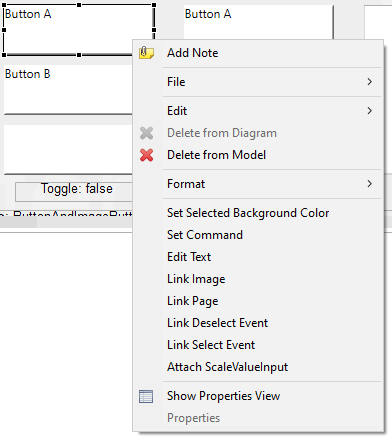
FIGURE 3.132: Context-Menu for components of type Button.
Components of type Button can have a text property that can be edited via the context menu entry Edit Text (see Figure 3.132). The editor for editing the text property is identical to the editor of text properties for components of type ‘Link’ already shown above (see Figure 3.129).
Toggle Buttons: By default, buttons can be clicked multiple times and buttons are only pressed as long as clicked by mouse or touch. However, buttons can also be configured to toggle between either pressed (i.e., on) and unpressed (i.e., off). So-called Toggle Buttons are defined by changing the property Is Toggle: true. Buttons with the Is Toggle=true property can remain in the pressed and non-pressed state, while buttons with the Is Toggle=false property automatically fall back to the non-pressed state after being pressed. Toggle Buttons can also be grouped by using the Frame Select Groups described in subsection 3.9.4 (see the item in Figure3.92 for an example).
Standard Buttons vs. Image Buttons: Whether the ‘Text’ property should be used for components of the ‘Button’ type or not depends on the use of images for button design. The CBA ItemBuilder distinguishes between two configurations: Standard Buttons which consist of a text and an optional image, and Image Buttons which should be designed using images only.
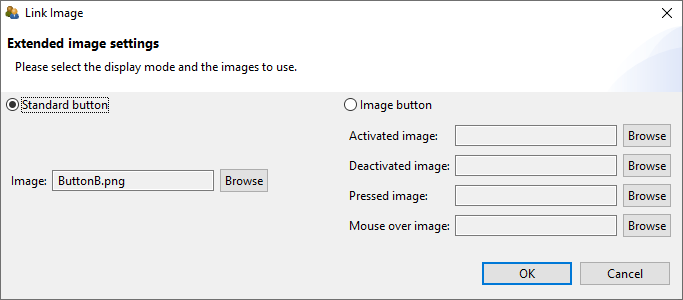
FIGURE 3.133: Component of type Button configured as Standard Button.
Figure 3.133 shows the dialog Link Image which can be accessed with the context menu item of the same name. The multiline text of Buttons can be styled using the properties font family, font size, font color, if a Button is configured as Standard Button. Moreover, border color and background color can be used to style Standard Buttons (see section 3.1.4). Standard Buttons can refer to one single image that is used as background image (see the buttons with the labels “Button B” in the example item provided in Figure 3.132).
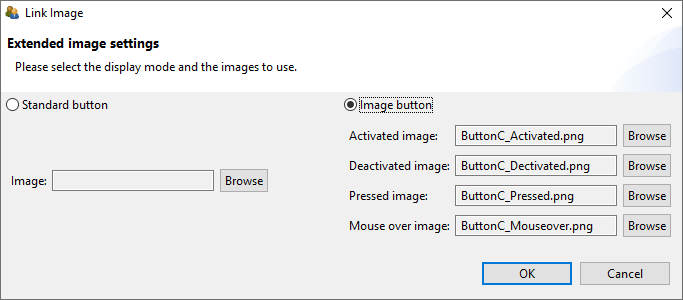
FIGURE 3.134: Component of type Button configured as Image Button.
If components of type Button are configured as Image Button (see figure 3.134), then four different images can be specified:
Activated Image: This image is displayed when the button is active, i.e., it can be pressed. For buttons with the property
Is Toggle=true, this image is displayed when the button is not toggled.Deactivated Image: This image is displayed when the button is frozen. A button can be frozen at design time using the property
Is Frozen=trueor at runtime using thesetFrozen()-operator. By default buttons are created with the propertyIs Frozen=false(identical to theunsetFrozen()-operator).Pressed Image: While a button is pressed, this image is displayed. For buttons with the property
Is Toggle=truethis image is displayed when the button is toggled.Mouseover Image: This image is displayed, when a mouse as pointing device is moved over a button.
Using the Context-Menu (see Figure 3.132 the background can be configured via the entry Set Selected Background Color) for standard buttons with the property Is Toggle=true (see Figure 3.135).
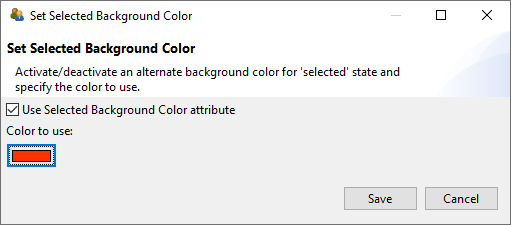
FIGURE 3.135: Dialog Set Background Color for Buttons (Standard Buttons).
Buttons are always defined as rectangles. If rounded corners are required, transparent images can be used, when the button is configured as Image Button. Components of type Button can be set frozen using the operators setFrozen() (and the reverse operator unSetFrozen(), see appendix B.2) using either the Finite-State Machine (see section 4.4), Conditional Links (see section 4.3), or the Task Initialization (see section 4.5). The checkbox “Show Buttons as Frozen” in the example item in Figure 3.131 illustrates how frozen components of type Button look like.
Similar to components of type Link (see subsection 3.11.1) provides the context menu an entry Link Page (see Figure 3.132) that can be used to define regular (static) Links or to assign Conditional Links (see section 4.3) to components of type Button.
Buttons can be used in the CBA ItemBuilder when designing assessment components for very different purposes. Buttons can not only Link Pages, as described in the previous section 3.11.1 and switch between pages or open dialog pages (see section 3.15). Using the entry Set Command of the context menu (see Figure 3.132) enables to use buttons to control the navigation between tasks, close dialog pages, or change the full-screen mode on or off using Runtime Commands (see section 3.12).
Buttons can also execute operators. This is either possible using Conditional Links (see section 4.3) or with Events (see section 4.4.3). Events can be linked to selection (see menu entry Link Select Event) or deselection (see menu entry Link Deselect Event) of buttons using the context menu (see Figure 3.132). Deselect Event will only trigger for buttons configured as Is Toggle=true. If Events are linked to buttons, the events can be used to trigger rules in the finite-state machine (see section 4.4 for more details).
Finally, buttons can also be used to increase or decrease the value of components of type ScaleValueInput (see section 4.2.2 for a description of the entry Attach ScaleValueInput).
Text Color for Buttons: The text inside buttons works as a link, so the general link-color settings (see section 6.3) need to be considered. To set the text color in the Properties view, the properties Use Default Link Color: false and Use Same Color For Visited Reference: true must be set in the Display section.
Advanced Button Components: Not all functionality can be realized with simple buttons. For special requirements, the CBA ItemBuilder provides additional components that can be used, for instance, on particular page types (e.g., TaskbarButton and TabButton, see section 3.13.1). Finally, so-called map-based variable displays (see section 4.2.5) can be used instead of buttons, where, for instance, the displayed image can be changed depending on a variable with the help of ValueMaps (see section 4.2.4).
3.11.3 Links with other Compoments
Not only Links (see section 3.11.1) and Buttons (see section 3.11.2) can be used to link between pages. As can be seen in the item shown in Figure 3.136), a number of other components support the functionality of linking to pages directly.
Embedded Links: Components of type HTMLTextFields (see subsection 3.8.2) and TextField (see subsection 3.8.3) can embed links. By linking pages, the CBA ItemBuilder can be used to create navigation scenarios within assessment components and to design interactive tasks. Especially in combination with the special page types for web browser environments (web browser page and web child page, see section 3.13.2) typical hypertext environments can be created and used as part of computer-based assessments under controlled conditions.
Use Links on Answer-Selection: Components of type ComboBox and List (see section 3.9.5 for more details about ComboBox, ComboBoxItem, List and ListItem) and MenuItem (see section 3.9.7 for more details on MenuBar, Menu and MenuItem) can be used to link pages, when a response is given by selecting a particular item.
Use Links on Focus: Components of type SingleLineInputField can be used to trigger links when the components become focus. Since SingleLineInputField can also be defined to be Readonly=true (see section 3.9.1 for details), this can be very useful for using operators in Conditional Links without writing more complex Finite-State Machine rules (see section 4.3.3).
Change Page without Links: Not all components provide the entry Link Page in their context menu and can be used this way to switch to another page. Interactions with these components, for instance, mouse-clicks on components of type ImageValueDisplay, can nevertheless be used to switch between pages with the help of the finite-state machine. This approach based on the assignment of pages to states is described in detail in section 4.4.9.
3.11.4 Advanced Linking Scenarios
The CBA ItemBuilder offers unique flexibility in creating multi-page assessment components with different page types and various linking options. Pages can be of different types and can also be used as xPage, Dialog Page or Page Area. The following section is intended for advanced users of the CBA ItemBuilder who want to take advantage of the full range of possibilities when linking pages.
Link between Pages and xPages: When linking pages, it is crucial to consider the page type (see section 3.4) and the xPage-property (see section 3.4). For example, pages that were defined as xPage in the CBA ItemBuilder can only link to other xPages. Similarly, a page that is not defined as an xPage cannot link to an xPage. The separation of regular pages and xPages is also maintained for dialog pages (see 3.15 for more details on dialog pages). Again, if a dialog is linked from an xPage, it must necessarily be an xPage.
The following advanced example with two regular pages (Page1 and Page2), two xPages (X1 and X2), and two dialog pages (“Dialog1” and “XDialog1”) illustrates how xPages and Pages can be linked:50
Lets look at the button Go to "X2", which is connected to page X2 via Link Page. Since this page is an xPage (see the small symbol  ), the linked page is displayed in the xPage area of the item. Similarly, the link behind the
 Go to "X1" button on page X2 also causes the page X1 to be displayed in the xPage area. Accordingly, xPages are locked to remain in the xPage area of the item. The same is true for regular pages as well, as illustrated with the button Go to "Page2" (on Page1) and Go to "Page1" (on Page2). Components on pages that are not configured as xPages can link only to other regular pages.
The separation of pages by the xPage-flag is already implemented by the in the dialog to configuring links, i.e. depending on whether the link should be configured on a Page or an xPage, only all available Pages or xPages are listed.
The example item (see Figure 3.137 illustrates not only simple links between Pages and xPages, but also the use of links in dialog pages (see subsection 3.15 for more details) and the use of Finite-State Machine Events to switch Pages and xPages (see subsection 3.11.4 for more details).
Links Between Pages of Different Type: The CBA ItemBuilder distinguishes two kinds of links: Regular (static) Links and Conditional Links. Links can be assigned to a variety of components using the context menu entry Link Page. Links are resolved in the current environment and taking page types into account. To enable advanced linking across environments and page types, either Conditional Links or Finite-State Machines are required.
In addition to the simple links shown in the table, the setEmbeddedPage()-operator can also be used to link in PageAreas (see section 4.3.4).
A simple example without the use of Conditional Links or Finite-State Machine can be found in the file AdvancedLinkingExample.zip.↩︎