1.3 Quick Start: Get the Right Version

The CBA ItemBuilder is continuously developed, so there are different program versions available. In order to reproduce the exact display of existing CBA ItemBuilder project, it might be necessary to use the exact same CBA ItemBuilder version and, if possible, the identical browser. The development of the software follows the paradigm that a) older CBA ItemBuilder project files can be opened with newer versions of the CBA ItemBuilder, but b) older versions of the CBA ItemBuilder cannot open project files saved with a newer version of the software. If project files created with an older version of the CBA ItemBuilder are opened in a newer version (a), the items are internally migrated to the newer version (see section 3.2.1 for details about this Migration).
Which Version to Choose? If you are starting from scratch and using CBA ItemBuilder for the first time, install the latest version. If you have existing items that you want to view in the preview (section 1.4), whose scoring you want to view (section 1.5) or whose log events you want to explore (section 1.6), you could also consider using the version with which these items were created and tested.7 If you are planning to update or revise existing items (see section 1.7) for an upcoming assessment, you might want to use the latest version of the CBA ItemBuilder.
How to Start: After installing the CBA ItemBuilder, it can be started by double-clicking the icon or the executable file cba-itembuilder.exe in the installation directory (see section 1.1). The CBA ItemBuilder will allow editing of one CBA ItemBuilder project file at a time, and typically only one instance of the CBA ItemBuilder will be opened at the same time.8
Main Window: The Main Window of the CBA ItemBuilder consists of different areas (see Figure 1.2): On the left side the Project View is located, with the Component Edit below. The gray area right to the Project View is reserved for various editors, like the Page Editor. If requested, additional views can be shown on the right part of the main window.
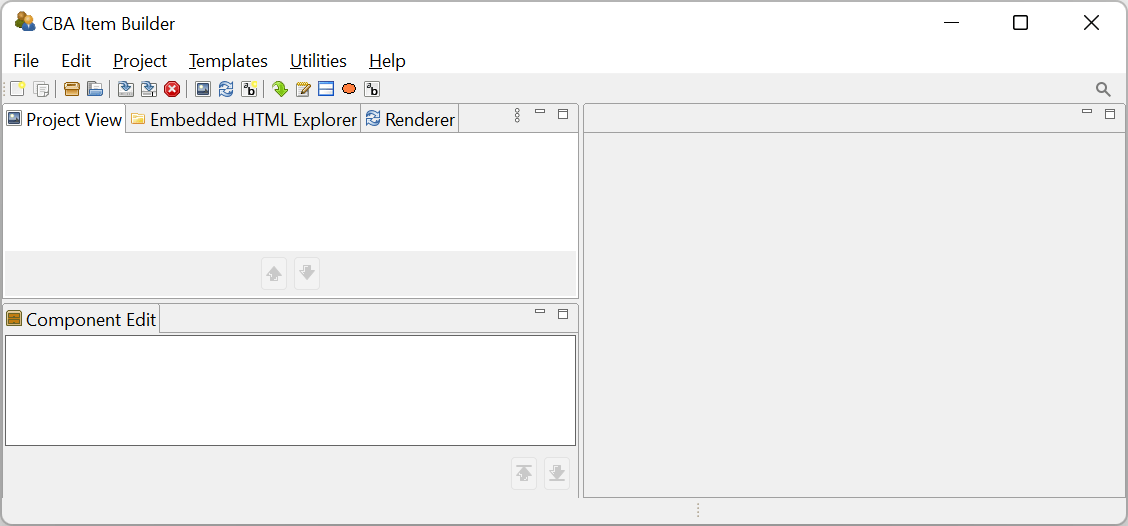
FIGURE 1.2: CBA ItemBuilder Main Window.
The Help menu of the main menu contains the entry About, that shows the version information (see Figure 1.3).
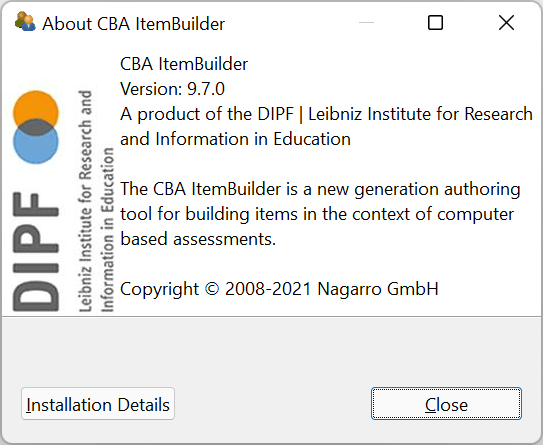
FIGURE 1.3: CBA ItemBuilder About-Dialog.
Migration: It is important that CBA ItemBuilder projects are never opened with a previous version, i.e., a version that is older than the last version that was used to save the CBA ItemBuilder project file. However, opening CBA ItemBuilder projects with a newer version is possible. If CBA ItemBuilder projects are opened and saved with a newer version of CBA ItemBuilder, a so-called Migration is done automatically.9 Once a project file is migrated (i.e., opened and saved) to a particular newer version, no version of the CBA ItemBuilder older than that particular version can open the migrated project file.
How to find out which version an item was created with is described in the subsection 8.3.3.↩︎
Note: An error message is displayed, when a second instance of the CBA Item Builder is started. In this case the second instance of the CBA Item Builder terminates. If configured properly, new CBA ItemBuilder versions (starting with version 9.4) can be used in parallel, see section 6.8.8 for details.↩︎
Migrations might require changes and corrections if the functionality of CBA ItemBuilder changed (see section 3.2.1).↩︎