7.3 Using CBA ItemBuilder Items with R (Shiny Package)

ShinyItemBuilder allows using CBA ItemBuilder items in web-based applications created with R/Shiny. This allows local administration of tests (from RStudio) and online adminsitration using, for instance, www.shinyapps.io (or hosting shinyproxy).
The use of R/Shiny for assessments is advantageous for two main reasons: It combines the data collection (seemingly) with the (psychometric) use of gathered responses data and collected log events. Moreover, since an easy-to-use infrastructure for Shiny applications exists, it enables a swift approach to run online assessments without setting up a dedicated hosting environment. Although this hosting might be less performant than hosting using more standard web technologies, item authors can use R-functions to customize the test assembly (e.g., for multi-stage and adaptive testing).
Concerning the different modes of test deployment (see section 7.2.1, R/Shiny can be used for stand-alone deployment either locally, or online.
Local: The assessment is started directly from R locally, and test-taker answer items in a browser on the same computer.81
Online: The assessment is hosted using R / Shiny on a server (e.g., using www.shinyapps.io), and test-takers answer the items in a browser, either on a desktop device or even on a mobile device.
Note that even if an online deployment should be created using the R package ShinyItemBuilder, the preparation is done locally in R. After completing the preparation, the Shiny app is deployed to the online server.
7.3.1 Use of CBA ItemBuilder Project Files in ShinyItemBuilder
The R/Shiny package ShinyItemBuilder needs to know which items should be administered. This can be defined by providing an item pool, created from a folder with CBA ItemBuilder project files or a list of CBA ItemBuilder project files and optional tasks.
If no additional function for navigation is defined (see section 7.3.3), the project/tasks defined in the item pool will be administered as linear sequence. Hence, you can either change the order of project files / tasks in the object item_pool after the call of getPool(), or provide a specific function navigation (see section 7.3.3).
The configuration is done using a list of attributes and functions, created with the function getConfig().
Various options that can be defined include the visual orientation and zoom of items, as described in the help:
7.3.2 Start and End of Assessments using ShinyItemBuilder
The default configuration to start the assessment that the R/Shiny package ShinyItemBuilder will create a new identifier, when the assessment is loaded the first time from a particular browser. The identifier is stored in the local session storage, so that the same identifier will be used if the test-taker closes and re-opens the page (or reloads the page). Using this identifier, the test-taker will always return the last visited item. If the last item was ended, an empty page will be presented and the function end defined in the configuration will be called.
The function end can be defined in the configuration to implement different authentication workflows.
Multiple Runs: A new identifier is created automatically when the URL is visited the first time (or if the application is started in a local deployment). The identifier is stored either in the session storage (default or sessiontype="sessionstorage") , in the local storage (sessiontype="localstorage") or using cookies (sessiontype="cookie"). As long as the identifier is stored, the started session will be continued.82 After the last item the function end will be called, that is defined in the object assessment_config using the function getConfig():
assessment_config$end=function(session){
    showModal(modalDialog(
      title = "You Answered all Items",
      "Please close the browser / tab.",
      footer = tagList(actionButton("endActionButtonOK", "Restart"))))
  }
This function is called when the last item was shown (i.e., if the function navigation returns -1). The Shiny actionButton("endActionButtonOK", "Restart") allows test-taker to re-start the assessment.
Single Runs: If the function end does not include the action button (i.e., if the footer is an empty tag-list: footer = tagList()))), the test-taker will not be able to start the assessment again, once the last item is reached. Alternatively, the end function can also be overwritten to re-direct to another URL:
assessment_config$end=function(session){
  session$sendCustomMessage("shinyassess_redirect",
      "https://URL-TO-REDIRECT.SOMEWERE/?QUERYSTRING")
}Authentication: If the assessment is configured with sessiontype="provided", the object assessment_config created with the function getConfig() can contain a custom login -function:
assessment_config$login=function(session){
    showModal(modalDialog(
    tags$h2('Please Enter a Valid Token and Press "OK".'),
    textInput('queryStringParameter', ''),
    footer=tagList(
      actionButton('submitLoginOK', 'OK')
    )
    ))
  }
This function is shown, if the assessment is not started with a query-string parameter that includes a parameter with the name defined in the config assessment_config$queryStringParameterName (default is token). If the parameter is provided, the function assessment_config$validate is called to verify that the token is valid.
7.3.3 Define Sequencing / Navigation using ShinyItemBuilder
Using ShinyItemBuilder allows to implement different approaches for test assembly and test assembly (see section 7.2.7).
Linear Sequence: If all test-taker should answer the identical CBA ItemBuilder projects/tasks in a similar sequence, ordering the tasks in the object item_pool is sufficient.
In the following example, the demo item pool is reordered, so that the items are administered in the reversed order:
item_pool <- getDemoPool("demo01")
item_pool <- item_pool [c(6,5,4,3,2,1),]
assessment_config <- getConfig()
shinyApp(assessmentOutput(pool = item_pool,
                          config = assessment_config,
                          overwrite=T),
renderAssessment)Booklets: If multiple sequences are required, a modified function navigation <- function(pool, session, direction="NEXT") can be provided. The function obtains the item pool (as defined above) and a session object.
Possible values for direction are the possible Runtime Commands available in the CBA ItemBuilder (i.e., either NEXT, PREVIOUS or CANCEL, see section 3.12), and the value START. The function is expected to return the index of the next item (starting with 1), corresponding to the row in the item pool object. The function can store and retrieve temporary information using the functions setValueForTestTaker(...) and getValueForTestTaker(...).
The example in vignette("booklets") based on demo01 defines two booklets (using items 2,3,6 in booklet 1 and using items 4,5,6 in booklet 2). A random booklet is assigned (sample(unique(booklets$Booklet),1)) and stored for the test-taker.
Adaptive Testing (CAT): A modified function navigation <- function(pool, session, direction="NEXT") can also be used to implement various forms of adaptive testing. The package contains an example (see vignette("cat_with_catR")) how to use the R-package catR (Magis and Raîche 2012; Magis and Barrada 2017) for a simple adaptive test (see Figure 7.1).
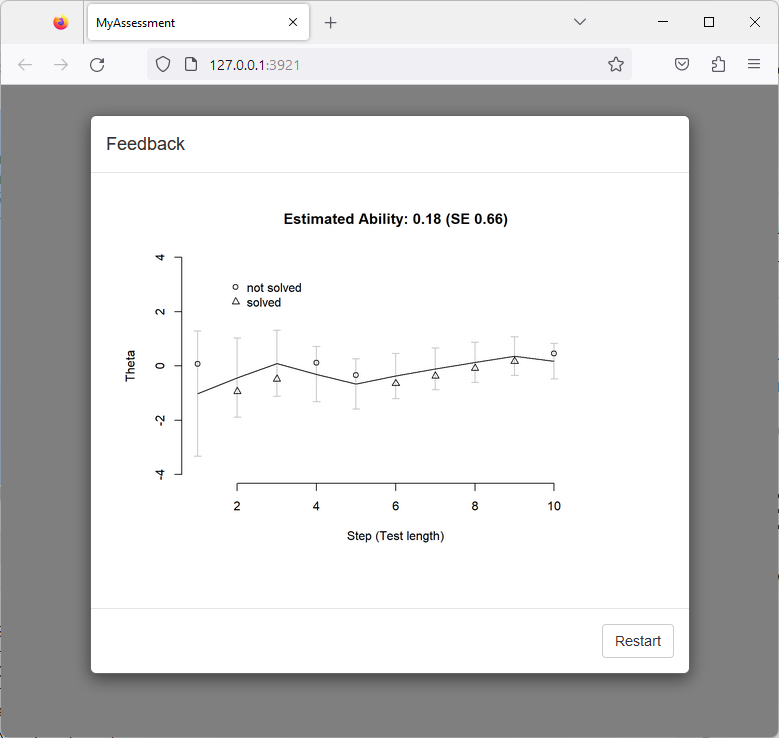
FIGURE 7.1: Output of an Adaptive Test Created with ShinyItemBuilder and catR.
7.3.4 Score Responses in R
CBA ItemBuilder tasks provide a scoring (see chapter 5) that can be evaluated and reused in R.
Retrieve ItemBuilder Scoring: The R package provides a template for the score-function, that can be used to extract information from the CBA ItemBuilder provided ItemScore (see section 7.2.9). Adaptation of this function is necessary if selected responses of the already administered tasks are to be used for test sequencing (e.g., if ShinyItemBuilder is used for adaptive testing). The score-function is called automatically, after the administration of one item is completed.
7.3.5 Feedback in R using Markdown/knitr
As discussed in section 2.9.2, a technical platform for report generation is necessary to provide instant feedback after an assessment is completed. In the ecosystem of R/Shiny, the knitr package provides an easy-to-use approach to include dynamic documents to dynamically generated documents.
The example in vignette("feedback") based on a selection of items provided as demo01 illustrates how instant feedback can be created using markdown and kntir. Figure 7.1 provides another example.
7.3.6 Data Storage and Data Access
The package ShinyItemBuilder illustrates how CBA ItemBuilder items can be used with R/Shiny, ready to use for small-scale studies that can be hosted, for instance, on shinyapps.io. Date are stored in R in a global variable runtime.data, persisted in a folder configured using the argument Datafolder (default value is _mydata):
Data are stored for each session identifier in a *.RDS file that can be loaded in R using the function readRDS(). By default, data are only stored in the current instance (i.e., data will be lost if the application will be put into a Sleeping state or the instance is deleted or newly created on shinyapps.io).83
To access data online, the package illustrates how a simple Maintenance interface could look like. If a maintenance password is provided, the keyboard shortcut Ctrl + X (configured as argument to the function getConfig(maintenanceKey=list(key="x", ctrl=T, shift=F, alt=F), ...)) or the argument ?maintenance in the query string (configured as argument to the function getConfig(maintenanceQuery = "maintenance", ...)) opens a shiny dialog page. (see vignette("maintenance")).
vignette("datastorage").
7.3.7 Side Note: Interactively Inspect Log Events of CBA ItemBuilder Tasks
The R package ShinyItemBuilder can also be used to directly log events collected by a CBA ItemBuilder task live in RStudio.
This is illustrated with the following example:
item_pool <- getDemoPool("demo02")
assessment_config <- getConfig(Verbose = T)

shinyApp(assessmentOutput(pool = item_pool,
                          config = assessment_config,
                          overwrite=T),
         renderAssessment)
Note the argument Verbose = T that is provided to the function getConfig. In verbose mode, ShinyItemBuilder will print detailed information to the R output window, while the items can be interacted with in a web browser using shiny.
References
Alternatively, a portable R (e.g., using DesktopDeployR) can be used, or R, the Shiny-App and the browser can be bundled together with a browser as electron app (see, for instance, https://github.com/zarathucorp/shiny-electron-template-m1-2023 for a template).↩︎
Currently
ShinyItemBuilderwill not restrict multiple tabs or browser windows accessing the assessment simultaneously.↩︎Shiny can be used with more advanced approaches to achieve persistences, see, for instance here.↩︎