3.10 Images and Multimedia Components
Many components can be used to display images on CBA ItemBuilder Pages. The following example (see Figure 3.112) shows a selection of components that can be linked to images.
The component that can only display images is the ImageField. It can be used to display an image with a fixed size (width and height). The size of the image used should be preferably match the original size of the image in pixels (see 6.2.1 for details). Size and position can be changed in the Page Designer. To determine the exact position, the properties can also be defined in the Properties view (see Figure 3.113).
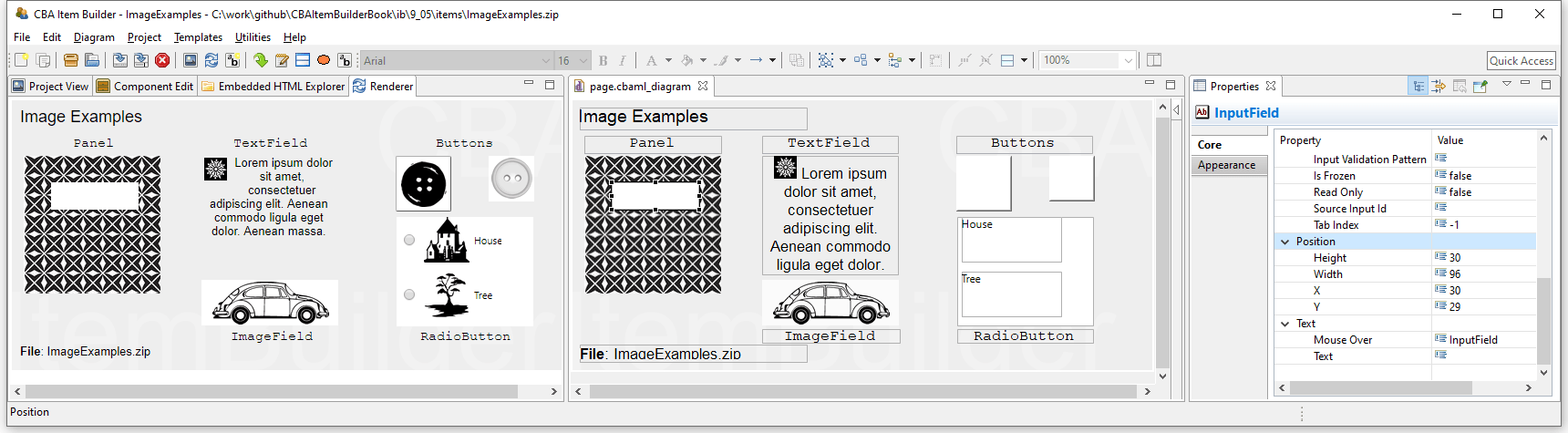
FIGURE 3.113: Rendering (left) and Page Editor (middle) and Properties view showing item ImageExamples.zip (html|ib)
Images can also be used as background in Panels. A panel without any further element leads to the same result as an ImageField. However, if required, additional components can be placed in panels. In the example above, this approach was used for the SingleLineInputField, which was placed on a panel with a pattern. Images are frequently used for the design of buttons. As described in subsection 3.11.2 the CBA ItemBuilder distinguishes two configurations, namely Standard button (only one image can be used) and Image button (one image can be defined for each of the states activated, deactivated, pressed and mouse over). RadioButtons can also contain images. If the images are specified as part of the RadioButton, the correpsonding option can also be selected by clicking on the image. Finally, the example in Figure 3.113 also shows that TextFields can contain images in addition to texts.
3.10.1 Manage Ressources
To use image files, audio data and video files for designing item they must be loaded into the CBA ItemBuilder Project File using the so-called Resource Browser. The Resource Browser supports the import of selected file formats that can typically be displayed in Web browsers.
Supported File Formats: The following Table 3.9 gives an overview of file formats for images, audio and video.48
| Extension | Description | Type |
|---|---|---|
*.gif |
GIF: Graphics Interchange Format, Lossless compression, transparency option, animation option, good browser support | Image |
*_min.png |
PNG: Portable Network Graphics, Lossless compression, transparency option, good browser support | Image |
*.jpg |
JPEG: Joint Photographic Experts Group, Lossy compression, good browser support | Image |
*.tiff |
TIFF: Tagged Image File Format, Lossless compression (not supported) | Image |
*.mp3 |
MP3: Lossy compression, good browser support | Audio |
*.mp4 |
MP4: Lossy compression, good browser support | Video |
*.webm |
WebM: Lossy compression, good browser support | Video |
*.ogg |
Ogg: Lossy compression, acceptable browser support | Audio |
*.ogv |
Ogv: Lossy compression, not supported by all major browsers | Video |
*.wav |
Wav: Waveform Audio File Format, good browser support | Audio |
Note that the XML-based vector image format for Scalable Vector Graphics (SVG) is currently not supported by the CBA ItemBuilder.
Resource Browser: To manage resources, the built-in Resource Browser provides the following three options: A) Add a resource file to the item project file, B) delete a selected resource file from the item project, and C) delete all unreferenced resources within a project.
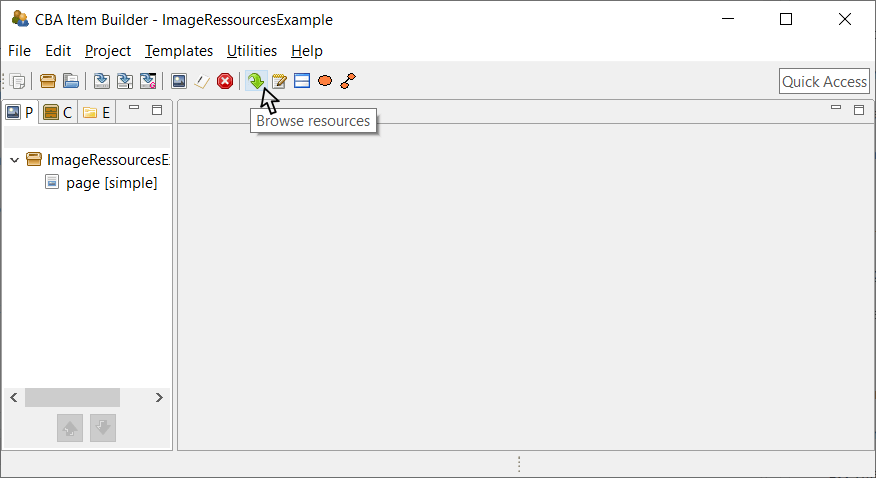
FIGURE 3.114: Icon Browse resources in the CBA ItemBuilder Toolbar.
The Resource Browser can also be opened using the entry Browse resources in the Project menu. To import a resource file, the Resource Browser once opened provides the button Add. This button opens an open file dialog that can be used to select one or multiple files of supported format for importing.
Resources whose file name contain special characters or blank space cannot be used in item project and displayed at runtime.49 Resources with file names that cannot be used at runtime are detected by the Resource Browser and the CBA ItemBuilder displays a warning message.
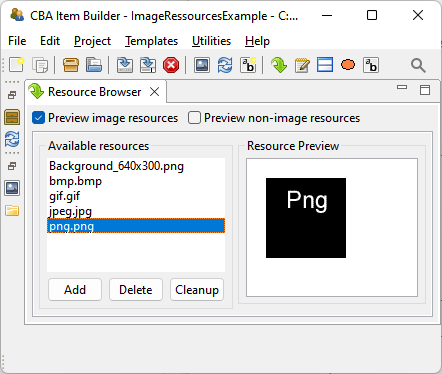
FIGURE 3.115: Resource Browser to manage embedded resources.
A resource entry selected in the list of Available resources (see Figure 3.115) can be removed, using the Delete button. If the automatic start of audio or video files should be suppressed, the checkbox Skip Preview can be marked.
As described in the following, resources are linked to components. Resources that are used in the current item project (i.e., images, audio files, and videos that are linked to components) cannot be deleted. Resources that not linked to a component (i.e., unused resource files) can be removed permanently from the item project using the button Cleanup.
Existing resources can be updated without linking them to components again by deleting the resource with the Resource Browser and adding a resource with the identical name. Note, however, that Generate and Save (see 3.2.1 below) will be necessary to apply the update.
Before you import resources in the item project, images, audio files, and videos should be prepared and converted into a suitable format. Images, for instance, should be prepared by image processing software and resized to the size required in the item project (see section 6.2 for further information).
A selection of file formats is commonly used for displaying images on the web. The CBA ItemBuilder supports image files in the formats JPEG, BMP, GIF and PNG.
Audio files can be added in MP3, OGG and WAV formats in the CBA ItemBuilder’s Resource Browser. A tool to edit and convert audio files is Audacity. For audio files to be played, the hosting may also need to be configured correctly (e.g. with regard to range headers). Therefore, it is recommended to thoroughly test the use of the audio format on the planned devices. In addition, audio output in the browser typically cannot occur until at least one user interaction (click, keyboard input, or similar) has taken place. The three audio formats are illustrated in the following item shown in Figure 3.117.
Video files can be added in MP4, OGV and webm formats in the CBA ItemBuilder’s Resource Browser. A tool to convert video files is VLC media player. The three video formats are illustrated in the following item shown in Figure 3.118.
Depending on the deployment method not all audio and video file formats are supported. Currently, the Ogg / Ogv or Mp3 / Mp4 are suggested formates to be tested first. For online use, MP4 with the codec H264 and WebM with the codec VP8 or VP9 are particularly suitable because of their high compatibility.
As a rule of thumb, MP4 should work in all common browsers, i.e., Android, Chrome, Internet Explorer, Edge, Firefox, Opera, and Safari - only Firefox on Linux requires a plugin (FFmpeg). Further, all universal browsers support WebM; the only exceptions are Internet Explorer and Safari.Resource files of a supported format can be used in item projects by linking them to components, as described in the next section.
3.10.2 Components to Show Images
Importing images via the Resource Browser is only the first step. An image must also be assigned to a component in the Page Editor to be visible on a page, and all components that can show images provide the “Link Image” entry in the context menu.
Dedicated ImageFields: ImageFields are components dedicated to showing images on pages. If image file formats support transparency (i.e., *.gif and *_min.png), the property Is Transparent can be set to true and Background Ccolor can be used. Images can have borders (i.e., Border Color can be used when Border Width is different from zero) and ImageFields support text for Mouse Over (text that is displayed when mouse over the ImageField). Components of type ImageFields are typically added to Panels, but are also supported within WebBrowserToolbars.
The CBA ItemBuilder automatically resizes components of type ImageField and Panel to the native size of the image. Although the components can be resized afterward, resizing images either risk a loss in quality or a potential waste of resources, as item projects might require more bandwidth as needed (see section 6.2 for further information). A tool to create and edit images is paint.net.
Background Images in Panels: Images can also be used to create the background of a page. For this, no ImageFields have to be used in the CBA ItemBuilder, but images can also be linked directly to a panel. Note, however, that when images are added as background images to Panels via the Link Image option, they must be precisely the size of the panel in Width and Height. If this is not the case, then unlike ImageFields, they will be cut off (if the image is larger than the Panel) or displayed repeatedly (if the image is smaller than the Panel). This difference between ImageFields for displaying images and the use of images in the background of Panels is shown in Figure 3.119.
FIGURE 3.119: Item illustrating the difference scaling of ImageFields and images as background in Panels (html|ib).
Other Components that allow to Link Images: TextFields (see subsection 3.8.3) can contain images (see Figure 3.112 in subsection 3.10 for an example). Images are necessary for components of type ImageMap (see section 3.10). Images can also be used to design components of type Button as so-called Image Button (see subsection 3.11.2). Moreover, TableCells (see subsection 3.9.8) can be linked to images. Finally, MapBasedVariableDisplay (see subsection 4.2.5) can be configured to show images assigned to values using so-called Value Maps (see subsection ).
3.10.3 Components for Audio and Video Content
For audio and video content integration, the Page Editor provides components of Audio and Video type that can be placed into Panels. These two components can be configured with or without visible controls and are used to play hard-linked audio or video resources. Multiple Audio or Video components can be embedded if numerous audio or video resources are required on a page. For special use cases, the CBA ItemBuilder also provides additional functionality to play audio or video resources selected via a Value Map with a variable (see 4.2.5 for a description of using MapBasedVariableDisplay with the Value Display Type either AUDIO or VIDEO).
Link Audio / Video to Components: Similar to images, videos and audio files can be added as resources to the CBA ItemBuilder project. After inserting them in the Resource Browser, they can be linked to the components using the context menu item Link Video or Link Audio (as shown in Figure 3.120).
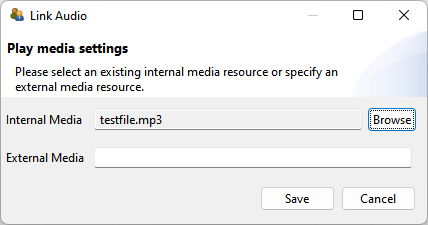
FIGURE 3.120: Link Audio dialog for Audio components.
Internal vs. External Media: In addition to internal resources that are part of the CBA ItemBuilder Project Files (referred to as Internal Media, audio and video files can also be inserted as URL’s (referred to as External Media). It should be noted, of course, that the External Media must then also be available at the time of the test execution, which is typically not guaranteed for offline deliveries (see section 7.2).
Controls: The CBA ItemBuilder allows using audio and video resources with the default controls (i.e., a start and a stop button; property Hide Controls: false). With this setting, test-takers can also navigate within the audio and video files and thus reset the playback. Alternatively, the default buttons can be hidden with the Hide Controls: true option. For this use case, the setMediaPlayer() operator must then be used to start the output and pause or stop it if necessary (see section 4.4.6). This property Hide Controls is illustrated for audio and video components in the item shown in Figure 3.121.
FIGURE 3.121: Item illustrating the use properties Hide Controls and Max Play of Audio and Video components (html|ib).
Max Play: Variables and the finite-state machine can be used to control precisely when and how often multimedia resources can be played if the standard controls are not used to control audio and video output. For simple use cases, however, the Max Play property (the default value \(0\) means any number of times) can be used to specify how often an audio file or a video file can be played. When the number is reached, the default controls are automatically hidden (see the item in Figure 3.121 as an example). The Max Play value can be changed directly in the Properties view.
Note, however, that using a custom Play button (i.e., a component of type Button that triggers an event and uses the Finite-State Machine operator setMediaPlayer() to play the audio, see section 4.4.6) is not acknowledging the Max play setting (see Figure 4.54) for an implementation of a restriction for audio playback using Finite-State Machine variables).
The link between the components of type Audio and Video and the Finite-State Machine is provided by a number of events that can be triggered (and processed by the Finite-State Machine, as described in section 4.4; see Figure 3.122).
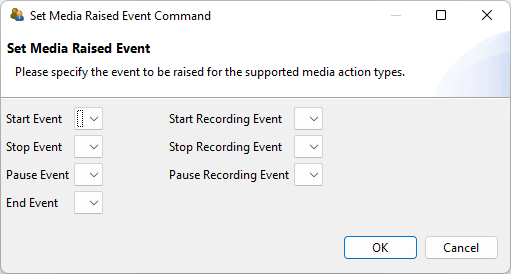
FIGURE 3.122: Set Media Raised Events dialog for Audio components.
End Event is also provided, and the events are triggered even if the playback state is changed by an FSM operator (see section 4.4.6).
Automatic Start: If an audio or video resource is to be played automatically when a page is visited, this can be configured with the Automatic Start: true property. The items created with the CBA ItemBuilder are rendered in web browsers. Thus they are subject to the security restrictions of the browsers. One of these security restrictions requires user interaction before audio output may be started. This is always not the case if Automatic Start: true (or via the Finite-State Machine) is used to start an audio output in an item before the user has clicked or otherwise interacted with the HTML output. This is not a problem for operative test execution, as user first interaction is usually triggered by entering a login name or confirming the privacy notices before the first audio output is required. However, the security restriction also applies to editing items and the Preview used for this purpose. Therefore, the Preview can also be started with a simulated login dialog (see Show Login Dialog option in section 1.4.2). If this option is not activated (and the warning message of the CBA ItemBuilder is ignored), the Automatic Start function cannot work in the Preview.
Audio Volume: Controlling the audio volume is possible with the components of type ‘Audio’ and ‘Video’ for the test-taker when the default controls are used (Hide Controls: false). If the start volume of the is to be set or if the volume of individual audio or video components is to be changed, an operator is available (see section 4.4.6) that can be used in the finite-state machine. Controlling the system volume of the device on which the web browser is executed within which the items created with the CBA ItemBuilder are rendered is not possible from within the item. The test delivery software can take over this functionality if the test execution takes place under controlled conditions (e.g., using kiosk mode with a USB stick deployment, see subsection 7.5.3 for an example).
Alternate Video / Alternate Audio: Not all video formats (formerly also audio formats) are supported in all browsers. The CBA ItemBuilder, therefore, provides the functionality to link an Alternate Video to a component of type Video in addition to the primary resource (Audio analogously). The alternate media is used if a browser does not support the primary media.
Recording: The audio component can also be configured to record audio, using the property Record Audio: true. Starting (and ending) the recording is connected, for instance to buttons, as shown in Figure 3.123, using the dynamic features (i.e., Finite State Machine Events) described in Chapter 4.
As Figure 3.124 shows, the component of type Video can also be used in the same way to record from the webcam.
Note that the audio (and video) recording will only work if access to the microphone (or webcam) is granted.
A couple of additional features of Audio and Video components appear in the CBA ItemBuilder user-interface but are currently either deprecated, still under development or undocumented. The property Use Audio is currently not functional. Moreover, as illustrated in Figure 3.121 the Frozen property is currently not functioning, and the feature VideoTextArea is currently not used.