3.2 CBA ItemBuilder Projects Files

After describing the user interface of the CBA ItemBuilder, this section turns to the content that can be created with the authoring tool. The CBA ItemBuilder uses Project Files that are plain ZIP-archives. The Project Files (with the file extension *.zip) contain the task specification, settings, pages, syntax for scoring and the finite-state machine as well as all resources (e.g., graphics, videos) used by the project. Moreover, the ZIP archives contain the generated data required for rendering the item during runtime (see section 2.11.2).
3.2.1 Working with Project Files
As already described in the section 1.4.1, the CBA ItemBuilder is an editor for item projects, which are stored as ZIP archives. The Project Files are not created using the Explorer. Instead, Project Files are created inside of the CBA ItemBuilder.
Creating new Projects: After the CBA ItemBuilder has been started, a project must either be created, or an existing project can be opened. To start with an empty project, the menu File contains the entry New project ( ). To create a new project, the input of a valid project name is mandatory. The name selected here is subject to some restrictions:
template for CBA ItemBuilder projects is not allowed. The name of the Project File (i.e., the ZIP archive) is by default the Project Name, but projects can be renamed (see Figure 3.10) and project files can be renamed (by changing the name of the ZIP archive outside of the CBA ItemBuilder or by using Save As...) independently.
The file name is by default identical to the Project Name. To save a Project File with a different file name, use Save as... (see section 3.2.1). To rename a project, use the entry Rename project (see Figure 3.10) in the context menu of the Project View.
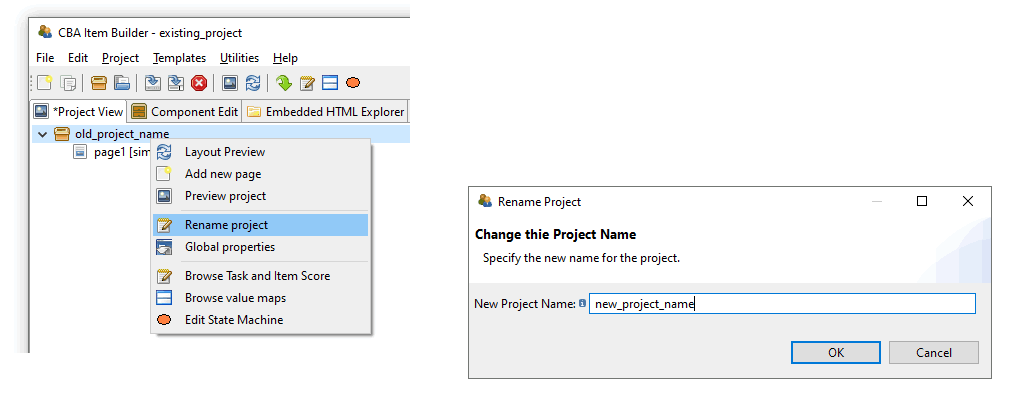
FIGURE 3.10: Rename Project-Dialog accessible form context menu in Project View.
Valid Project Names: If an invalid project name is entered, the CBA ItemBuilder displays the message shown in Figure 3.11 next to the  -icon. In this case, change the name to comply with the naming rules and confirm the dialog with OK.
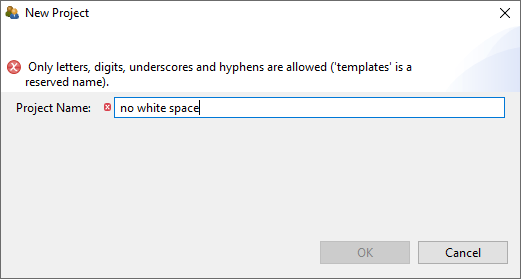
FIGURE 3.11: Warning about allowed characters for project names.
Download Project Files: Only local files can be opened in CBA ItemBuilder. Therefore, CBA ItemBuilder Project Files must be downloaded as ZIP archives when shared over the Internet. Web browsers have a habit of opening ZIP archives after download. Make sure you open Project Files unchanged as a ZIP archive in the CBA ItemBuilder.34
Rename Projects Files (Save as...): By using Save as from the File menu and choosing a different name, the CBA ItemBuilder renames the file but not the project. Renaming the ZIP file is therefore not sufficient to rename the project (see section 3.2.1).35
Use of CBA ItemBuilder Project Files: CBA ItemBuilder project files (i.e., ZIP archives) can be used directly in delivery software (see section 7). For the definition of tests (i.e., the so-called test assembly), assessment components stored in CBA ItemBuilder project files are referenced via the project name and the entry point (Task, see section 3.6). It is recommended not to change the file names of different versions and use tools for version management instead of files with different file names (see section 8.3.2).
The configurations required at runtime (see section 2.11.2) are automatically generated with each normal save and Project Files can be used directly after saving if no error message was displayed.36
Save Projects: Saving projects is possible using either Save from the File menu (or the icon in the toolbar).
If a project containing unsaved changes is to be closed, the dialog shown in Figure 3.12 is displayed.
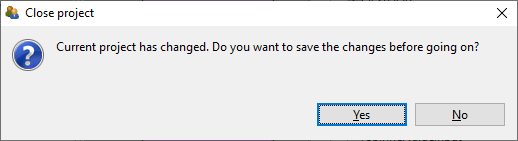
FIGURE 3.12: Dialog asking to save the changes in the current project.
Inconsistent Project States: Saving CBA ItemBuilder projects shows a warning if the runtime code (i.e., the definition of the item used for deployments) is invalid. Hence, a Preview (see section 1.4) might be required, as shown in Figure 3.13. (ref:IBPreviewRequired) Dialog asking for a preview of the current project before saving the project file is possible.
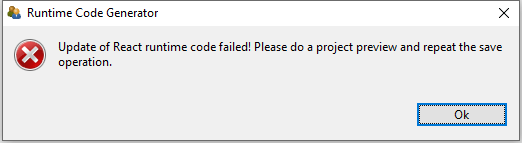
FIGURE 3.13: (ref:IBPreviewRequired)
The runtime code is created, whenever a project is previewed. However, there are selected configuration conflicts (i.e., inconsistencies) that make the creation of this runtime code and the preview impossible and therefore also prevent the saving of the items. In these cases the CBA ItemBuilder gives an error message and points to the place in the item definition which prevents saving (see Figure 3.14 for an example). This issue will occur as rarely as possible in practice, if changes are regularly previewed and saved and if configuration inconsistencies (e.g. incorrect or empty UserDefinedID’s in the scoring definition) are corrected as soon as possible.
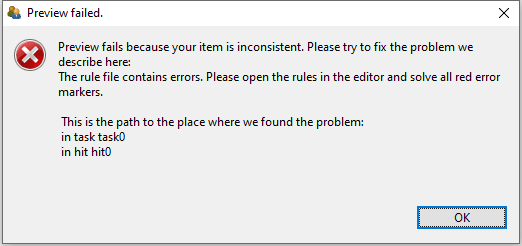
FIGURE 3.14: Request to preview the current project before saving the project is possible.
As shown in Figure 3.14, the CBA ItemBuilder provides a detailed description where the inconsistency is located (i.e., in this example, previewing and saving the project would be possible after changing the hit0 in task0, see chapter 5 for details about scoring). Inconsistencies can also occur at other locations (task definition, conditional links, value maps, finite-state machines), but the CBA ItemBuilder will always provide a useful hint (i.e., a path) where to spot the issue.
Migration and use of Multiple Versions (Details): The CBA ItemBuilder is updated at regular intervals. The software development tries to ensure that project files of previous CBA ItemBuilder versions can be used in newer software versions. For this purpose, files from older versions can be opened in the more recent CBA ItemBuilder. The internal data structures will be automatically transferred to the new data formats if necessary and possible (called Migration). Updating old items might require migrating in several steps.
3.2.2 CBA Presentation Size
CBA ItemBuilder projects are designed for a particular size (CBA Presentation Size), defined in pixel height and width. This CBA Presentation Size is designed to match the expected average screen size (in pixels) to avoid raster images with too low or too high resolution.
Item Design: The CBA Presentation Size is used to define the actual size of the assessment component or at least the proportional size (i.e., the aspect ratio of width and height) used to position content in the form of components. Depending on the configuration of the deployment software, the CBA Presentation Size may be proportionally scaled. Without scaling, the CBA Presentation Size corresponds to the content size at 100% zoom level.
The CBA Presentation Size for new items can be configured in the dialog Preferences, which can be found in the menu Utilities of the CBA ItemBuilder located in the menu entry Open preferences (see Figure 3.15). To define the item size that is used for newly created items, select the element CBA CBA Presentation Size on the left and adjust height and width of the item in pixels.38
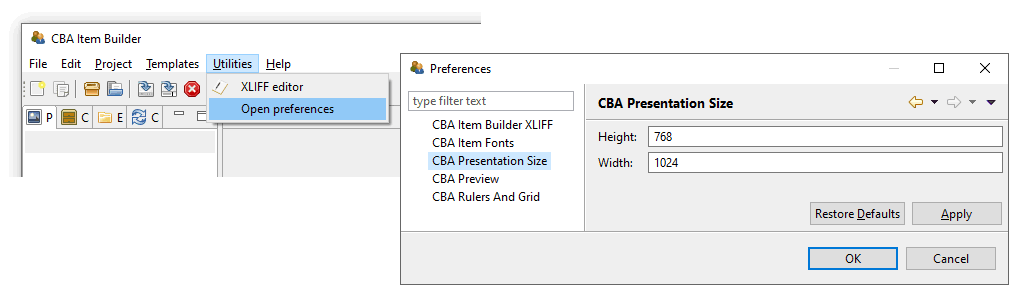
FIGURE 3.15: CBA ItemBuilder Preferences to define the CBA Presentation Size for new projects.
For existing CBA ItemBuilder projects, the CBA Presentation Size (see section 3.6.2) is part of the Global Properties (see section 6.3 for details).39 Hence, if the preview of your item is not correctly showing the item with the correct size, the CBA Presentation Size for the project can be changed in the Global Properties. After opening an existing project, the entry Global Properties can be selected in the context menu of the Project Name in the Project View using the right mouse button as shown in the following Figure 3.16 and the CBA Presentation Size must be adjusted in the dialog that then opens:
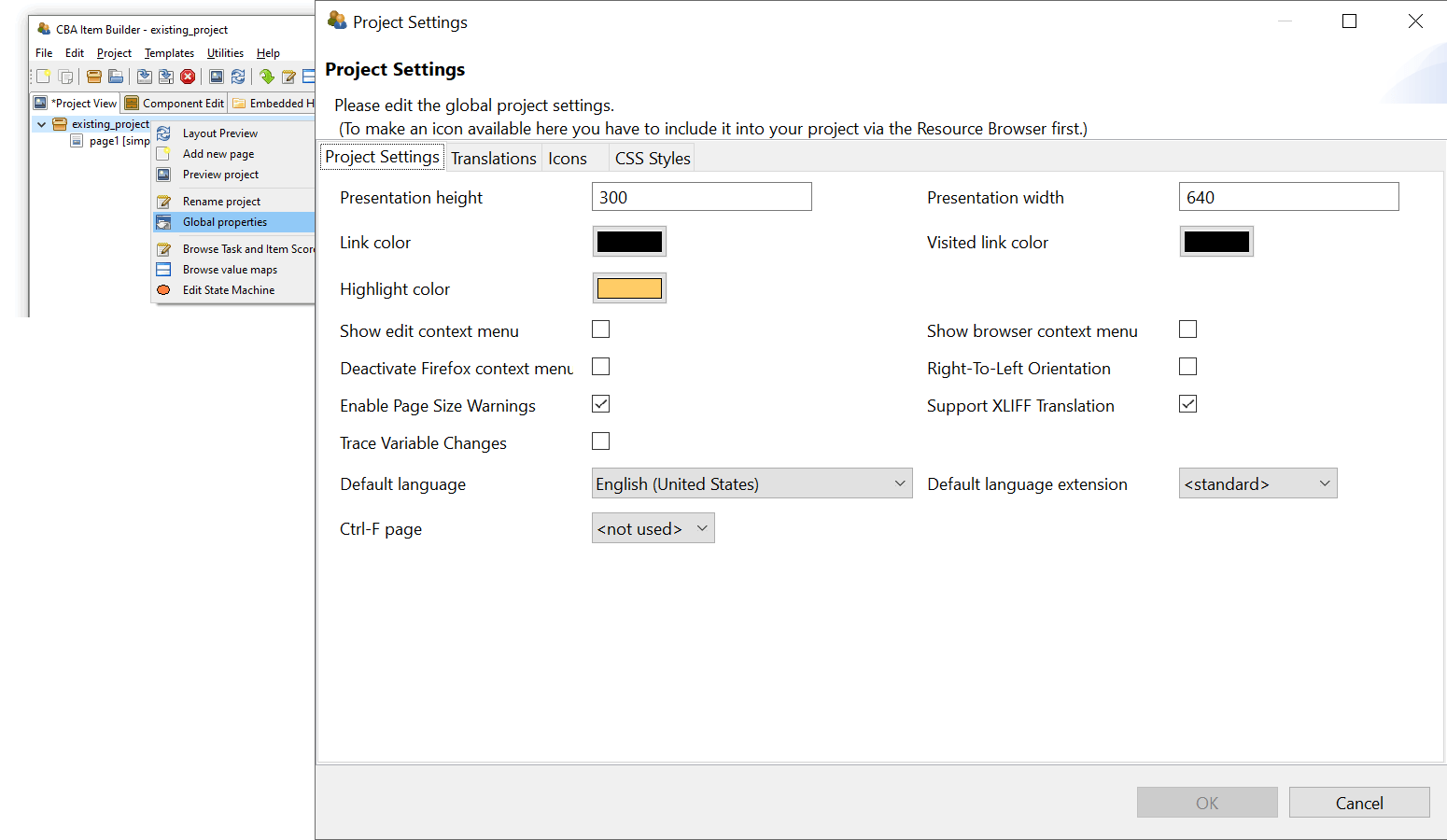
FIGURE 3.16: CBA ItemBuilder Global Properties to define the CBA Presentation Size for existing projects.
Item Deployment: For the use of CBA ItemBuilder generated items, the Presentation Size defines the display size and aspect ratio for which the items are designed. Within the space available for the delivery in a web browser or browser component, the deployment software is expected to provide options to customize the behavior: Alignment of the content in horizontal (left, center, right) and vertical (top, middle, bottom) direction as well as optional Proportional Scaling of the content (un-scaled, up-and-down, down).40
Tip: When starting a new project, the following questions can help to find the best CBA Presentation Size:
Should the items be optimized for a 4:3 display (e.g., 1024x768 pixels) or for a 16:9 display (e.g., 1366x768 pixels)?
Should the items be displayed in portrait format (width > height) or landscape format (height > width) with as few white borders as possible?
Are low-resolution screens (e.g., notebooks with 1024x600 pixels), medium-resolution (e.g., computers with FullHD monitors), or high-resolution screens (e.g., modern tablets or computers with 4K resolution) expected?
Should the items be delivered in full-screen mode, or is additional space on the screen necessary for either navigation or the browser window?
Is extra space covered by an on-screen keyboard, or do the items either not require a keyboard, or can a hardware keyboard be assumed?
Scaling Options: Proportional scaling should ensure that the items can still be displayed even if answers to this question change or if the test is performed on heterogeneous hardware. However, the display and usability may then be less than ideal. Deployment software should provide the following options, that also can be requested by item authors for task Preview (see also section 1.4.2):
None: Content is presented at 100%, and either a scrollbar appears (if the CBA Presentation Size of a task is larger than the effectively available size on screen) or space on screen remains empty. The position of the unused space will depend on the configuration for Horizontal and Vertical alignment.Up: If the CBA Presentation Size is smaller than the effectively available size on screen, the space will be filled, but content will not be scaled down.Down: If the CBA Presentation Size is larger than the effectively available size on screen, items will be scaled to fit the screen, but content will not be scaled up.Both: If the CBA Presentation Size is smaller than the effectively available size on screen, the space will be filled and if the CBA Presentation Size is larger than the effectively available size on screen, items will be scaled to fit the screen.
References
For CBA ItemBuilder versions prior to 9.4: If a file with a particular file name already exists in your download folder, browsers often create copies with modified file names (e.g.
my_project (1).zipinstead ofmy_project.zip). Make sure that files are saved with their original name when you download CBA ItemBuilder Project Files.↩︎Prior to 9.4: Do not rename your project by just changing the name of the ZIP file on your computer without opening it in the CBA ItemBuilder. If you rename a project file in the file explorer or finder, the project will be destroyed and cannot be used any longer with the CBA ItemBuilder.↩︎
Prior to 9.0: Previous versions of the CBA ItemBuilder have provided an additional function Generate & Save. This is no longer necessary in the newer CBA ItemBuilder versions.↩︎
Unlike what might be known from Office programs, for example, the CBA ItemBuilder does not create automatic backups. So save the project after creating and during editing regularly.↩︎
The order of height (first) and width (second) attribute in the dialog Preferences might be unfamiliar.↩︎
The
ini- file (see appendix B.4) can be used to configure the default CBA Presentation Size of the CBA ItemBuilder.↩︎According to this procedure, multiple item variants should normally only be created if, for example, item contents are to be distributed differently on pages in portrait format (vs. landscape format, see section 2.4).↩︎