4.2 Variables and Value Maps

Variables are placeholders for values of a particular variable Type, used in the logic layer of CBA ItemBuilder projects.
INTEGER (i.e. can only contain numbers without decimal places), NUMBER (i.e. floating point numbers with a specific accuracy), STRING (i.e. text represented as characters) or BOOLEAN (i.e. logical values true or false).
Variables can be used for various purposes, for instance, in conditions of the finite-state machine rules (see section 4.4.5) or to adapt the presentation of text, numbers or images 4.2.5. To map values of Type INTEGER to text, images, audio and video files, Value Maps are used (see section 4.2.4).
Variables are created in the CBA ItemBuilder by specifying a unique Variable Name on the project level (see section 4.2.1) and by defining the Type of the variable and an initial value. Variables are globally available across different states of the finite-state machine(s) and can be used by different pages within a project. In this way, variables provide a way represent addition information across states and this information can be used to control the behavior and the visual presentation of complex items within Tasks. The initial value of variables is defined (see section 4.2.1 and can be adopted to Task-specific values using Task Initialization Rules (see section 4.5). Values of variables can also be changed within transitions of the finite-state machine (i.e., using Operators as described in subsection 4.4.6). Moreover, variables can be linked to specific input components (see section 4.2.2).
Variables can be used at various places, for instance, to formulate conditional rules in the finite-state machine (see 4.4.5). Moreover, in connection with Value Maps (see section 4.2.4) and Map-based Value Displays (see subsection 4.2.5) variables play an essential role for the connection of static and dynamic content. In the following, Variables are introduced in more detail beginning with their definition (see section 4.2.1). Specific values of variables can be labeled by naming them (see section 4.2.1).
4.2.1 Introduction
Variables are defined in the Browse Variables view of the CBA ItemBuilder that can be requested using the entry Browse Variables of the menu Project (or using the icon  ). After requesting Browse Variables an editor opens up in the right part of the CBA ItemBuilder as shown in Figure 4.4 (see also section 3.1.4).
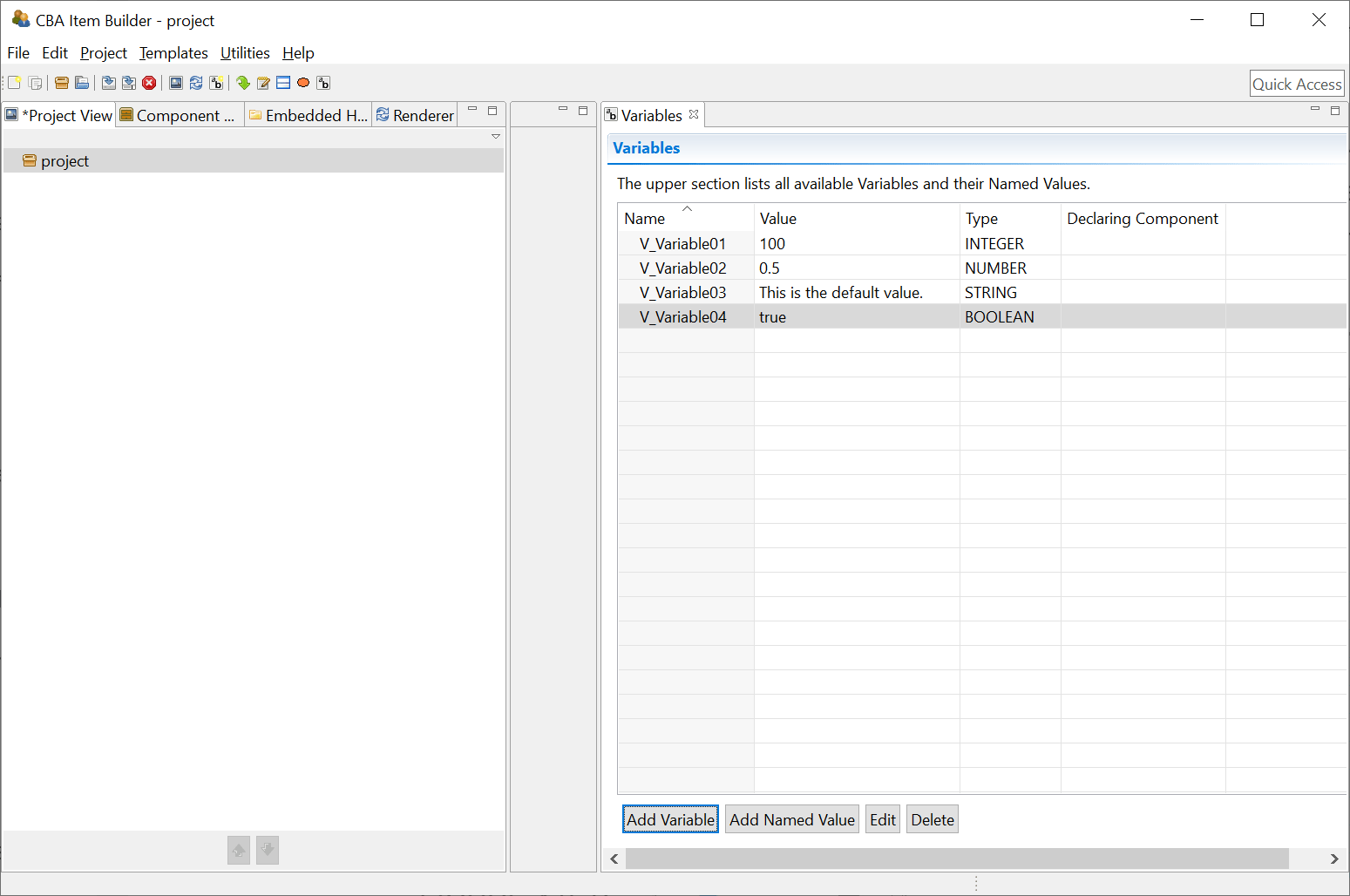
FIGURE 4.4: Editor for Variables.
Variable Definition: Adding new variables with the button Add Variable and editing existing variables using the button Edit opens the dialog Set Variable attributes as shown in Figure 4.5. The Name of variables must be unique and follow the rules already described for project names and page name (i.e., only letters, digits, and underscores are allowed and the first character must not be a digit).
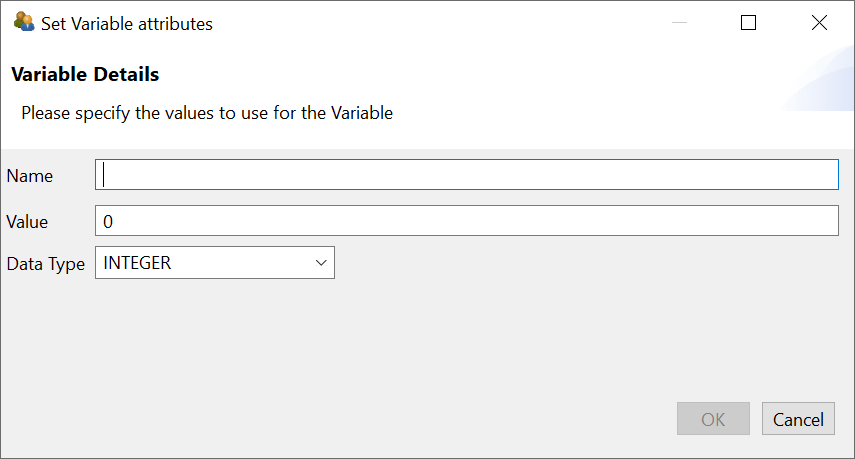
FIGURE 4.5: Set Variable attributes dialog.
Each variable requires a Type (either INTEGER, NUMBER, STRING or BOOLEAN) and the provided Value must fit to the variable Type. The value is only the default value of variables that can be changed in various was.
Named Variable Values: Individual values of variables can be assigned to labels. These so-called Named Values help to make syntax that uses the variables easier to read and understand.
For defined variables the button Add Named Value can be used to add new Named Values (and the buttons Edit and Delete can be used to modify or removed Named Values). Named Values are CBA ItemBuilder’s approach to improve readability of syntax that implements different interpretation on specific values of variables. Instead of adding a comment that the value \(1\) represents, for instance, Visited and the value \(2\) of a variable represents Not Visited, named values can be defined for variable values.
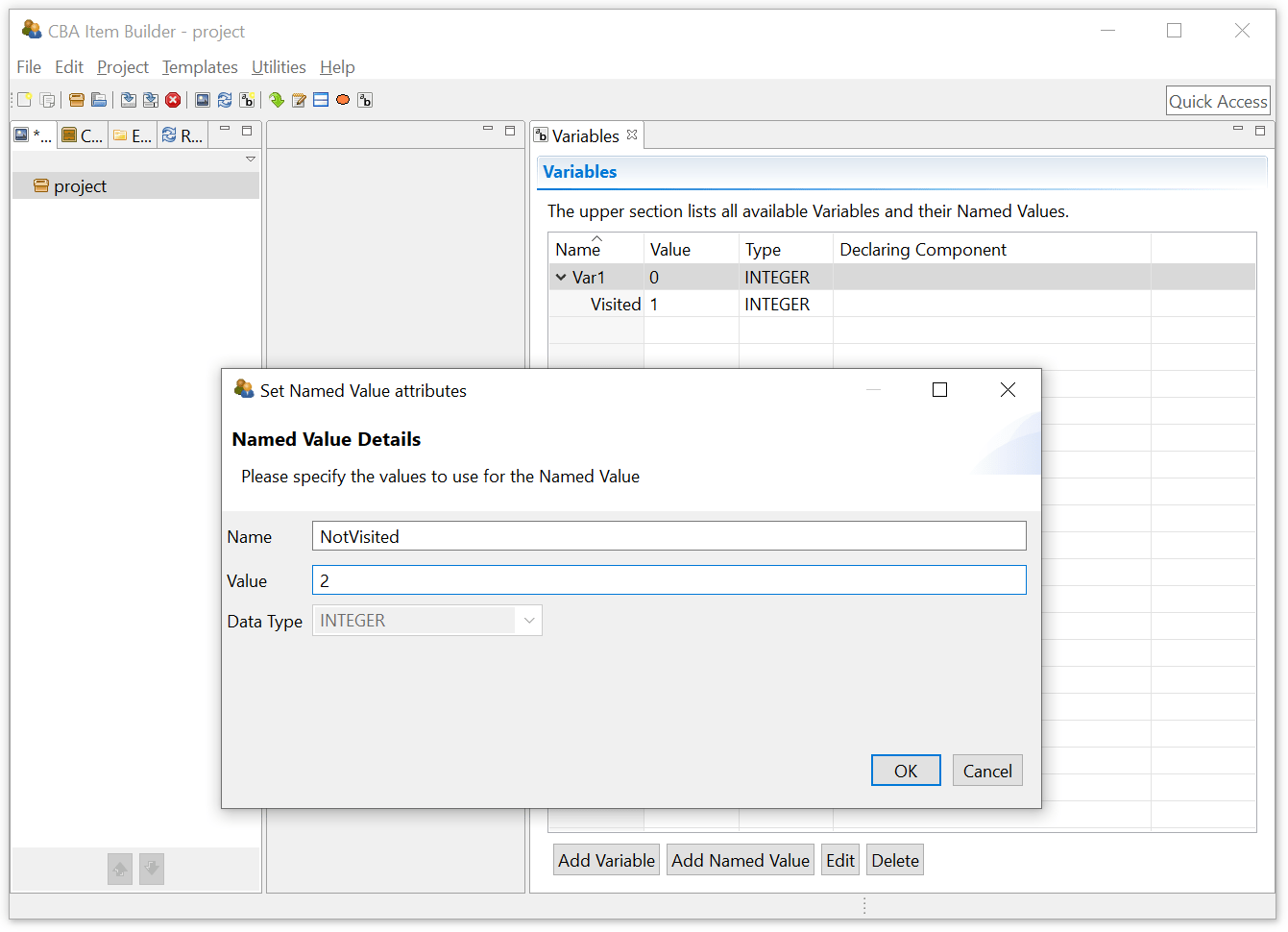
FIGURE 4.6: Set Named Value attributes dialog.
Named variables can be used to structure the syntax of finite-state machines (see section 4.4). To display different labels according to variable values, so-called Value Maps can be used as described in section 4.2.4).
Change Variable Values: The prerequisite to use variables for dynamic content is that values of variables can be changed at runtime, either in connection with a user interaction or based on triggering events, such as time-controlled finite-state machine events. Values of variables can be changed with different mechanisms, which are listed in the following:
Special input elements (so-called Value Inputs) can be bound directly to variables, so that a change to the input elements directly causes a change of the variable values. Details about Value Inputs are described in the section 4.2.2.
Drag-and-drop operations can also be used to change the values of variables. The drag-and-drop fields (using so-called
MapBasedVariableDisplays) are assigned to variables whose values are changed by the drag and drop user interaction. A detailed description of the possibilities for implementing drag and drop in the CBA ItemBuilder can be found in the section 4.2.6.
- Variable values can be set or changed using
set()- andreset()-Operators in Conditional Links (see section 4.3.3) and in Rules of the Finite-State Machine (see section 4.4.6).
Variables keep their values across page (and state changes in the finite-state machine, below). Thus variables can be used to represent additional information that describe the behavior and visual presentation of items, in addition to the Current State of finite-state machine(s).
Use Variable Values: The value of variables can be used fur different purposes, for instance, to display dynamic numbers, texts, images and videos (see section 4.2.5), to specific conditions for scoring (see section 5.3.5) or to create conditional Finite-State Machine Rules (see section 4.4.5).
4.2.2 Value Inputs
The CBA ItemBuilder provides some components, that change the value of Variables in line with user interactions. In particular sliders (ScaleVariableInput), spinners (SpinnerVariableInput) and input fields (VariableValueInput) are directly linked to variables of type INTEGER (see Figure 4.7).
Link Variables to Components: Components that can be linked to variables (e.g., Value Inputs) provide a context menu entry Link Variable as shown in Figure 4.8. Analogous to the definition of Links, the use images, audio and video files, the assignment of Events and Value Maps, the connection of components to variables is made via the context menu entry Link Variable.
Components of type VariableValueInput and SpinnerVariableInput only need to be linked to a variable. Changes in the input immediately change the value of the linked variable. Components of type ScaleVariableInput also need to be linked to a so-called Value Map (see section 4.2.4).
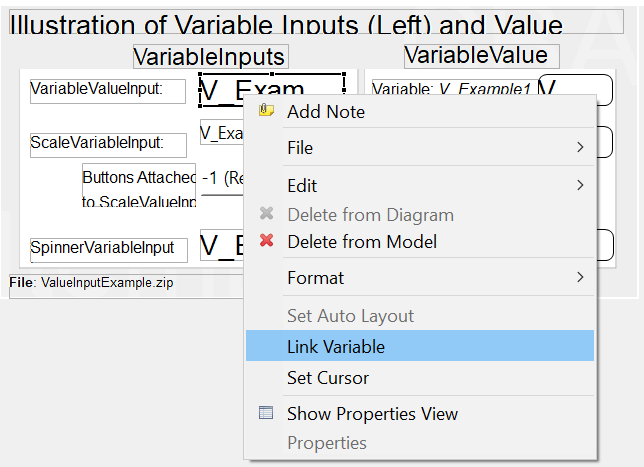
FIGURE 4.8: Context menu in the Page Editor to Link Variables.
Attach ScaleValueInput to Buttons: Components of type Button (see section 3.11.2) can be linked directly to ScaleValueInput so that a click on a particular button increases or decreases the value of the linked variable. The numerical value to increase or decrese the variable must be specified as the property Increment in the Properties view (can be a positive or negative integer number, default is \(0\)). To assign a Button to a ScaleValueInput use the entry Attach ScaleValueInput in the context menu of a Button in the Page Editor and select the ScaleValueInput in the dialog (see Figure 4.9).
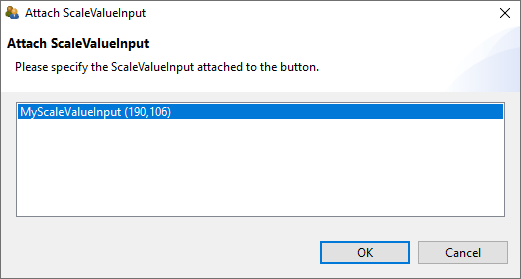
FIGURE 4.9: Dialog for assigning a Button to a ScaleValueInput.
4.2.3 Variable Value Displays
An essential use of variables is to display values within assessment components, i.e., on the side of an item. For this use case, VariableValueDisplays are provided as component that show the value of linked variables plain and unchanged. Examples of using components of type VariableValueDisplay can be seen in the right part of Figure 4.7 and in Figure 4.10.
Layout: Font family, font size and font color, text alignment and text decoration as well as borders and transparency of VariableValueDisplays can be defined in the Properties view.
Events: VariableValueDisplays raise an FSM Event (see section 4.4.3 and Figure 4.35) and the Variable Displays as well as Maps-based Variable Displays (see section 4.2.5) can be used to implement Drag-and-Drop user interactions (with the additional FSM Events, see section 4.2.6).
4.2.4 Value Maps
Variable values can not only be displayed 1:1, but can also be displayed as images, audio or video files or as text with the help of translation tables. The assignment of values of a variable to other values is defined in the CBA ItemBuilder with the help of Value Maps.
Value Maps are defined in the Value Maps view of the CBA ItemBuilder that can be requested using the entry Browse Value Maps of the menu Project (or using the icon  ). After requesting Browse Value Maps an editor opens up in the right part of the CBA ItemBuilder (see also section 3.1.4). The Value Maps view as shown in Figure 3.1.4 contains an upper table of all defined Value Maps with a Value Map Details view in the lower part.
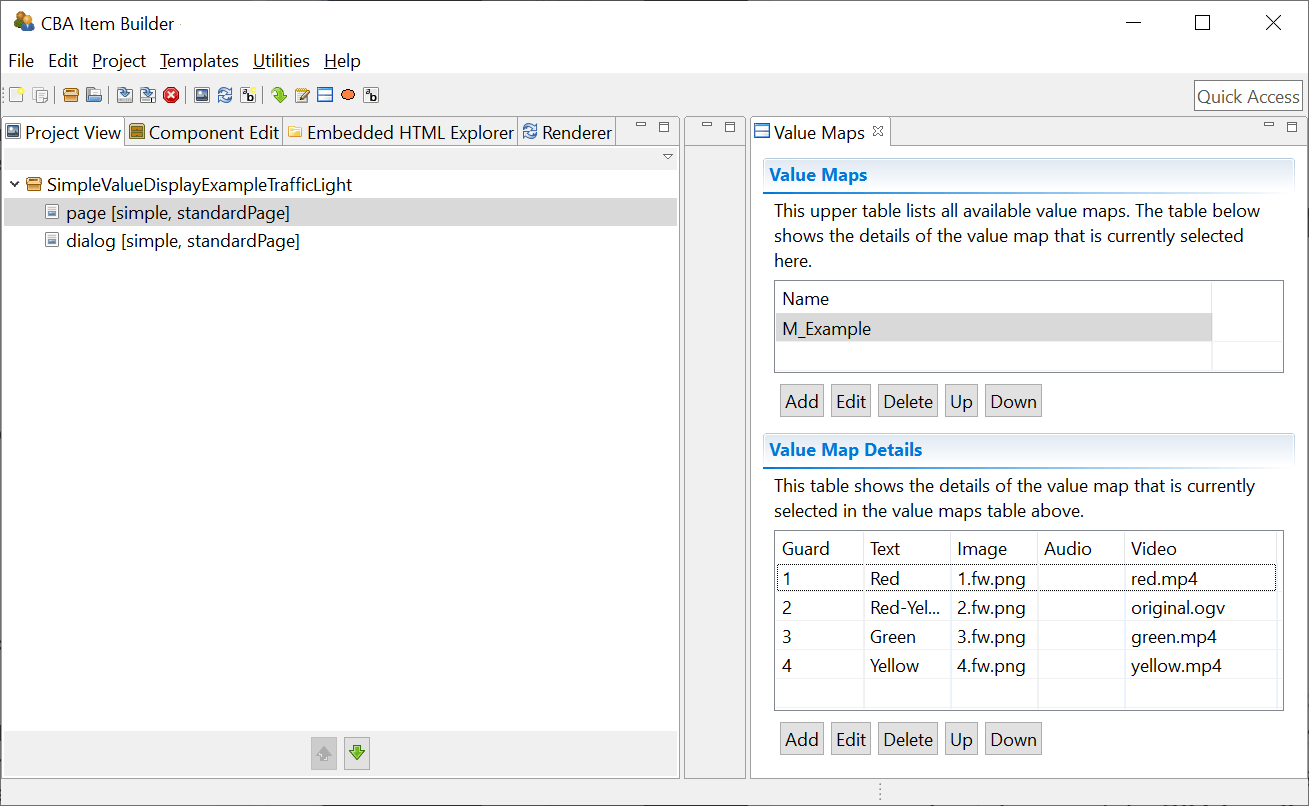
FIGURE 4.11: Editor for Value Maps.
Value Maps can be added using the Add button in the upper table, requiring a name that can be changed using the Edit button. The value maps in the upper table can be re-ordered using buttons Up and Down.
Once a Value Map has been created and selected in the upper table, new entries can be added with the Add button and modified with Edit.
In the example in Figure 4.11, the Value Map M_Example is selected in the upper pane, so the Value Map Details view shows the defined values. For each definition a Guard is necessary, together with at least one text, one image, one audio resource or one video resource. It is also possible to assign different resources directly to a Guard. In the example in Figure 4.11, Guards \(1\), \(2\), \(3\), and \(4\) are each assigned a text, an image, and a video.
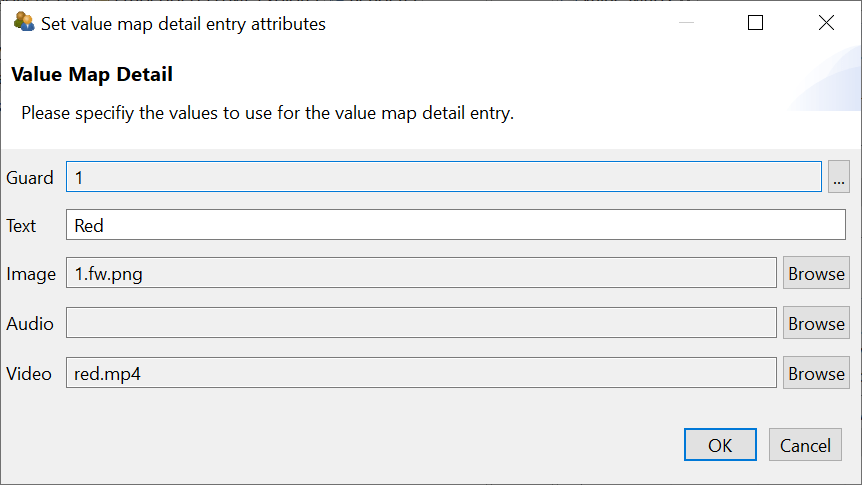
FIGURE 4.12: Dialog Set value map detail entry attributes.
Text resources can be defined directly in the editor in Figure 4.12 by typing. Images, audio, and video files refer to the resources imported via the Resource Browser (see section 3.10.1) in a CBA ItemBuilder Project File.

FIGURE 4.13: Dialog for defining Guards using the dialog Set value for column Guard.
For the definition of Guards, a choice can be made between the Default Value (i.e., the value when no other Guard applies), a single numerical value (Single Value), and a range between two numerical values (Interval), see Figure 4.13).
Variables and Value Maps are permanently assigned to components when designing pages. However, both can be freely combined between different components, i.e., a Variable can be used with one Value Map in one component and with an additional Value Map in another component.
4.2.5 Maps-based Variable Displays
Components of type MapBasedVariableDisplay can be used with Variables for displaying dynamic content in the CBA ItemBuilder pages. A static example is shown in Figure 4.14 (see section 4.2.6 for the use of MapBasedVariableDisplays in combination with Drag-and-Drop).
The component MapBasedVariableDisplay can be used to display either text or images or to play audio or video files (to show the raw number of a Variable the component VariableValueDispaly as described in section 4.2.3 is provided). To define which part of the Value Map should be used, the property Value Display Type must be defined in the Properties view (see Figure 4.15).
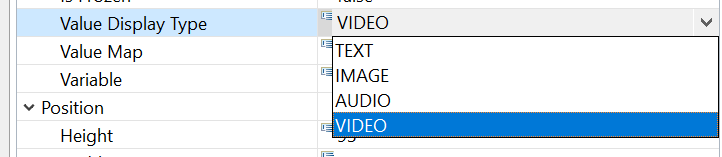
FIGURE 4.15: Property Value Display Type for components of type MapBasedVariableDisplay in the Properties view.
Link Value Map to Components: All components that can use Value Maps, for instance, MapBasedVariableDisplays, provide an entry Link Value Map in the context menu. In the then opening editor Set Value Map, an existing Value Map can be selected. To remove an assigned Value Map, the Set Value Map editor allows deselection.
4.2.6 Drag-and-Drop
Drag-and-drop response formats can now be implemented using Variables (see section 4.2) and Maps-based Variable Displays (see section 4.2.5). Let’s start with two examples from real assessments (Jiang et al. 2021) shown in Figure 4.17 and 4.18 (see Gong et al. 2022 for an example how to analyze the log data collected with these items).
Figure 4.19 illustrates how value of variables are changed with drag-and-drop operations. Inspect the example and first of all see, how the Dragged element corresponds to the variable value of the MapBasedVariableDisplay at which the drag-and-drop operation was started. The variable value is shown in the item, as soon as an element is dragged.
At the moment when a drag-and-drop operation is completed (i.e. at drop) the values of the variables are swapped in this example (drag-and-drop mode is DROP_SWITCH, see Figure 4.21 for alternative configurations).
Technical Details and Concepts For the description and definition of drag-and-drop, a distinction must be made between a drag-and-drop source and a traget. Drag-and-drop is when something is moved from source to target, either with the mouse as pointing device or by touch.
Either the MapBasedVariableDisplays are dragged and dropped on fixed positions, or for free positioning, drag-and-drop allows to move the MapBasedVariableDisplays within a parent panel. Figure 4.20 illustrates both types of drag-and-drop functionality: On the left sid, drag-and-drop of MapBasedVariableDisplaysis possible within a Panel with the property Drop Target=true (free drag and drop). On the right side, drag-and-drop is possible between MapBasedVariableDisplays on fixed positions. For both modes, MapBasedVariableDisplays are used as draggable/droppable components.
Drag-and-drop only requires Variables and Value Maps together with MapBasedVariableDisplays. Dragging an element from a source position to the target position results in a change of values of the variables linked to the MapBasedVariableDisplay. The behavior of successful drag-and-drop operations of an object from a source to a target is configured by defining how variable values are changed. The semantic of the drag-and-drop behavior is reduced to modifying the values of the underlying variables, linked to the MapBasedVariableDisplays. This has the advantage that scoring can be done quickly based on the variable values and the various scoring operators (see chapter 5). The following three modes are available that define, how variables are changed after a sucessful drop-operation: DROP_SWITCH, DROP_MOVE and DROP_COPY (see Figure 4.21).
The variables are always assigned to a MapBasedVariableDisplay, but the different MapBasedVariableDisplays do not have to use the same Value Maps. This also allows drag-and-drop groups to be implemented, as shown in Figure 4.22.
MapBasedVariableDisplays provide specific Events that can be used in the finite-state machine (see section 4.4). The default Raised Event is triggered, when a MapBasedVariableDisplay is clicked, a Drag Event is triggered together with drag operations and a Drop Event is fired when something is dropped at a MapBasedVariableDisplay (see Figure 4.35 for an example). Even complex pattern based on finite-state machine rules can be implemented using Events, for instance, to impose specific restrictions for allowed drag-and-drop operations.
4.2.7 Dynamic Text in HTMLTextFields
HTMLTextField's can be used to display dynamic text. To do this, you must insert keywords in the content of the HTMLTextField using the following syntax. These keywords are at runtime translated and replaced with the string values of the referenced parameters:
The possible values for ParameterName are either names of FSM variables or references to the scoring result of a task. Accordingly, this mechanism can be used, for example, to implement simple feedback or, in the case of complex tasks, feedback on the scoring can be built into the item, for instance, for testing purposes.
Dynamic texts can be used in component of type HTMLTextField with the keywords following the $-sign in curly brackets. Dynamic texts are updated at Runtime each time the HTMLTextField is refreshed (for instance, when the pages change or the HTMLTextField is clicked, see Figure 4.23 for an example).
If a parameters of the item score is requested and the name of the task is not defined in the project, -1 is shown at Runtime.
The following qualified values for ParameterName are available for dynamic texts:
| Qualified Parameter | Description |
|---|---|
| ItemScore .{TaskName} .{ScoreType} | Displays the value of the {ScoreType} for task {TaskName}. The task-name is defined in the task definition (see 3.6) and the {ScoreType} is one of the following keywords (see 5.4 for details): result, credit_Class, credit_weight, reactionTime, reactionTimeTotal, execTime, execTimeTotal, nb_Hits, nbInteractions, nbInteractionsTotal, Hit_weight, nb_Misses, Miss_weight |
| FSMVariable .{FSMVariableName} | Displays the value of the FSM variable {FSMVariableName} as string |