1.5 Quick Start: Explore Scoring

Viewing assessment content created with the CBA ItemBuilder in the preview (see section 1.4) also allows to view the built-in automatic scoring. A possibility to access the automatic scoring of tasks is useful, for example, to check which scoring results from a specific input or a certain test-taking behavior.
In the following, it is assumed that assessment content created with the CBA ItemBuilder is available that contains automatic scoring rules. This section aims to provide the required information for exploring the implemented scoring in project files, either for testing or understanding available instruments.
1.5.1 Basic Terminology
A majority of assessments conducted for the different use cases (see chapter 2) can be described as a data collection based on responses or test-taking behavior within a computerized environment. Accordingly, it can be useful to think of the result of assessments as a data set, typically with persons in rows and variables in columns.
Result Variables vs. Score Variables: For each person, the data set should contain the scored final answer to each item (e.g., a score variables either \(0\) for wrong, \(1\) for correct). The data set could also include a variable for the selected answer option (i.e., a raw result variable). Result variables and score variables can be defined for simple single choice tasks (see section 2.2) simply by naming the possible and correct answer option(s). For more complex computer-based items, the definition of a result variable may already rely on several input elements or may require the use of information from the test editing process.
Typically, score variables assign credits (no credit and full credit for dichotomously scored items and one or multiple additional partial credits for polytomously scored items) to possible result variables’ values. In other words, once all possible values of result variables are defined, the definition of the scoring variables is also almost done. Unfortunately, for polytomously scored items, defining partial credits is not necessarily possible without taking into account empirical data to make sure the intended order of partial credits holds empirically.
Manual Scoring vs. Automatic Scoring: An important distinction concerns the difference between automatically scored answers and manually scored answers. The integrated handling of scoring definitions implemented in CBA ItemBuilder concerns automatic scoring of mainly closed answers. This refers to responses by selecting an input element, selecting a page, entering a particular state, etc. For free text answers, the automatic scoring is limited to the identification of given text by means of regular expressions.
Classes as Variables: Each variable, i.e., each column in the result data set, is defined in the CBA ItemBuilder as a so-called class. Each part of an assessment, which is defined as a CBA ItemBuilder project file, can generate any number of result variables and the corresponding classes are defined within the tasks. Accordingly, the classes form the columns of the result data set. Thereby variables can either have categorical values (called hit-conditions) or take over character strings into the result variables (called result-texts).
Hit-Conditions as Values: Hit-conditions are logical expressions, which combine one or more possible inputs of test-takers. If, for instance, the correct answer option is selected in a single choice item, this can be indicated by a first hit-condition. If a wrong answer option is selected, this can be indicated by a second hit-condition. If the two hit conditions are defined so that either one or the other condition is active, then the two hit-conditions form the values of one variable. The assignment of hits to classes specifies this relationship of hit-conditions as the variable’s values. The CBA ItemBuilder provides a variety of options to define hit-conditions (see section 5.3).
Missing Values: Besides the hit conditions defined for specific constellations of responses, missing answers can find special consideration. For distinguishing reasons why replies or responses are not available for a particular test-taker in the result data set, hits can also be defined for so-called missing values (see section 2.5.2 for more details).
Text Responses: Beyond categorical variables, whose values can be defined by hit conditions, there are also answer variables that contain the text answers. For such variables, the sorting definition consists of specifying from which input elements the result text should be taken (see section 5.3.10).
Codebook vs. Scoring Definition: For the result data set of a computer-based assessment, all used variables should have so-called variable labels. For importing the data sets into statistical programs like SPSS, Stata, or R, the definition of a data type for each variable can also be useful. This information per variable is typically stored in so-called codebooks. Codebooks for CBA ItemBuilder tasks should define for each class whether it should be used as a categorical variable (i.e., hit conditions are used as values) or whether it uses the result text (i.e., the variable represents a text response). For categorical variables, the value labels can then also be defined in the codebook. The possible values of categorical variables are defined as hit conditions. For each hit condition, a value label and, if necessary, a numerical value must be defined in the codebook, with which the values of the categorical result variables should be represented in the final result data set. For CBA ItemBuilder tasks in assessments, the codebook represents a translation of the scoring definitions into result data sets. The next section describes how the scoring definition for CBA ItemBuilder tasks can be checked and displayed directly in the embedded preview, using the Scoring Debug Window.
1.5.2 Scoring Debug Window
Direct access to verify the scoring definition based on classes and hit-conditions for a running item is provided as the so-called Scoring Debug Window. If configured, this window can be called directly by a key combination (default is Strg / Ctrl + S, see appendix B.4 for details) as soon as the preview for a Task or a Project is requested as described in section 1.4.2. The Scoring Debug Window is available when a Task or Project is previewed using the CBA ItemBuilder.12
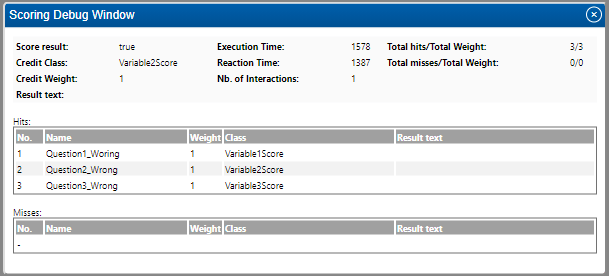
FIGURE 1.10: CBA ItemBuilder Scoring Debug Window.
Figure 1.10 shows a screenshot of the Scoring Debug Window for the example item shown in Figure 1.11. The Scoring Debug Window is organized into three sections:
The first section displays summaries for the entire task. This information can be useful for simple items (see section 5.4). Regarding the general description of automatic scoring using the CBA ItemBuilder, provided in this section, the task summaries are not relevant.
The second section contains the list of all hits assigned to classes and, if used, the result text. This list contains the information described in the previous section. The interpretation of these outputs is described in detail by means of examples in the following section.
Finally, the third section, not described here in detail (see section 5.3.2), contains potentially existing miss-conditions.
The three lines of the hits table in figure 1.10 can be read as follows: Line 1 shows that the hit Question1_Wrong is active, which is assigned to the class Variable1Score. Line 2 says that the hit Question2_Wrong is active, which is assigned to the class Variable2Score. Line 3 finally shows that the hit Question3_Wrong is active, which is assigned to the class Variable3Score. As the hit names suggest, neither Question1, Question2 nor Question3 was answered correctly. For all three variables in the data set, the expected information would be that the respective question were answered wrong.
Figure 1.10 shows the Scoring Debug Window for the CBA ItemBuilder project file shown in Figure 1.11. For the shown task three questions are defined on one page. Question 1 is answered correctly if option C is selected. Question 2 is answered correctly if option A and B are selected. The correct answer for question 3 is D.
With the help of the Scoring Debug Window, it can now be checked that the correct answer also causes the hit, which shows a correct answer to be activated.
The active hit or miss as shown in the column Nameof the Scoring Debug Window or the provided Result text is used as value for a variable (see column Class).
Examples: The CBA ItemBuilder shown in Figure 1.11 can be used to play with the Scoring Debug Window. In this project, the scoring definition differentiates wrong vs. correct responses. Accordingly, with respect to the differentiation in score variables and result variables, Figure 1.11 only contains score variables. To understand this property, select different wrong answers to the three questions for the following item and check the scoring with the Scoring Debug Window. As you can see, there is a distinction between correct and wrong answers. Which wrong answers are selected for the three questions is not taken into account in the scoring.
Figure 1.12 contains the identical three questions, but now with a scoring that contains result variables as well as score variables. A deployment platform that can handle CBA ItemBuilder tasks is expected to provide the variable as defined within the tasks. If the result data should contain variables that contain which answers were selected in addition to the variables for correct versus wrong answers, the result variables can be defined as part of the CBA ItemBuilder scoring.
For the Single Choice task (question 1), a hit shows the different possible choices (compare the hits Question1_OptionA, Question1_OptionB, Question1_OptionC, and Question1_OptionD which are all assigned to the class Question1).
Note, however, that for the Multiple Choice task (question 2), one class (i.e., one variable) is defined for each option. Accordingly, two hits for the class Variable2A show if option A for question 2 is selected (Question2A_Selected) or not selected (Question2A_NotSelected). One result variable is required for each option of a Multiple Choice task (see the classes Variable2A, Variable2B, Variable2C, and Variable2D). Moreover, as already shown in Figure 1.11 , the score variable for question 2 indicates if the two required options are selected (see hits Question2_Wrong and Question2_Correct for class Variable2Score).
Finally, for the Constructed Response task (question 3), the class Question3 only has one assigned hit (Question3). This hit, however, uses the so-called result_text()-operator (see section 5.3.10 for details). Using theresult_text()-operator causes the entered character to be displayed in the Result text column of the Scoring Debug Window. This illustrates that the text entered in the input field (here only one letter) can then be used for the result data set.
Summary: The definition of automatic scoring of items is described in detail in Chapter 5. Accordingly, this section did not describe how to define scoring. But it was shown that with the help of the Scoring Debug Window in the preview of the CBA ItemBuilder, the defined scoring can be checked and displayed for different inputs. In order to check for existing ItemBuilder project files whether the integrated scoring works correctly, it is not necessary to check the various rotations of a test delivery with a booklet design. The checking of the scoring can be done separately for the individual assessment components.
No Scoring Debug Window is present for the preview of single Pages.↩︎