1.4 Quick Start: Preview Items

Once the CBA ItemBuilder has been started, Project Files can be opened and presented using the so-called Preview feature. To preview an item means opening the project file within the CBA ItemBuilder desktop application and requesting the preview feature, which will bring up a web browser that shows a particular task.
In the following, we assume that you have either already received CBA ItemBuilder project files with item material. You could have obtained the CBA ItemBuilder project file from a collaborator, or a research data center (e.g., DIPF FDZ) or that you are starting to explore example projects from this book that can be downloaded from links provided in the figure’s captions (html|ib).
1.4.1 Basic Terminology
The CBA ItemBuilder is used to create and manage item projects. In order to implement a typical computer-based assessment, multiple project files are created and edited with the CBA ItemBuilder. If an assessment is created by several people, the individual project files can be shared and edited with one instance of the CBA ItemBuilder of the appropriate version. To see how the content of a project file actually looks like in the assessment, the Preview function can be used.
Project File: Projects files are zip archives that can be opened, edited, or modified and previewed with the CBA ItemBuilder desktop application to see the content of the assessment material that is included in that file. All content that belongs to an item project is stored in the zip archives, and the zip archives should be modified only with the CBA ItemBuilder as editor.
Project files contain all the information that belongs to a particular part of an assessment (e.g., an item, a unit, an instruction, etc.). More specifically, project files include:
The visual design of the item in terms of one or multiple pages, input elements, graphics etc. is included in the project file (see section 3.3).
At least one starting point (referred to as the entry-point defined as a so-called Task, see section 3.6 for details) must be defined. If multiple parts of the assessment are defined in one project file, multiple Tasks can be defined.
The internal logic controlling the behavior of the item (using so-called finite-state machine, see section 4.4) are included directly in the project file.
The definition of potential scoring rules (see chapter 5) are embedded in the project files.
Additional resources (such as images, sound, and video files, see section 3.10.1) required to render the assessment can be included in the project files.
Assessments implemented with the CBA ItemBuilder use one or multiple project files. The option of previewing CBA ItemBuilder project files, presented in this section, allows to view and inspect parts of assessments outside and independently from the delivery platform.
After a project file has been saved locally on the computer on which the CBA ItemBuilder is installed, it can be opened to start the preview. A typical file menu (see Figure 1.5) gives access to the basic functions for creating new projects (New project) opening existing CBA ItemBuilder project files (Open project), for saving a project file (Save), for renaming project files (Save As ...), and for closing the current project file (Close project).10
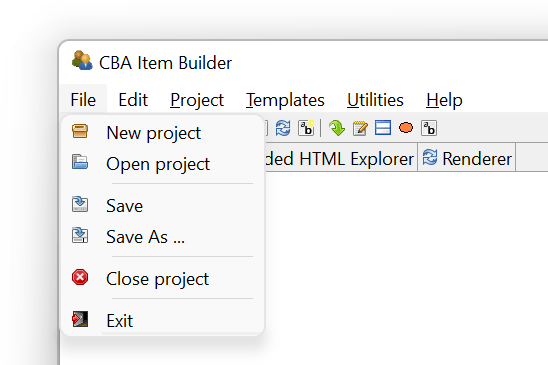
FIGURE 1.5: CBA ItemBuilder File-Menu.
Project Files, i.e., zip archives containing parts of assessments, can be copied, moved, and shared like ordinary files. Project files can also be managed using version control tools (e.g., GIT or SVN, see section 8.3.2).
One specific feature needs to be mentioned briefly (see section 3.2.1 for more information):
The zip archives created by the CBA ItemBuilder as Project Files contain everything needed to develop and use a particular assessment component, including the generated configuration files required for deployment (see chapter 7 for details). This configuration or code is automatically generated when the item is saved using the CBA ItemBuilder, and it is specific to a particular version of the CBA ItemBuilder.
1.4.2 Preview Item in Browser
The best way to get to know the CBA ItemBuilder is with concrete examples. In this manual all embedded items are linked as CBA ItemBuilder project files. As soon as you have downloaded a concrete CBA ItemBuilder project file and saved it as a zip archive locally on your computer, it can be opened with the CBA ItemBuilder. This link provides access to the CBA ItemBuilder project file shown in Figure 1.4.
Preview: The content of a CBA ItemBuilder project file can be displayed in a web browser in the way, the content will be presented in the actual assessment. This feature of the CBA ItemBuilder is called Preview.
There are several ways to request the preview for an opened CBA ItemBuilder project file. The easiest way is to use the main menu (Project > Preview project see first entry in Figure 1.6).
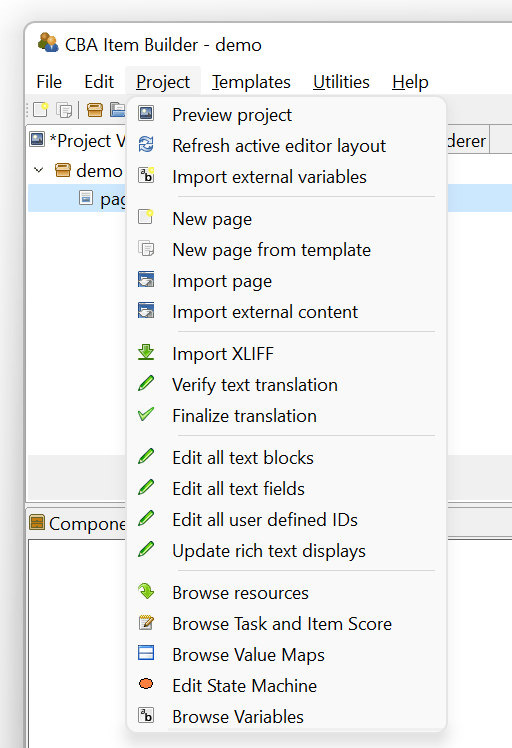
FIGURE 1.6: CBA ItemBuilder Project-Menu.
After calling the preview via the menu (or using the icon  of the Toolbar, see section 3.1.1), the Preview dialog appears (see Figure 1.7). This dialog allows selecting which part of the project file should be previewed. Typically a task is previewed, and often a project file contains only one task. In this case, the default selection (the first Task will be previewed, see
 Task01 in the example shown in Figure 1.7) must be confirmed by pressing OK.
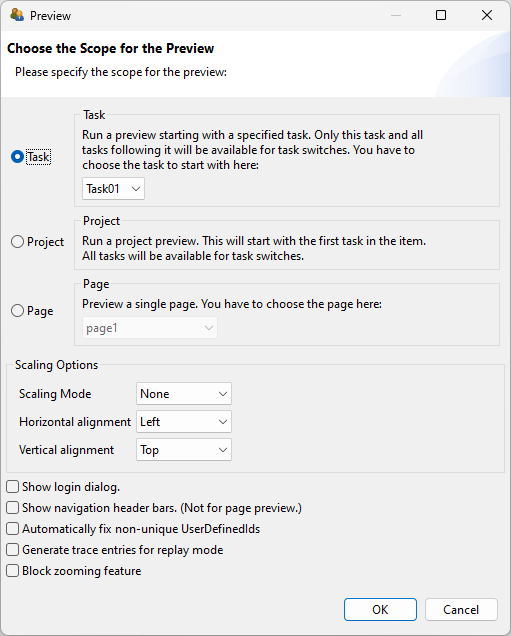
FIGURE 1.7: CBA ItemBuilder Preview-Dialog.
CBA ItemBuilder project files can contain multiple entry points, called Tasks (see section 3.6 for details). Each Task can select a different part of a CBA ItemBuilder project file by specifying the starting Page.11 If multiple Tasks are defined, the Preview follows navigation request for next and previous Tasks and shows the Tasks according to the order, in which they are defined within the CBA ItemBuilder project file. The Preview will apply proportional scaling if requested using the Scaling Options (see section 3.2.2 for details).
The preview dialog also can be used to preview selected pages directly. This option is only of importance during the development of assessment material (see chapter 3). Moreover, the dialog also offers the possibility to preview the project if no task is defined, using the first defined page as the (temporary) entry point.
Which (Web-)Browser should be use for Preview? The preview of the CBA ItemBuilder uses the so-called default browser of a computer to show the assessment materials such as items, if configured as Systems Default Browser in the dialog Preferences in the section CBA Preview (see Figure 1.8):
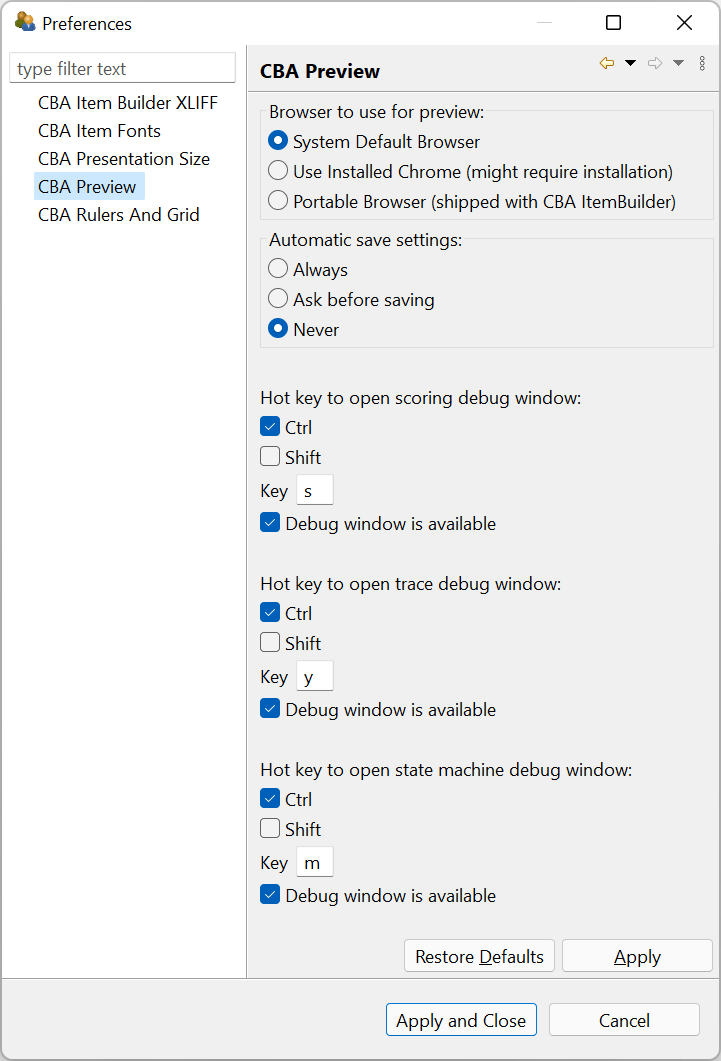
FIGURE 1.8: CBA ItemBuilder Preferences-Dialog.
The dialog shown in Figure 1.8 also shows additional settings, such as the auto-save configuration (see section 3.2.1) and the hot keys used for Scoring Debug Window (see section 1.5.2), the Trace Debug Window (see section 1.6.2) and the State Machine Debug Window (see chapter 4).
If different browsers are expected, given a particular delivery strategy, it should be ensured that the items, including the externally integrated components, are compatible with the used browsers. Section 8.4.1 describes how the preview can be used in different browsers to check the cross-browser compatibility locally.
Automatic Start (Autostart): Web browsers prevent audio and video files from playing before the first user interaction. This security setting is not a restriction in practice since a login or welcome page is usually displayed before the first item. After clicking a button on this page, for example, audio and video components can then be started automatically on all subsequent pages. However, this does not apply to the preview, which uses a new browser or browser tab. The Preview can be requested with a log-in dialog (see the checkbox Show login dialog in Figure 1.7) to allow the preview audio and video components with auto-play. Otherwise, a warning message is shown as displayed in Figure 1.9.
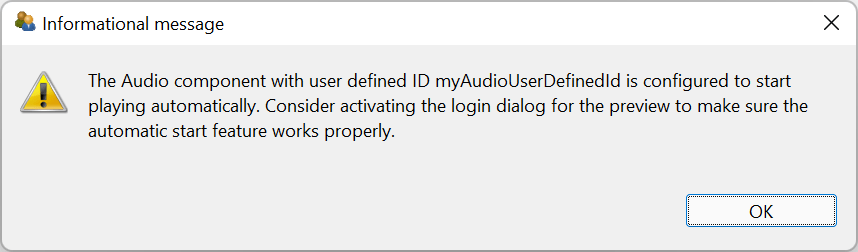
FIGURE 1.9: Warning about autostart of audio and video components.
Summary: With the CBA ItemBuilder, assessment components can be created as project files. Complete assessments with multiple tests or booklet designs with rotations (see section 2.7.2) usually consist of a sequence of many assessment components (i.e., several project files with the corresponding tasks as the entry points). Using the preview function described in this section, the individual assessment components stored in a particular Project File can be displayed and checked directly from the CBA ItemBuilder. Thus, the components of assessments can be viewed even outside the sometimes complex rotation designs.