3.15 Pages as Dialogs (Popups)

The CBA ItemBuilder allows showing pages as Dialogs (Popups). Dialogs are usually designed using pages of type Simple Pages (see 3.4.1), and dialog-pages support all features and components that are available for their particular Page Type. Figure 3.156 illustrates the use of dialog pages for various purposes.
As shown in Figure 3.157, the definition of a particular page as dialog can be configured in the Properties view. To define a page as dialog page the property Dialog (in the section Misc) of a page’s Frame must be specified either as DIALOG or MODAL_DIALOG)54.
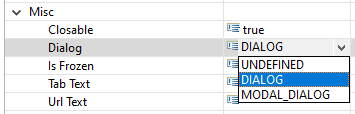
FIGURE 3.157: Definition of a Frame as DIALOG in the Properties view.
3.15.1 Properties of Dialogs
The creation of dialog pages with the CBA ItemBuilder is done via properties of the ‘Frame.’ The dialog type (regular dialogs vs. modal dialogs), the display of a header with a button to close the dialog (closable dialogs), and the start position for dialog pages can be configured.
Modal vs. Non-Modal Dialogs: The CBA ItemBuilder distinguishes between two kinds of dialog pages (DIALOG and MODAL_DIALOG). A modal dialog is displayed exclusively on the screen. The content of the current page is still displayed as the underlying page, but is darkened. In contrast, a non-modal dialog allows further interaction with the content of the underlying page.
Figure 3.158 illustrates the difference between Modal and Non-Modal (regular) dialogs.55 Modal dialog pages are especially suitable for alerts and messages boxes that must be seen in any case. The presentation of modal dialog pages allows content of the item to be blocked. In contrast, non-modal dialog pages are useful if, for example, item content should remain visible and usable, as is the case with a calculator or for digital scratch paper.
The dialog pages that can be opened in Figure 3.158 using the buttons Closable Dialog and Non-Closable Dialog are not modal. Although they hide a part of the item, the item content can still be changed in the background. The checkbox can be selected and text can be entered into the SingleLineInputField. This kind of interaction is not possible for the dialogs that can be called with the buttons Closable Modal Dialog and Not-Closable Modal Dialog.
Closable vs. Not-Closable Dialogs: As shown in Figure 3.158, another property determines the appearance and behavior of dialog pages: Closable. Dialog pages that are configured as Closable = true can be closed using the small icon  located in the title bar, that is added by the CBA ItemBuilder to closable dialogs. In contrast, dialogs configured as
 Closable = false don’t show a title bar. If and how dialog pages with the property Closable = false can be closed can be defined and controlled by the item author.
Frame provide the property Closable (true or false) that can be used to configure the behavior of dialogs. This property is only relevant, if the Frame is configured as either as DIALOG or MODAL DIALOG in the property Dialog.
Start Position of Dialog Pages: Dialog pages appear at runtime within the displayed area of a CBA ItemBuiler project file defined by the CBA Presentation Size (see section 3.2.2). Pages configured as dialogs should therefore not be larger than the CBA Presentation Size. The position at which dialogs are displayed is determined by the X and Y coordinates of the component of type Frame, which is inserted into a dialog page.
Transparent Dialog Pages: For advanced designs of complex assessment components with the CBA ItemBuilder, it can also be useful to design dialog pages transparently. This functionality is only available for dialogs with the property Closable=false and can be configured by defining both Frame and Panel as Transparent=true (see Figure 3.156 for an example). In combination with transparent images as background (see section 6.2.1) this allows to implement dialogs with non-rectangular shape in the CBA ItemBuilder.
3.15.2 Opening and Closing Dialogs
Pages whose Frame is configured as dialog (i.e., Frames with a value DIALOG or MODAL_DIALOG in the property Dialog) can be displayed using different methods.
Open Dialog via Link: The easiest way to display a dialog in the CBA ItemBuilder is to link to a page that has been configured as a dialog. Using this approach, all components that can link to a different page (see section 3.11) can be used to open and show a dialog.
Open Dialog Pages with openDialog()-Operator or States: Two different mechanisms are available for displaying dialog pages from within the dynamic part of CBA ItemBuilder items. As described in section 4.4.6, dialog pages can be opened using a so-called operator (the openDialog()-operator). When this operator is executed (either within a Transition or as part of a Conditional Link), the page with the provided Page Name as argument will be shown as dialog. Moreover, pages (in general) as well as pages configured as dialog pages can be assigned to States of the Finite-state Machine (see section 4.4.9). If a State is assigned to a pages configured as dialog, the dialog will appear as soon as the particular State becomes the Current State (see section 4.4.2).
Depending on the configuration, dialog pages can also be closed or hidden in different ways.
User Interaction to Close Dialog: Dialog pages defined with the property Closable=true can be closed at runtime at any time using the small icon in the dialog header.
Runtime Command ‘Close’: Dialog pages can also be closed using the Runtime Command CLOSE and CLOSE_AND_NEXT_TASK (see section 3.12.2). Using this technique, as shown in the example in Figure 3.158, Buttons can be defined to close dialog pages. For that purpose, a runtime command is assigned to the button.
For advanced applications, it may also be necessary to track in the logic layer of the CBA ItemBuilder whether a dialog has been closed. Such an application must prevent unsupervised closing of dialog pages with the property Closable=false. Components of type Button can then be used to close the dialog (using the runtime command CLOSE) and trigger an FSM event (see section 4.4.3, which can then be processed in the logic layer of the CBA ItemBuilder.
Close Dialog Pages with closeDialog()-Operator: Dialog pages with a particular Page Name can also be closed from the finite-state machine with the help of the closeDialog()-operator (described in section 4.4.6).
3.15.3 Links in Dialogs
As described above, dialog pages are opened when a link directed to them is activated. According to the separation into pages of different areas, xPages can refer to dialogs defined as xPage. Regular pages cannot link to dialogs (and pages) that are not defined as xPage.
However, dialogs can contain links (see 3.11. Links to other dialogs are opened as dialogs, links to regular pages are opened as regular pages. Therefore, as Figure 3.159 shows, two dialog pages can be displayed at the same time: A dialog of an xPage and a regular dialog.
The separation of regular pages (and regular dialogs) and xPages (and xPage dialogs) is maintained even if pages are linked to states (see section 4.4.9).
By default, all frames are configured as
UNDEFINED. Accordingly, to change aFrameconfigured as dialog back a regular page, selectUNDEFINEDas value of the propertyDialog. ↩︎For more examples see the project DialogMockupExamples.zip shown above, in which all modal dialogs are marked with M.↩︎