1.7 Quick Start: Revise Item Content
A primary motivation for developing an authoring tool for computer-based assessments was that item content should be easy to create and adopt without programming knowledge. Content experts should use the CBA ItemBuilder to develop assessment components and modify, adapt, and improve existing content. The subsequent section deals with this use case. In the following, it is assumed that assessment components (i.e., tasks or items) already exist in the form of CBA ItemBuilder Project Files, which are to be adapted, revised, or changed.
There may be several reasons why existing assessments might be adapted and modified. The ability to make minor changes is an essential part of Open Assessments. Potential reasons why existing instruments (i.e., assessment components in the form of instructional pages, tasks, and questions) should be adapted, could include:
An instrument computerized using the CBA ItemBuilder is not available in the required language and should be translated by a content expert into a new language.
An instrument was translated by an expert, and the translation was verified. However, since different languages require a different amount of space, so-called layout adaptions might be required for the assessment components created with the CBA ItemBuilder.13
Computer-based instruments include additional components besides the actual test created by tasks and questions that embed and frame the assessment into a particular context. However, wording that was appropriately and accurately chosen for a particular occasion may be disruptive, obstructive, or misleading for further application of a test or instrument. This may relate only to how the target persons are addressed, to the wording in the consent form for participation, or other parts of the text used within assessment components.
Within items, tasks or questions, individual phrases may need explanation for a particular target audience or may need to be replaced with other phrases that are more familiar or common to target audiences.
Finally, perhaps some questions or tasks should be excluded or changed. As far as the changes require adjustments within Project Files, these can be implemented with the CBA ItemBuilder. Changes that affect the composition of assessments from multiple CBA ItemBuilder Project Files must then be configured in the test delivery software (see chapter 7).
Test and questionnaire development of psychometric instruments requires a scientific approach and in-depth understanding of the construct itself and the process of item development, test theory, and validation that goes far beyond the technical implementation in an assessment software. When items of computer-based tests are developed and scaled in terms of calibration, changes to item content and significant changes to response formats and item presentation may need to investigate and, in case, re-scale the modified items (see section 8.7.4 for a detailed discussion).
Hence, the following section can only describe from a purely technical perspective how CBA ItemBuilder Project Files at hand can be used as a starting point for sensitive changes to existing assessment components. CBA ItemBuilder Project Files could be available, for instance, because they were provided by a research data center or shared by other scientists.
1.7.1 Basic Terminology
In order to modify and adapt assessment components created with CBA ItemBuilder, a rough understanding of the structure of CBA ItemBuilder Project Files is required first. Project Files can be thought of as a workspace that contains all content that can be edited with the CBA ItemBuilder. This content is divided into the following units:
Pages: Content is placed on pages and one or more pages are displayed simultaneously. In the Project View (see section 3.1 for a full description of the user interface) all pages are listed. If you right-click a page and select the entry
Preview Page, you can view each page in isolation in the browser as it will then look during the runtime of the assessment. The pages have names assigned by the item author. Do not rename pages, because they are used as references for links and in the possibly configured dynamic parts. If all the contents of a Project File are to be translated, all pages must be edited. If only one part is to be adjusted or changed, the appropriate page must first be found. Pages can be previewed, or opened by double-clicking in the Page Editor.Components: The Page Editor shows a design view for editing pages. Pages are designed by placing components in the Drawing Area of the Page Editor. The design view is not 100% the same as how a page will look at runtime, but it reflects which component is placed at which position. Components are hierarchically nested on pages and can only be inserted in certain orders.
Two views of the CBA ItemBuilder are central for editing components:
Component View: Without going into detail about the design of pages using components (see section 3.7), the so-called Component Edit provides direct access to all components of a page. The Component Edit is the tab next to the Project View. It is possible to navigate within the tree view of the Component Edit to see nested components. To modify the properties of existing components, the context menu of components that opens after right-click on components in the Component Edit can be used.
Property View: In order to be able to change the visible parts of components, it is first necessary to identify what type of component it is. The type of a component is displayed directly in the Component Edit in square brackets. To view and change further details about the components, the entry
Show Properties Viewcan be selected from the context menu of the component in the Component Edit. This opens the Properties view in the right area of the CBA ItemBuilder. The Properties view allows to edit properties of the component that is currently selected in the Drawing Area of the Page Editor or in the Component Edit. Most properties, with the exception of editing formatted text, can be changed directly in the Properties view.
Adaptations may also be necessary for images, audio, or video files that are used to design pages of assessment components in Project Files:
- Resource Browser: Images, videos and audio files are not created with the CBA ItemBuilder. Instead, media files are embedded into the Project Files and components link to the required resources. All resources included in a Project File can be viewed (and exchanged) via the Resource Browser, which can be opened via the menu
Projectand the entryResource Browser.
With the help of the above-mentioned features of the CBA ItemBuilder, items can be customized and, for example, translated, as described in the next section.
1.7.2 Change Content in Existing Project-Files
To make changes to an assessment component created with the CBA ItemBuilder, the Project File must be opened. The CBA ItemBuilder requires additional configuration to allow opening two parallel programs on one computer (see section 6.8.8). As described in detail in the chapter 3, content can be edited using the Page Editor and assessment components created using the CBA ItemBuilder can be modified. For some selected purposes, the specific dialogs are available.
Edit all text fields function (in the Project menu), which can be used to make text changes and translations easily.
Change Texts using the Edit Text Occurrence-Dialog: For changing text, the CBA ItemBuilder provides a function that displays all components with text. The text can be changed immediately by double-clicking, without the need to open single pages. To use this function a Project File must only be opened. Then the option Edit all text field can be accessed via the menu Project. In the dialogue opening thereby (see illustration 1.15) all components are indicated, which have a text property.
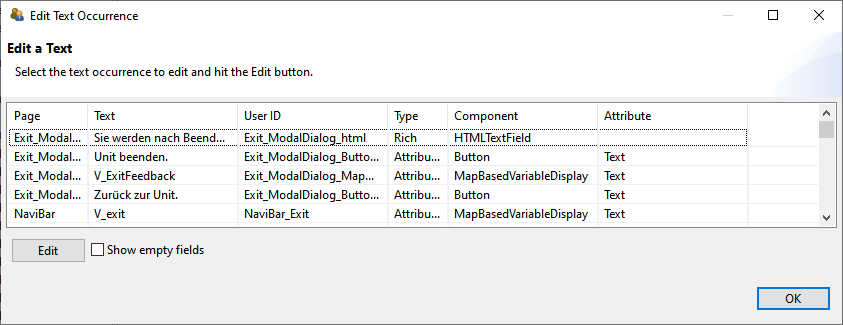
FIGURE 1.15: CBA ItemBuilder Edit Text Occurrence Dialog.
The page on which a component with a particular text is placed is shown in the first column of the dialog shown in Figure 1.15. A preview of the text is shown in the second column, followed by the UserDefinedId (i.e., the user-defined internal identifier of the component). The columns Type, Component and Attribute inform about the types of the component the text belongs to. Do not translate texts that you don’t expect to be shown in the assessment to test-takers (such as texts used as variable names for components of type MapBasedVariableDisplay).
Depending on the design of the items by the item authors, it may be necessary to modify components manually, as described in the following. In general, the way how to change properties and the content of component depends on the type of component. The type of each component can be identified when the component is displayed in the Component Edit.
Change Text in Property View: For all components that only show text in one particular font size and font family (e.g., TextField, Button, Link, RadioButton, CheckBox, …), the text can be changed by changing the value of this property in the Properties view. For components that allow text to be formatted differently (formatted text), the CBA ItemBuilder provides internal editors (see the next subsection). To change simple text using the Properties view, the page must first be double-clicked for editing in the Project View. Then you can switch to the Component Edit (the next tab right to the Project View). Expanding the tree in the Component View is possible using the small arrows left to the text naming the [component type]. With the help of the right mouse button and the entry Show Properties View the Properties view can be shown. The Properties view always shows the properties of the component selected in the Component View / Page Editor. The Properties view is a powerful tool within the CBA ItemBuilder, allowing for instance, to adjust the displayed text of many components changing the value in the section Text of the Properties view.
X and Y properties.
The font and font size used to display components with a text property can be adjusted in the Appearance section of the Properties view.
Change Formatted Text: Components of type TextField, HTMLTextField and ImageTextField do not use the Text Property. Instead, the text for these components can each be edited with a separate text editor, which also provides functions for formatting text sections. To open this editor these components can be double clicked in the Page Editor. TextFields and ImageTextFields also provide the entry Edit Rich Text in the context menu of the Component Edit. After an editor is opened for editing, the text can be changed. The changes are applied when the editor is closed via the Save and Close button.
Change Images, Videos and Audios: Components that show images or play videos or audio files refer to the media files embedded in the Project Files. The references are shown in the Properties view. To change or adjust media files, the reference can remain unchanged if the file name and file extension remains identical. It is sufficient to update the media files themselves (see section 3.10.1). Note that in case of images and videos the updated files require to have the identical size. Images are used with many different components for designing CBA ItemBuilder Pages, for instance, as background in containers of the type Panel (see section 3.10 for details).
If text is included in many images (instead of having images in the background and transparent components to show text on top within the CBA ItemBuilder, see section 3.7.5), we suggest the following: First export all images from a CBA ItemBuilder Project File that contain any text. This can be done manually by clicking on each image in the Resource Preview of the Resource Browser and exporting it via Save Image (or similar). Alternatively, the CBA ItemBuilder Project File can also be opened using a program for ZIP archives to copy the image files from the sub-directory resources (see section 8.3.3 for details).
Translated or modified image files, audio files or videos can be easily replaced by Add in the Resource Browser. To do this, close all open pages beforehand (so that no Page Editor is visible anymore).
Change Text Mapped to Numbers: The CBA ItemBuilder also supports the display of dynamic content with various components. For this purpose, so-called Value Maps (see section 4.2.4) are used to assign texts, images or videos to numerical values (Guards). The images used there can be exchanged with the help of the Resource Browser, as described. Texts, however, must be edited in the Value Map Details. For this purpose, the entry Browse Value Maps can be opened via the menu Project. If a Value Map contains text, then this can be edited after selection of the Value Map in the Value Map Details with the help of the Edit button.
The CBA ItemBuilder automatically checks the consistency of the configuration when a large number of changes are made and displays an error message if necessary. A collection of error messages and possible solutions can be found in section 6.8.4.
Note that in previous projects that used the CBA ItemBuilder in multilingual assessments, an automated translation process was used using the XLIFF format (see section 6.9). The current version version 10.4.0 might not fully support XLIFF. please contact the support, see section 1.2).↩︎