6.1 Regular Expressions

For different purposes, the CBA ItemBuilder supports the use of so-called Regular Expressions. Regular expressions are sequences of characters (i.e., strings) that can be used to formulate patterns that match text with specific properties. The CBA ItemBuilder allows regular expressions to restrict the input to SingleLineInputFields and InputFields. If a regular expression is defined in components of this type as Input Validation Pattern, only text that matches the defined pattern can be entered. The CBA ItemBuilder also supports the use of regular expressions for the scoring of text responses and for conditional links. The syntax for defining patterns as regular expressions that can be used for restricting input as well as for matching responses is listed in the Appendix (B.3).63 In regular expressions used for scoring, conditional linking, or for definitions in any other syntax part of the CBA ItemBuilder, \ need to be escaped (i.e., replaced with \\). Some characters have special meaning in regular expressions and must be escaped. All escaped characters begin with the ’' character. Within a regular expression , only \, –, and ] need to be escaped.64
6.1.1 Valid UserDefinedIds as Regular Expression
To illustrate how regular expressions can be used to define patterns for valid text, we illustrate how the possible schema for UserDefinedIds (see section 3.7.4) can be translated into a regular expression:
UserDefinedId: ([A-Za-z][A-Za-z_0-9]*)
According to the syntax of regular expressions (see table B.3 in the appendix for details) this expression defines the following pattern:
- Only uppercase or lowercase characters are allowed as first characters:
[A-Za-z]. This matches the requirement that a User-Defined Id must start with a character and must have a length greater or equal one. - Digits and underscores are allowed after the first position in addition to uppercase and lowercase characters:
[A-Za-z_0-9]*, but no umlauts / vowel mutations are allowed. - The number of characters is not limited, and white spaces are not allowed.
This restriction of allowed characters also applies to name of Tasks (see 3.6.1), name of Finite-State Machine Variables (see section 4.2) and States (see section 4.4).
6.1.2 Scoring (Text) Responses with Regular Expressions
Regular expressions are often used to define hit or miss conditions when scoring CBA ItemBuilder tasks. The item shown in Figure 6.1 illustrates with a synthetic example the use of regular expressions for scoring text responses.
Regular Expressions with Alternatives: The first hit (Variable1_Correct) defined in the example uses the syntax [D|d]og within a regular expression, which recognizes both upper and lower case forms of dog:
This syntax is supplemented by \\s?, i.e. an optional space before or after the searched words. As described above, the expression \s (see appendix B.3) was thereby paraphrased as \\s.
Combination of matches()-operators: Alternatives can be formulated within regular expressions. However, it is often easier to combine several matches() operators in the scoring condition. The hit Variable1_Wrong is an example of this, where the already described case detection is combined with an operator that detects empty text fields:
matches() operators with and and or the rules for bracketing multiple operands must be observed (see section 4.1.3). The negation with not can additionally be added as part of the operands.
Empty Response: For encoding missing (text) responses, an empty string can be provided as argument for the matches()- operator to check whether a character was entered at all:
This pattern was used in the item in Figure 6.1 for defining hits to identify missing responses. Because the CBA ItemBuilder’s implementation of the matches(userDefinedIDInputField,"") (i.e., the use of "" empty expressions) is also triggered in multiline TextFields as soon as one empty line is included, it may also be useful to check if no characters have been entered with the following regular expression:
Figure 6.2 illustrates the difference between empty expressions "" and the expression to match white spaces "^(?!\\s*$).+".
Decimal Numbers (with . or ,): Another application of a selection via | can be used to accept both dot and comma as decimal separators ([.|]). In cultures where a thousands separator is not typically used, this can be useful when checking decimal numbers:
As shown in the second item in Figure 6.1, this can be used to check whether the correct answer (3,5 or 3.5) was entered in the SingleLineInputField with the UserDefinedId: txtVar2.
Numerical Ranges using Regular Expressions: By combining the components, it is also possible to check whether an entered decimal number is within a desired range:
((matches(txtVar3,"\\s?[2][.|,][5-9]\\s?") or
  matches(txtVar3,"\\s?[3-6][.|,][0-9]\\s?")) or
  matches(txtVar3,"\\s?[7][.|,][0-33]\\s?"))
Scoring conditions like this (see Hit Variable3_Correct) can also be negated and combined with a check for empty inputs (see Hit Variable3_Wrong).
6.1.3 Input Validation with Regular Expressions
Regular expressions are also commonly used when creating items with the CBA ItemBuilder to limit the possible inputs of text. A restriction of the possible characters that can be entered to text fields, such as SingleLineInputFields and InputFields, is a common requirement for the implementation of items with (short) text responses. To apply an input restriction using the CBA ItemBuilder, components that support this feature provide the property Input Validation Pattern in section Misc of the Properties-view.
To define an input validation, the component must be selected in the Page Editor. If necessary, the context menu can be used to open the Properties-view (entry Show Properties View). Regular expressions are entered in as Input Validation Pattern property (see Figure 6.3).
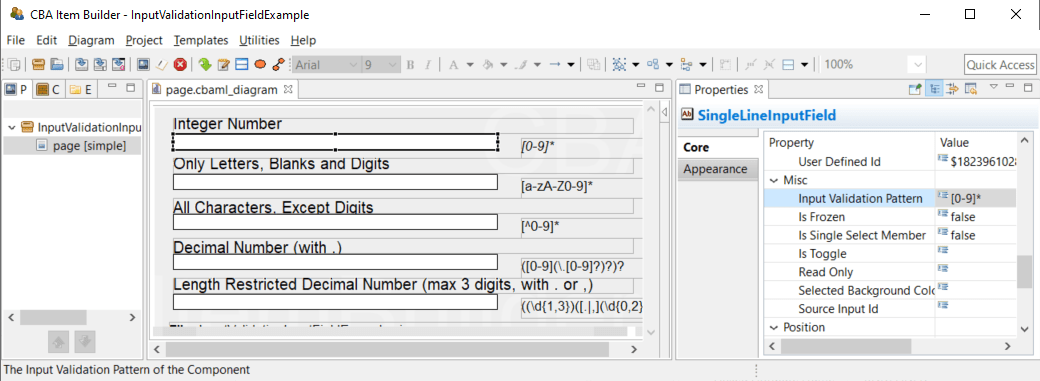
FIGURE 6.3: Property Input Validation Pattern in the Properties-view.
When using regular expressions to restrict text input, please note that the pattern must be valid not only for the final response but also for all intermediate steps in the input of the response.
Since the input is made characterwise, the input 3., for example, must also be valid with respect to a particular pattern so that a decimal number 3.0 can be entered. This is not necessary for the identification of different free text responses with regular expressions (see 6.1.2).
The item shown in Figure 6.4 illustrates some of the regular expressions often used to restrict text entry for SingleLineInputFields.
Restricting the possible characters that can be entered into a SingleLineInputFields (or InputField) simplifies scoring for short text responses and also affects the design of tasks. The rejected characters are, however, included in the Log Events provided by components of type SingleLineInputField and InputField.In the following we provide commented and documented regular expressions for input validation that are used in the item shown in Figure 6.4.
Integer Numbers: Only the numbers 0 to 9 can be entered in an input field with the following Input Validation Pattern:
Empty strings are allowed (because of the *).
Only Letters, Blanks and Digits: Only the numbers 0 to 9, small letters a to z and capital letters A to Z can be entered in an input field with the following Input Validation Pattern:
Only Single Letters: Only one single letter A-Z, or an empty string is allowed when using the following Input Validation Pattern:
All Characters, Except Digits: With the help of the following Input Validation Pattern it can be achieved that all characters except digits can be entered:
Decimal Number (with .): The input of decimal numbers is possible with this Input Validation Pattern, where both only . as decimal separator is allowed.
The expression allows one digit left to the digital delimiter (\.). The digital delimiter and one additional digit is optional. Empty strings are allowed.
Length Restricted Decimal Number (max 3 digits, with . or ,): If inputs are to be limited in length, this can also be implemented with regular expressions:
In this example, only digits ‘(\d]{1,3})’, one to three characters, are accepted before the decimal delimiter. A dot or comma are allowed as decimal delimiters ([,|.]). Up to three digits can be entered right to the decimal delimiter ((\d{0,2})). The second group “()?” is optional ([.|,](\d{0,2}))? and empty strings are allowed.
Feedback using Input Validation Events: If an Input Validation Pattern applies to the current input into a SingleLineInputField or a InputField, an FSM Event can be triggered. The following example in Figure 6.5 illustrates the use of Input Validation Events, Raised In Events and Raised Out Events to inform test-takers about allowed characters and ignored inputs.
Regular Expressions are one of the standard approaches to search for patterns in text strings. In the CBA ItemBuilder, regular expressions are used at Runtime for scoring text responses and for restricting input. The examples described in this section can only illustrate how regular expressions can be used. Concrete requirements can lead to more complex regular expressions, which can also be used to prevent the entry of sensitive information such as telephone numbers, for example. The regular expressions used must be tested in a systematic test strategy (see, for instance, 8.4.2) to collect reliable empirical data.
Note that the flavor of regular expressions used by the CBA ItemBuilder is based on Unicode: http://www.unicode.org/reports/tr18/↩︎
For creating and testing regular expressions, there are a number of helpful web resources available, such as https://regex101.com and http://regexr.com.↩︎