1.6 Quick Start: Explore Log Events
An important challenge in documenting log data is to enable secondary researchers to understand which user interactions within the assessment led to which (basic) log events.
To interpret log data of computer-based tests, some form of documentation is necessary. For assessments created with the CBA ItemBuilder, the CBA ItemBuilder project files can be used for documentation purposes (see section 8.7.2 for details), after sensitive item content is replaced with dummy text (image or media files).
1.6.1 Basic Terminology
If CBA ItemBuilder project files are available, researchers can inspect not only the scoring (see section 1.5) in the preview (see section 1.4), but also get an impression of the additional behavioral data created during the task execution.
Log Events: The following basic understanding of log events is necessary to assign the processing behavior to the log data. Log data consists of single log events. Log events can result from user interaction (e.g., clicks) or internal system changes (e.g., timers). In the context of assessments, log events always occur with an assignment to a person. There is always a person identifier associated with a log event (that can have different names such as actor, pupil, student, test-taker, respondent, etc.). Log events also always occur at a particular time. Accordingly, at least one timestamp is always associated with log events, indicating when the event occurred. Other timestamps that show, for instance, when the event was transmitted or received are possible but not mandatory for log events. The meaning of log events is encoded in the so-called event type (sometimes also denominated as event name). How events of a certain event type can be interpreted should be comparable for assessments using the same assessment platform. However, the meaning of identically named events may differ between different assessment platforms. An event of a particular event type that occurred at a specific time can be the central information in particular log data. However, events of a particular event type can also provide additional information. For example, a mouse-click event could inform about whether the right or left mouse button was clicked. This additional information is called event-specific data. If the event-specific data can be described by enumerating key-value pairs, we also speak of event-specific attributes. Event-specific data can be mandatory (i.e., every event of this event type provides it) or optional (i.e., events of that event type can provide this information but do not have to). Finally, log events always have an identifier for a part of the assessment (instrument identifier). In the context of log data collected with the CBA ItemBuilder the name of the CBA ItemBuilder project (i.e. the name of the project file) is often sufficient.
Original Items: If the original items are available, i.e., the ItemBuilder project files are available as they were used in a delivery platform (see chapter 7), the preview of the CBA ItemBuilder can be used to explore the triggered log events using the Tracing Debug Window described in the next section. Suppose the original project files can be used. In that case, it is automatically ensured that the so-called UserDefinedIds of the individual components used in the CBA ItemBuilder, which can be affected by user interactions, can be identified in the event-specific data of the log events. The UserDefinedIds are necessary for the interpretation of log events as soon as several components of one type within an ItemBuilder project have to be distinguished in order to assign the log events exactly (see section 3.7.4 for details).
Mock-Items: Unfortunately, for some instruments it is necessary to keep the task content secret. The stimulus and question texts, the concrete tasks, pictures, audio and video files, etc. must then be kept confidential. However, the confidential item contents are not necessary to explore the computer-based instrument concerning log events that are triggered by different user interactions. Mock-items are items in which the protected item contents have been replaced, keeping the structure and especially the UserDefinedIds unchanged (see section 8.7.2 for more details).
Since the CBA ItemBuilder versions can differ concerning the collected log data, it is suggested to use the identical CBA ItemBuilder version if this feature is used to make sense of log data from existing data collections (see section 1.3).
1.6.2 Trace Debug Window
Like the Scoring Debug Window, the Tracing Debug Window is a functionality provided by the CBA ItemBuilder during the preview of tasks. To use this feature, an original item or mock item must first be opened with the CBA ItemBuilder in the appropriate version. Afterward, as described in section 1.4, the preview must be requested. As soon as a task is previewed, a key combination (default is Strg / Ctrl + Y, see appendix B.4 for details) requests the Tracing Debug Window.
Figure 1.13 shows a screenshot of the Tracing Debug Window for the example item shown in Figure 1.14.
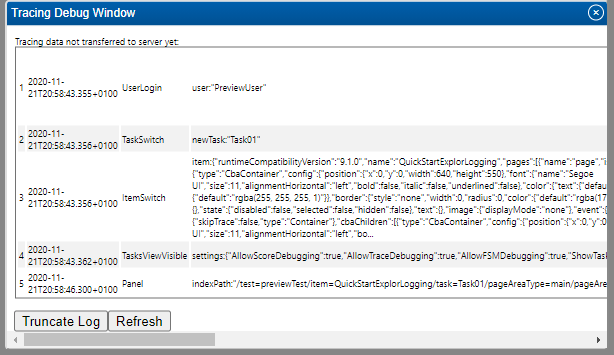
FIGURE 1.13: CBA ItemBuilder Tracing Debug Window.
Select the answer by clicking on one of the buttons. The Tracing Debug Window displays the past log events of the interaction with the currently displayed item:
- The first column contains a counter for the log events.
- The second column shows the timestamp.
- The third column is filled with the event type.
All following columns contain event-specific data, including the UserDefinedId. The Tracing Debug Window can be used to display the recent log events. After some time, the entries are deleted, i.e., only the most recent log events are displayed. Note that the input focus must be within the item before the keyboard shortcut is detected. The text click here in the example item (see, for instance, Figure 1.14) reminds you to set the input focus before pressing Cntrl + Y. While the Trace Debugger is open, no further log events are triggered respectively registered.
Examples: The CBA ItemBuilder project file shown in Figure 1.14 gives an insight into how the Tracing Debug Window works In this example simple buttons are used to implement a Single-Choice Item. The buttons are arranged in an identical way on different pages. With the help of the UserDefinedId of the buttons the selection behavior can be traced.
Summary: The Tracing Debug Window of the CBA ItemBuilder’s preview can be used to display which log events a particular user interaction has within the computer-based assessment components. The complete list of implemented log events of the current version of the CBA ItemBuilder can be found in appendix B.7. Additional log events can be added by the execution environment (see chapter 7). Log events are generated by default (i.e., no specific configuration is required to enable logging, see section 2.8).