4.4 Finite-State Machine(s)

The creation of interactive assessment content with the CBA ItemBuilder can require a logic layer for dynamic content in addition to the design of static content (i.e., the Page Editor used for designing pages, see section 3.7), Variables (see section 4.2) and Value Maps (see section 4.2.4). Following the design principles of the CBA ItemBuilder (see section 2.12), this logic layer is not defined in a concrete interpreted or compiled scripting or programming language. Instead, this logic layer is implemented in the CBA ItemBuilder based on so-called finite-state machines (also called UML statechart). Abstracting the logic required within items from a concrete programming language to the generic approach of finite-state machines allows the concrete source code required for a runtime environment to run an actual item to remain separate from the definition of the required interactivity (see section 2.12.2). For people with programming experience, however, it requires a bit of rethinking, since typical concepts (such as loops or branching) are possible with finite-state machines, but may require different approaches than loops or vectorization.
4.4.1 Introduction
The following text describes the use of finite-state machines in the specific implementation of the CBA ItemBuilder, as far as they are needed to implement interactive assessment content. The goal of the presentation is to describe the functionality of the CBA ItemBuilder, and this goal should be achievable without the need for further literature on the general concept of finite-state machines or automata theory. In fact, the implementation in the CBA ItemBuilder is only metaphorically related to the formal idea of finite-state machines due to the possibility of using multiple finite-state machines within an item (see section 4.4.8) and the integration of variables in conditions (see section 4.4.5).
The following gives a brief introduction to the idea: A finite-state machine is something in the logic layer of the CBA ItemBuilder, that always starts in a specified state, called the Start State. Each finite-state machine can be in exactly one state at a time and the number of states is limited (i.e., finite). A finite-state machine is, however, a machine that can change it’s state according to deterministic Rules. The Rules describe the Transition between the states and rules are triggered by Events. If no Event occurs, the finite-state machine stays in it`s current state, but events can defined as timed events (see section 4.4.3), and timed events trigger automatically after a pre-defined time interval. Finally, each finite-state can reach one out of multiple End States.
The CBA ItemBuilder implementation allows to use multiple finite-state machines (based on Regions, see subsection 4.4.8). When Transitions are triggered successfully by Events, additional Operators can be executed (see subsection 4.4.6). And Variables can be used in conditions, so that the Rules can define Transitions between States that depend on variable values.
User Interface for Finite-State Machines: To define and edit finite-state machines, the user interface of the CBA ItemBuilder provide two parts. Both can be opened at once by clicking on the icon  in the Toolbar (see section 3.1.1) or using the
 Project menu Edit State Machine). The first part of the user interface is titled State Machine and contains the State Machine Tree View as shown in Figure 4.30. A second tab with the title State Machine contains the so-called State Machine Rules Editor for state machine syntax, and both parts always opens together.
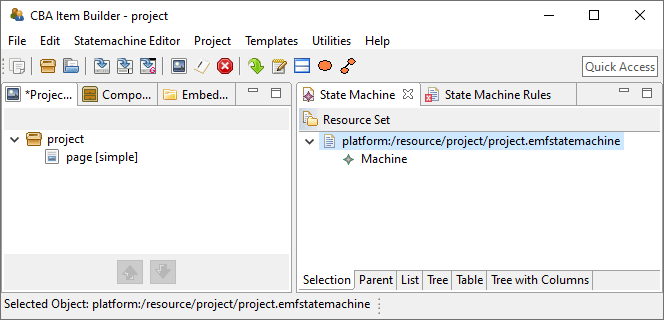
FIGURE 4.30: Empty State Machine Tree View of the CBA ItemBuilder.
x next to the title of the tabs, so that only the State Machine Tree View is displayed. Note, however, that it does not work the other way around. Closing the State Machine Tree View automatically closes the State Machine Rules Editor.1
State Machine Tree View The first component of the user interface is a tree representation of the defined states, optionally organized in regions (see Figure 4.30). After selecting the root, new states can be added to this tree by using either the menu Statemachine Editor (see left part in Figure 4.31) or the context menu in the State Machine Tree View (see right part in Figure 4.31).
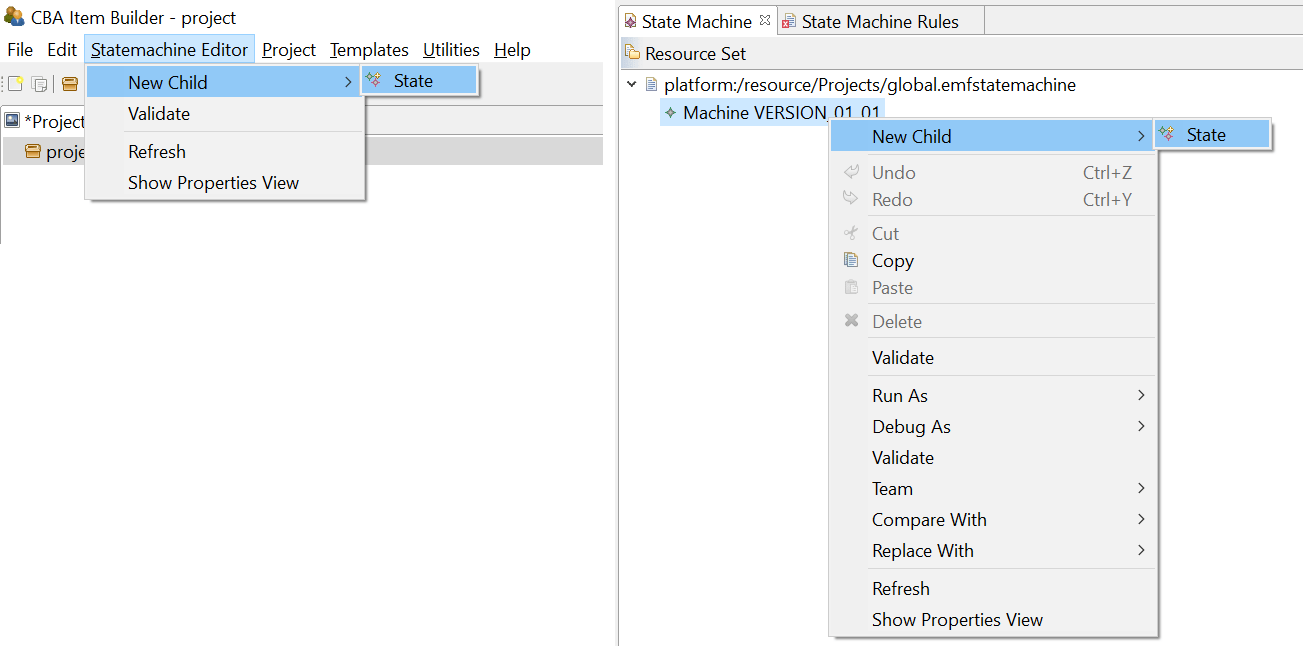
FIGURE 4.31: Main menu Statemachine Editor and context menu in the State Machine Tree View to define a state
State Machine Rules: Events and finite-state machine rues are defined using syntax, edited in the State Machine Rules editor. By default, the state machine rules file is empty.2 The following example shows a valid rules file:
Events:  EV_Name; /* Define events here, separated by comma.
                     End the list with a semicolon. */
Rules:            /* Define rules here.
                     Examples: */
ST_Start -> ST_First {true}
ST_First => ST_Second {EV_Dummy}
At least one event must be defined. Text within /* … */ or behind // is ignored as a comment (see section 4.1.2).
4.4.2 States
States are defined in the State Machine Tree View of the CBA ItemBuilder. After adding a new State using the context menu or the main menu as shown in Figure 4.31, the CBA ItemBuilder lists an undefined state in the State Machine Tree View as illustrated in the upper part of Figure 4.32. Continue by double-click on the new node <not set> to finish the configuration. This opens the Configure State dialog (see lower part of Figure 4.32).
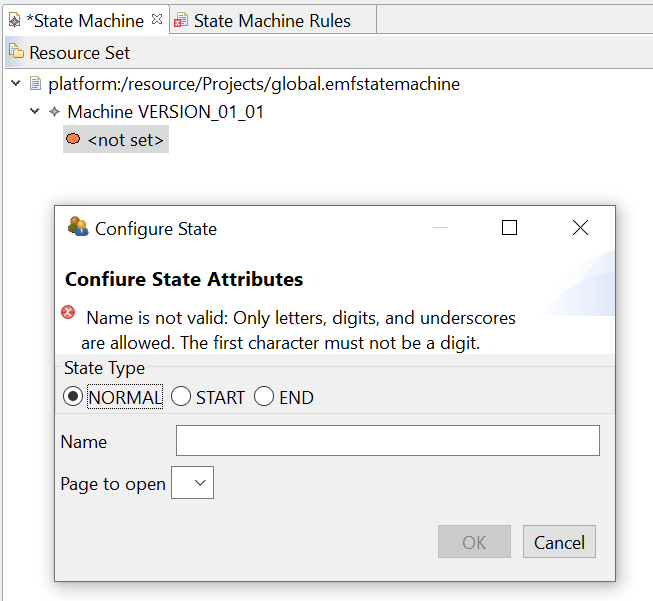
FIGURE 4.32: Newly created State and Configure State dialog.
For defining the state using the dialog Configure State it is essential to differentiate three different State Types (NORMAL, START and END).
Normal States (NORMAL): A finite-state machine typically differentiates multiple Normal States. The state in which a finite-state machine is (labeled the Current State) represents the main information of a finite-state machine. Transitions between normal states describe the functioning of the finite-state machine and the possible flow between the internal states. In the CBA ItemBuilder the transitions are triggered by Events (see section 4.4.3) and transitions can trigger actions (called Operators, see section 4.4.6). Most of the states are regular states.
Start State (START): However, every finite-state machine needs a starting state in which it is initially located. For this purpose, the state type START must be selected for exactly one state for each finite-state machine. A Start State is required for the very first Start Rule (->, see section 4.4.4), that links the Start State to a first Normal State.
End States (END): The CBA ItemBuilder also allows defining states as End States. The use of End States is optional for the design of assessment components but can be helpful if, for instance, reaching a dedicated state in the logic layer itself is information for scoring (see section 5.3.7). While a start state and several normal states are needed for the typical use of the finite-state machine, the definition of end states is rarely necessary.
State Names: After selecting a State Type in the dialog Configure State (see lower part of Figure 4.32), states require a unique State Name. State Names need to be a string literal without white spaces and without special characters (underscores, i.e., _ is possible). Numbers are allowed but not as the first character.When defining states make sure that the state name is valid and not followed by white spaces.
Page to open: Finally, the dialog Configure State (see lower part of Figure 4.32) also provides the option Page to open. States can also assigned to pages, so that the Page is shown, if the particular State is entered (see section 4.4.9 for details about the assignment of Pages to States).
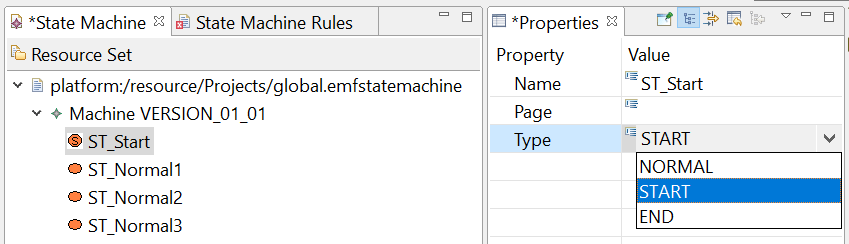
FIGURE 4.33: State Machine Tree View with four states and Properties view.
Note that states can be ordered within the State Machine Tree View using drag-and-drop. For a real application of finite-state machines in the CBA ItemBuilder, multiple states need to be defined, and ordering the states can increase the readability. As soon as the first state is defined, the CBA ItemBuilder also provides a context menu for states with the option to define states and so-called Regions as child elements. This feature is related to multiple (nested) finite-state machines, described in section 4.4.8. If only one finite-state machine is to be used, care must be taken when creating the states that all states created directly below the node Machine VERSION_01_01. As can also be seen in Figure 4.33, the State Type (and the State Name and assigned Page to open) can also be configured in the Properties view.
4.4.3 Events
After defining a set of States in the State Machine Tree View of the CBA ItemBuilder, Events are defined in the State Machine Rules editor that was automatically opened as described in section 4.4.1. Events are used to trigger Transitions in the Finite-State Machine(s). There exist two type of events:
1. Events Linked to Components: Components used in the Page Editor to create visual parts of the assessment components provide slots to link Events. For instance, components of type CheckBox can trigger events when the user selects the CheckBox (called Raised Event) and when the user de-selects a previously selected CheckBox (called Raised Alternate Event). Components that can raise one or different Events provide a context menu entry to link the event to events defined in the State Machine Rules syntax.
2. Timed Events: The finite-state machine concept of the CBA ItemBuilder also includes events that are automatically triggered repeatedly after a defined time interval. Such Timed Events can be used to change the behavior and appearance of items without user interaction by triggering Transitions. Timed events are also defined in the State Machine Rules syntax.
Events can also be triggered within transitions (see the raise()-operator in section 4.4.6), meaning that events that trigger transitions can be used to trigger an additional event.
Definition of Events: Before events can be linked to components in the Page Editor, they must be defined in the State Machine Rules. While States can be created in the State Machine Tree View with a graphical user interface, the definition of Events is only done by syntax. The structure of the syntax for State Machine Rules is:
Events: Event1, Event2, Event3; // Events defined as list
Rules:  // Start rule
        ST_Start -> ST_First {true}
        // Additional rules
        ST_First => ST_Second {EV_Dummy}
        /*...*/
Since the syntax editor initially contains an empty document, times must enter the keyword Events: (incl. colon) first. Afterwards at least one event must be defined, if necessary as placeholder. The list of events must contain valid event names. Again, valid event names must not start with a number, must not contain spaces, and only letters or the _ character are allowed.
The assignment of event names in the State Machine Rules syntax should be chosen in such a way that the meaning is clear from the event name. Only events must be defined which are used within the Finite-State Machine, e.g., for transitions between states or the triggering of operators. The specified name should be so unique that it can be identified in the Page Editor when using the dialog Link Raised Event.
To link an event to a particular component, the context menu in the Page Editor offers an entry called Link Raised Event, as shown in Figure 4.34.
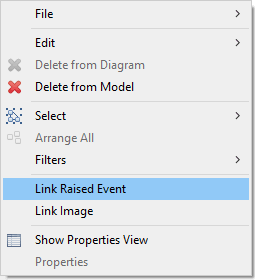
FIGURE 4.34: Link Raised Event in the context menu of the Page Editor.
Link Events to Components: For most components events can be assigned (i.e., linked) using the context menu in the Page Editor.3 Events are triggered by click by default (e.g., an event can be raised, if a panel is clicked, called Raised Event). Components that can be selected or deselected, components used for text entry and for components for audio/video content provide more specialized events are triggered by particular actions (see below). The CBA ItemBuilder item shown in Figure 4.35 illustrates which user-interactions trigger events that can be linked for most components.4
Components of different type provide different slots that can be used to link events. The meaning of the different slots is described mostly in chapter 3 together with the components itself.
Defining Timed Events: The definition of events that trigger automatically after a defined amount of time is done directly in the first section of the State Machine Rules syntax after the keyword Events:. If a number is specified there separated by a space after the event name, this number will be used as the time interval in seconds.
In the following example two Timed Events are defined. Event E_T1 is fired after two \(3.5\) seconds, E_T2 is fired after \(10\) seconds:
The definition of timed and regular (un-timed) events (e.g., E_ChangeState) can be mixed and time intervals can have decimal places. Timed events are started when the finite-state machine changes the Current State.
State => State, see section 4.4.7).
Timed events can be used to implement Timers (i.e., components that show the remaining time for a Timed Event, see section 4.4.10).
Since timed events are restarted when entering states, the processing of timed events in finite-state machine rules is critical to their behavior, as illustrated in Figure 4.36. To create independent finite-state machines, nested finite-state machines can be used (see section 4.4.8).
To fully understand the design possibilities with Timed Events shown in Figure 4.36, one must consider the difference between different rules for defining transitions. Transitions that lead to a change of the Current State are described in the next section 4.4.4, the processing of events without changing the current state is shown in section 4.4.7. More advanced scenarios can be implemented using so-called Nested Finite-State Machines (see section 4.4.8 and Figure 4.63 for an example).
4.4.4 Rules
The behavior of finite-state machines is described by rules that specify how a concrete event of a particular type is to be processed in a particular state. If no rule is defined that event of a particular type is to be processed in state, then the finite-state machine ignores events of that type in that state. If a rule is defined, then events of this type are accepted in a state and processed according to the rule.
Start Rule (Start Transition): At runtime, each finite-state machine is initially in its start state. A first rule with the syntax element -> is therefore necessary to define which regular state the finite-state machine should enter first:
The definition of a state of type Start State (see section 4.4.2) and the specification of an initialization rule from the Start State to a first Normal State is mandatory. If this rule should always be executed, the keyword {true} is specified in curly brackets.
Advanced Use of Start Rules: When working with multiple Tasks within one CBA ItemBuilder project file (see section 3.6) or when combining multiple finite-state machines (see section 4.4.8), some additional features can be used. Finite-state machine rules are defined for all Tasks of a CBA ItemBuilder project file. Instead of true specific conditions can be formulated to initialize a finite-state machine in a particular Task:
StartState -> StateA{isCurrentTask(Task01)}
StartState -> StateA{isCurrentTask(Task02)}
The condition isCurrentTask(TaskName) will be true, if the current task equals the specified TaskName, so that different initial states of a finite-state machine are possible if multiple initialization rules are defined.
It is also possible to use read the page defined in the Task Definition (see section 3.6.1) in a condition for the Start Rule, as the following syntax illustrates:
ST_Start -> ST_C{current_page(page2)}If more than one start rule is defined, the order in which they are defined is decisive. For the example in Figure 4.37, four tasks are defined (Task01-Task04). All tasks except Task03 use page page1 as the Start Page (as defined in the Tasks view, see section 3.6.1).
Here is the shortened finite-state machine syntax of the item in Figure 4.37. The order of the Start Rules is crucial, which can be easily seen by the fact that only for Task04 the state ST_D is assigned. Although the condition true is always true, this last defined Start Rule is only applied if no previous condition is true.
Events: Placehoder; // No event is used in this example, but the syntax
                    // requires the definition of at least one event.
Rules: ST_Start -> ST_A{isCurrentTask(Task01)| /* ... */ }
       ST_Start -> ST_B{isCurrentTask(Task02)| /* ... */ }
       ST_Start -> ST_C{current_page(page2)| /* ... */ }
       ST_Start -> ST_D{true| /* ... */ }
In simple CBA ItemBuilder projects, typically only one Start Rule is needed per finite-state machine. Besides the first transition in a regular state, further rules are used as described next.
Regular Rules (State Transitions): The possible connections between (normal) states are defined as transitions with rules using the syntax element =>:
State Transitions can be read this way: From state StateA is changed to state StateB when event TriggerEvent occurs.
->) and multiple State Transitions (=>).
As TriggerEvent all events can be used, which are defined after the keyword Events: at the beginning of the State Machine Rules syntax. The use of Timed Events is possible as well as the use of Events created by user interactions with a component created in the Page Editor.
The use of user interactions in the finite-state machine of the CBA ItemBuilder is done via events that are first defined in the State Machine Rules. These events are assigned to components via Link Raised Event and the Events can be used within Rules for State Transitions.
In this way, the processing of user interactions becomes dependent on the Current State of a finite-state machine. Conditions (i.e. different processing of identical events) are realized by defining different rules for different States (see Figure 4.38 below).
Actions in Transitions (Operators): The Current State of a finite-state machine can be interpreted like the value of a categorical variable. Thus, it already represents information in itself. For the use of finite-state machines for the dynamic design of assessment components, however, the Transitions are also central, i.e. the transitions between States which are triggered by Events. With these Transitions changes can be made to the item, for instance, to the visual representation or to values of Variables, which form the dynamic parts of items depending on user interactions or Timed Events.
To trigger actions for a defined Transitions of a finite-state machine in state StateA when the Event TriggerEvent occurs, Operators can be called as seen in the following syntax:
StateA -> StateB {TriggerEvent | Operator1(), Operator2(), ..., OperatorN())}The names of the states (StateA and StateB) can be freely assigned when defining them in the State Machine Tree View (see section 4.4.2) and should be chosen sensibly in the context of the current CBA ItemBuilder project. Similarly, the names of Events can be freely specified by entering text in the State Machine Rules syntax (see section 4.4.3). In contrast, the operators inserted to the right of the | character in the syntax must be valid operators provided by the CBA ItemBuilder. Operator1(), Operator2() etc. in the example, are for illustration purposes only. Operators may require arguments, which are passed in single parentheses. If multiple arguments are passed, they must be separated by commas within the single parentheses. When entering operators, the auto-complete function helps (see section 4.1.1). Care must be taken to ensure exact spelling, including upper and lower case. A description of valid operators can be found in section 4.4.6.
The use of operators is also possible with Start Rule, as the following syntax illustrates:
StartState -> StateA {true | Operator1(), Operator2(), ..., OperatorN())}A selection of operators can also be used in the Task Initialization syntax (see section 4.5).
Self-Transitions: Transitions from a state A to the identical state A are called Self-Transitions. Self-Transitions restart the Current State A, and must therefore be distinguished from the use of operators without transitions (with the keyword internal) and the execution of operators when entering (with the keyword entry) and leaving (with the keyword exit) states (see section 4.4.7).
StateA => StateA {TriggerEvent|Operators()}) re-start the Current State and are not identical to internal processing of events (StateA internal {TriggerEvent|Operators()}).
In addition to operators, conditions can be defined for transitions, as described in the next section 4.4.5.
Figure 4.38 shows a simple item with four States and two Events. The two Events are linked to the buttons. ST_Start is the start state that always leads to state ST_A because of the first rule (ST_Start -> ST_A{true}):
Events: EV_Next, EV_Previous;
Rules: ST_Start -> ST_A{true}
// Transitions when FSM is in state ST_A
ST_A => ST_A{EV_Previous|openDialog(dialogBegin, 240, 20)}
ST_A => ST_B{EV_Next|setEmbeddedPage(PA,pageB)}
// Transitions when FSM is in state ST_B
ST_B => ST_C{EV_Next|setEmbeddedPage(PA,pageC)}
ST_B => ST_A{EV_Previous|setEmbeddedPage(PA,pageA)}
// Transitions when FSM is in state ST_C
ST_C => ST_C{EV_Next|openDialog(dialogEnd, 240, 20)}
ST_C => ST_B{EV_Previous|setEmbeddedPage(PA,pageB)}
In each state, the events EV_Previous and EV_Next are used in transitions. ST_A is the first in the sequence, if event EV_Previous occurs in state ST_A the openDialog()-operator (see section 4.4.6) is used to show the page dialogBegin at position \(X=240\) and \(Y=20\). If the event EV_Next occurs in state ST_A, the the rule requests the finite-state machine to change to state ST_B and the showEmbeddedPage()-operator is used to show the page with name pageB in the PageArea with UserDefinedID: PA. Rules for state ST_B define transitions for both events. Event EV_Next is used to change to state ST_C and to show the embedded page pageC, and EV_Previous changes to state ST_A and shows the embedded page pageA. Hence, the same buttons linked to the events EV_Previous and EV_Next are used and the triggered events are processed differently, according to the Current State of the finite-state machine.
4.4.5 Condional Rules (Guards)
Transitions in the finite-state machine are described by rules that specify how the finite-state machine should react to an event. Conditions (Guards) can be used to restrict that a transition is only executed, when a condition (typically formulated using Variables, see section 4.2.1) is fulfilled.
Conditions in Rules (Guards): The definition of conditions in transitions of the finite-state machine is introduced by a colon, followed by the condition in square brackets:
StateFrom => StateTo { EventName : [Condition] | Operator)}As usual, operators are optional (if no operators are required, the syntax simplifies to StateFrom => StateTo { Event : [Condition]}). Conditions are typically formulated by using variables (see section 4.2), and only variables of type INTEGER or NUMBER are currently supported in guards.
The conditions need not be mutually exclusive. However, it is important to note that the order of the rules can be relevant. The first condition that is fulfilled for the current state and for which a rule is defined for an event will be executed.
In the following definition, if the variable V_Example has the value 3, for example, the second transition would be executed (if event EV_Example was raised and the machine is in state state1), but not the third transition:
state1 => state2  {EV_Examle : [V_Example>10] | /*...*/ }     // Transition 1
state1 => state3  {EV_Examle : [V_Example<5]  | /*...*/ }     // Transition 2
state1 => state1  {EV_Examle : [V_Example<4]  | /*...*/ }     // Transition 3
The finite-state machine would then be in state state3 after processing event EV_Example, if the value of V_Example would be 3.
Named variable values (see section 4.2.1) can be used to make the finite-state machine syntax more readable, and syntax comments are suggested (see section 4.1.2).
state1 => state2 { event : [Variable1 == Variable1.NameValue1] | /*...*/ }
state1 => state3 { event : [Variable1 == Variable1.NameValue2] | /*...*/ }
If conditions are used in particular to execute different operators on identical state changes, then a shortened notation can be used. The following long form defines two different conditions, for the identical self-transition that occurs within state1.
state1 => state1 { event : [Condition1] | Operator1() }
state1 => state1 { event : [Condition2] | Operator2() }
For a clearer presentation, the formulation can also be shortened as follows:
state1 => state1 { event : [Condition1] | Operator1() }
                 { event : [Condition2] | Operator2() }
Item Example: A content motivated example of a conditional transition can be seen in Figure 4.39. In this example, the Next-button should only be activated after 5 seconds (see Blocked Item Response in section 2.4.1 for more background). Timed events (see section 4.4.3) can be used for this purpose, in combination with the so-called unsetFrozen()-operator (see section 4.4.6 below for details).
In the example, the timed event EV_TimeTick is triggered every second. In a variable V_TimeOnPage, it counts how long the page has been visible, i.e., the variable is incremented by 1 every second if the maximum value has not yet been reached. If the maximum value is reached, the Next button is activated.
For illustration purposes there is also a reset button is added to the example, which can be used to reset the time.
FIGURE 4.39: Item illustrating a delayed activation of a button using a timed event and the unsetFrozen()-operator (html|ib).
The following listing shows the finite-state machine syntax including the conditions [V_TimeOnPage<4] and [V_TimeOnPage>=4] for the item shown in Figure 4.39:
Events: EV_TimeTick 1, EV_Reset;
Rules: Start -> page{true|raise(EV_Reset)}
page => page
 // Condition 1
 {EV_TimeTick:[V_TimeOnPage<4]|set(V_TimeOnPage,V_TimeOnPage+1)}
 // Condition 2
 {EV_TimeTick:[V_TimeOnPage>=4]|unsetFrozen(ButtonNext),set(V_TimeOnPage,5)}
 {EV_Reset|set(V_TimeOnPage,0),setFrozen(ButtonNext)}
Processing the event EV_TimeTick is central to the illustration of conditions in state machine rules. If the variable V_TimeOnPage has a value less than 4, the variable V_TimeOnPage is increased by one with the statement set(V_TimeOnPage,V_TimeOnPage+1) (see section 4.4.6 for details on the set()-ooperator). Since condition 1 is fulfilled, the processing of the event ‘EV_TimeTick’ is thus terminated (the button remains deactivated). If condition 1 is no longer fulfilled, i.e. the variable V_TimeOnPage has a value that is not less than 4, the CBA ItemBuilder runtime checks whether condition 2 is fulfilled when the event EV_TimeTick occurs. This is always the case in this example. Connected to the transition defined for condition 2, the ButtonNext-button is then activated (i.e. the operator unsetFrozen(ButtonNext) is executed, see section 4.4.6). For cosmetic reasons the variable V_TimeOnPage is also set to the value 5, because in the example item it is displayed with a so called NumberValueDisplay (see section 4.2.5).
In addition, the syntax shown also shows the EV_Reset event, which is assigned to the reset button. This event is also triggered during initialization of the state machine, i.e. in the transition from the start state Start to the state page using the operator raise() (see section 4.4.6). When the machine is in state page and the event EV_Reset is triggered, the variable V_TimeOnPage is set to the value 0 and the button is deactivated.
Note: In a real application, the timed event EV_TimeTick would be defined to fire after the required amount of time (without the additional variable that counts the number of ticks). By this change, the functionality illustrated in the example shown in Figure 4.39 can be achieved without conditional rules, and the unsetFrozen()-operator can be executed directly after the required amount of time.
Contextualization of Events: As the following example in Figure 4.40 illustrates, the meaning of events can change depending on the current state.
Combination of Conditions: A specific syntax is available to combine conditions to more complex logical expressions.5 Note that logical expressions need to be in square brackets, and grouped into pairs of two (see also section 4.1.3).
// V1 == 1
state1 => state2 {EventName : [V1==0]}

// V1 == 1 and V2==2
state1 => state2 {EventName : ([V1==1] and [V2==2])}

// V1 == 1 or V2==2
state1 => state2 {EventName : ([V1==1] or [V2==2])}

// (V1 == 1 or V2==2) and (V3==3)
state1 => state2 {EventName : (([V1==1] or [V2==2]) and [V3==3])}
Current Task in Conditions: As already described for Start Rules (see section 4.4.4), conditions make use of the the isCurrentTask(Taskname)-syntax. However, to define a valid condition for a conditional finite-state machine rule, it must be wrapped in an additional ifthenelse(Condition, ExprTrue, ExprFalse)==ExprTrue)-block:
state1 => state2 {EventName : [ifthenelse(isCurrentTask(Task01),1,0)==1]}The isCurrentTask(Taskname) evaluates to true if the current Task has the name specified as Taskname. In this case, the ifthenelse(Condition, ExprTrue, ExprFalse) returns ExprTrue, i.e., the value 1. This value is then compared with ==1 and the condition is true if Taskname is the current Task.
Current Page in Conditions: The identical procedure can also be used to formulate transitions between states with conditions that check whether a particular page is the current page:
state1 => state2 {EventName : [ifthenelse(current_page(pagename),1,0)==1]}
Text Input in Conditions: Specifically for text input only, the CBA ItemBuilder also provides the ability to use the matches()-operator to check whether specific text is entered into an input field (or whether the text matches a regular expression):
state1 => state2 {EventName :
   [ifthenelse(matches(UserDefinedId,"text or regex"),1,0)==1]}
Mathematical Expressions in Conditions: Simple mathematical calculations using basic arithmetic (+, -, *, / and %) and some selected functions (floor / ceil / trunc and round) can be used in conditions:
state1 => state2 {EventName : [V1 >= V2]}
state1 => state2 {EventName : [V1 + V2 == V3]}
state1 => state2 {EventName : [round(V1/2) == V1*2]}
Elapsed Time in Conditions: The elapsed time (in milliseconds) during task execution of the current task can also be used in conditions:
state1 => state2 {EventName : [elapsedTime() < 5000]}In the current version of the CBA ItemBuilder, scoring operators and access to other components (such as CheckBox, RadioButton etc.) are not provided for conditional rules (guards). However, in most instances, variables can be used instead. An example showing different conditional rules can be found in Figure 4.41.
4.4.6 Operators
The transitions between states defined by Rules (see section 4.4.4) and the internal processing of events without state changes as well as entry and exit of States (see section 4.4.7) can be used to execute operators. The available operators of the CBA ItemBuilder are described next.
Operators for Variables: For variables defined in the Browse Variables view (see section 4.2.1), the set()-operator and a reset()-operator is available to be used either in the Finite-State Machine or in Conditional Links (see Figure 4.42).
set(Variable, Value)
reset(Variable, Variable, ...)The set()-operator assigns the provided value to a particular variable and requires two arguments: The first argument is the variable name (without quotes), the second argument is the value that should be assigned to the variable. The value can also be provided as formula, for instance, referring to other variables.
set() and reset() without quotation marks directly in brackets.
The reset()-operator assigns the value \(0\) to the variable (or variables) provided as arguments. The reset(Var1)-operator is identical to the statement set(Var1,0). The set()-operator is also available for conditional links, but the reset()-operator is provided for finite-state machine syntax only and must be re-written using the set()-operator for conditional links.
Operators for String and Boolean Variables: In addition to the set()-operator for integer variables, the CBA ItemBuilder provides the setString()-operator and the setBool()-operator for setting string and boolean variables, respectively.
setString(Variable, Value)
setBool(Variable, Value)
The setString()-operator assigns a text value to a string variable. The setBool()-operator assigns a boolean value (true or false) to a boolean variable.
Arithmetic Operators: In addition to the basic arithmetic operators (+, -, *, /, %), the CBA ItemBuilder provides rounding operators that can be used in expressions within the Finite-State Machine and in Conditional Links.
floor(<expression>)
ceil(<expression>)
trunc(<expression>)
round(<expression>)
The floor() operator returns the largest integer less than or equal to the given number. The ceil() operator returns the smallest integer greater than or equal to the given number. The trunc() operator removes the fractional part of a number, returning only the integer part. The round() operator returns the nearest integer to the given number.
Text Operators: The CBA ItemBuilder provides operators for working with text values. These can be used within expressions in the Finite-State Machine and in Conditional Links.
concatenate(Left, Right)
numberToString(<expression>)
boolToString(<expression>)
ifthenelseString(Condition, Then, Else)
The concatenate() operator joins two text values. The numberToString() operator converts a numeric expression to its text representation. The boolToString() operator converts a logical expression to the text "true" or "false". The ifthenelseString() operator returns the Then text value if the Condition evaluates to true, otherwise it returns the Else text value.
Operator to Freeze Components: Figure 4.43 demonstrates how components can be changed to Frozen using the setFrozen()-operator.
setFrozen(UserDefinedId)
unsetFrozen(UserDefinedId)
The setFrozen()-operator is illustrated in Figure 4.43 for Finite-State Machines and Conditional Links. In the Finite-State Machine the operator is triggered with an event EV_SetFrozen linked to the button Set Frozen. If the components are frozen, the button Un-set Frozen linked to the event EV_UnsetFrozen changes the components back to the default (Is Frozen: false).
The following listing shows the shortened finite-state machine syntax for the item shown in Figure 4.43:
Events: EV_SetFrozen, EV_UnsetFrozen;               // Definition of two events
Rules: Start -> ST_Unfrozen {true | /*...*/}        // Rule 1
ST_Unfrozen => ST_Frozen {EV_SetFrozen | //...      // Rule 2
    setFrozen(myButton),
    setFrozen(myInputField),
    setFrozen(mySingleLineInputField),
    //...
}
ST_Frozen => ST_Unfrozen {EV_UnsetFrozen | //...    // Rule 3
    unsetFrozen(myButton),
    unsetFrozen(myInputField),
    unsetFrozen(mySingleLineInputField)
    //...
}
After the task is loaded the finite-state machine changes from state Start to state ST_Unfrozen (Rule 1). In state ST_Unfrozen the components myButton, myInputField and mySingleLineInputField are not frozen (property Is Frozen in section Misc of the Properties view is false). The finite-state machine defines the two events EV_SetFrozen and EV_UnsetFrozen. The two events are triggered by the buttons Set Frozen and Un-set Frozen. If the item is in the state ST_Unfrozen the event EV_SetFrozen triggers the transition to state ST_Frozen (Rule 2). In this transition, the setFrozen()-operator is used, to change the Is Frozen property of the components with the user define Ids myButton, myInputField and mySingleLineInputField to true. Likewise, the event EV_UnsetFrozen triggers the transition to the state ST_Unfrozen, and in this transition the unsetFrozen()-operator is applied to the components (Rule 3).
UserDefinedId of the component to be changed is written directly in brackets in the operators setFrozen(UserDefineId)/unsetFrozen(UserDefineId)` without additional quotation marks.
The setFrozen() / unsetFrozen() - operators can also be used in Conditional Links as shown in the lower part of Figure 4.43. The conditional link syntax refers to the current page (i.e., no page is changed when the Conditional Link is triggered. The literal true is used as the condition, meaning that no specific condition needs to be fulfilled, and the list of operators right to the | we be always executed.
{page: true | setFrozen(myButton)
    setFrozen(myInputField)
    setFrozen(mySingleLineInputField)
    /*...*/
    setFrozen(myFrame,0)}
The setFrozen() / unsetFrozen()-operators are can be applied to input elements (i.e., components of type Button, SingleLineInputField, InputField, Checkbox, RadioButton, ComboBox, List and Menu) and the operators are also available in conditional links (see Figure 4.43). The operators can also be applied to Frame Select Groups (see section 3.9.4) when two arguments are provided: The UserDefinedId of the Frame and the index of the Frame Select Group (i.e., the GroupNumber starting with \(0\)).
setFrozen(Frame, GroupNumber)
unsetFrozen(Frame, GroupNumber)
Operators to Hide/Show Components: Components can be not only frozen from the Finite-State Machine and using operators in Conditional Links, but also completely hidden:
setHidden(UserDefinedId)
unsetHidden(UserDefinedId)
As Figure 4.44 shows, the operators setHidden() and unsetHidden() can be used to hide and show components specified by a valid User Defined Id.
Components of type PageArea, Table, ImageMap, and List are not supported by the setHidden()-/unsetHidden()-operator. Panels are supported, but components nested within panels are not affected by hiding / un-hiding Panels.
The operators can also be applied to Frame Select Groups (see section 3.9.4) when two arguments are provided: The UserDefinedId of the Frame and the index of the Frame Select Group (i.e., the GroupNumber starting with \(0\)).
setHidden(Frame, GroupNumber)
unsetHidden(Frame, GroupNumber)
Operator to Focus Input Fields: In SingleLineInputFields and InputFields (see section 3.9.1) text can only be entered if these components are focused. The following operator can be used to set the input focus from the finite-state machine or from conditional links to SingleLineInputFields or InputFields with a named User Defined Id.
focus(UserDefinedId)The item shown in Figure 4.45 illustrates the use of the focus()-Operator, used either in the Finite-State Machine or in Conditional Links.
Operator to Insert Text into Input Fields: For technical reasons (e.g., when using touch screens) or for diagnostic reasons (e.g., when administering tests to children), it may be challenging to enter special characters or special characters in components of type SingleLineInputFields and InputFields (see section 3.9.1). For these situations, CBA ItemBuilder provides an operator for inserting text:
insertText(InputField, TextToInsert, InsertPosition, DropLength)The operator requires at least two arguments, the UserDefinedId of the component into which text is to be inserted (InputField) and the argument TextToInsert specified in quotes (e.g., " * "). The text can contain several characters. Figure 4.46 shows an example where the insertText()-operator is used together with the focus()-operator. Both operators can be used as operators in the finite-state machine and in conditional links.
If the argument InsertPosition is not specified, the value \(-1\) is used as default with the meaning that the text added to the end of the old text (i.e., the already existing text in the InputField). If InsertPosition is specified, an additional argument DropLength can be provided. If a value different from -1 is provided for DropLength, the specified number of old characters starting with the InsertPosition to the end of the old text will be dropped. If not given it defaults to -1 (i.e. drop all old characters after the insert position).
Operator to Select Components: Components that can be selected (Buttons with the property Is Toggle: true, Checkboxes and RadioButtons) can be selected (setActive) and deselected (unsetActive) from the Finite-State Machine or in Conditional Links:
setActive(UserDefinedId)
unsetActive(UserDefinedId)
The operators (see Figure 4.47) require a valid User Defined Id as an argument.
The operators setActive() and unsetActive() can be applied to frozen components. Constraints resulting from defined groups of components (i.e., RadioButtonGroups, see section 3.9.2, and Frame Select Groups, see section 3.9.4) are applied.
Operators for Text-Highlighting: The color for text highlighting can be defined using the following finite-state machine operators (see appendix A.2):
setGlobalProperty(highlight_color,"-5848680")}Another operator is available for conditional links to enable and disable the highlighting-feature for text fields (see section 3.8.3 for more details):
setHighlightable(UserDefinedId)
unsetHighlightable(UserDefinedId)
The use of both operators is illustrated in Figure 4.48 (see also Figure ?? in subsection 3.8.3). To find the correct value for the third argument (i.e., the RGB color integer value), use the internal color editor to format, for instance, the background color of a panel. Copy then the value of the color property (from the Properties view) to the state machine syntax, and included it into the operator within double quotation marks (").
Operators to Set Values of Components: The default text of components to collect text responses (see section 3.9.1) can be defined using the property text (in the Properties-view). During runtime, text of input fields can also be changed using the setInputValue()-operator:
setInputValue(Source,Target)                           // Use-case 1
setInputValue(Source,Target,"New text for the source") // extended

setInputValue(Source,Source,"New text for the source") // Use-case 2
Source and Target are UserDefinedIds of InputFields or SingleLineInputFields. The setInputValue()-operator is illustrated in Figure 4.49. Use-case 1 shows how to copy the text from one input field (Source) to another (Target). The extended version shows how to specify an additional text, that is used as the new text in the source field, after the existing text is copied to the target field. Use-case 2 uses identical UserDefinedIds for source and target, but uses the additional text to set the value of a specific InputField or SingleLineInputField.
Operators for Frame Select Groups: As described above, components can be disabled with the setFrozen()-operator. The components will then remain visible but shown in a way that indicates that these components cannot be used. For components that allow selection (e.g., checkboxes, radio buttons, toggle buttons), it can also be helpful to disable the ability to select without displaying them visually differently. This functionality is suggested, for example, if radio buttons or checkboxes are shown in an instruction and when it is desired that the components are presented in the same way as they are used in the following tasks.
Frame Select Groups, as described in section 3.9.4, can be configured to be not selectable at design time, and the operator unsetSelectable() can be used to change Frame Select Groups at runtime:
setSelectable(Frame, GroupNumber), unsetSelectable(Frame, GroupNumber)The operator requires as the first argument the UserDefinedId of the Frame in which the Frame Select Group is defined. The second argument refers to the group index (i.e., the number corresponding to the Frame Select Group, starting with \(0\)). The item shown in Figure 4.50 illustrates the use of the setSelectable()- and unsetSelectable()-operator in the Finite State Machine.
Also, the other properties of frame select groups (i.e., Multiple Select and No Deselect, see section 3.9.4 for a description) can be modified at runtime using the following operators from the Finite-State Machine:
setMultiselect(Frame, GroupNumber), unsetMultiselect(Frame, GroupNumber)
unsetNoDeselect(Frame, GroupNumber), setNoDeselect(Frame, GroupNumber)
Note that previous versions of the CBA ItemBuilder used implicit select groups within containers (i.e. all components within a container such as Panel, ImageMap, RadioButtonGroup, etc.). For this reason, the syntax setSelectable(Container or Table), unsetSelectable(Container or Table), setMultiselect(Container), unsetMultiselect(Container), unsetNoDeselect(Container) and unsetNoDeselect(Container) is still valid. However, implicit select groups are deprecated and replaced by the Frame Select Groups (see section 3.9.4).
Operators for MapBasedValueDisplays (i.e., Drag-and-Drop): The ability to perform drag and drop operations with ‘MapBasedValueDisplays’ (see section 4.2.6) is activated by defining the ‘Drop Mode’ property different from DROP_NONE. With the help of the setValueDisplayMode()-operator this property can be also controlled from the Finite-State Machine:
setValueDisplayMode(UserDefinedId, Mode)The followings keywords are defined for the argument Mode:
dd_none: The component does not allow dragging or dropping.dd_drag: The component only allows dragging.dd_drop: The component only allows dropping.dd_dragdrop: The component allows both dragging and dropping.
Operators to Trigger Commands: Navigation between Tasks using Commands is essential for the use of assessment components created with the CBA ItemBuilder (see section 3.12). In parallel to Commands that can be linked directly to buttons, the CBA ItemBuilder provides operators for the Finite-State machine to enable navigation between Tasks:
next_task()
back_task()
cancel_task()
The operators are not available for Conditional Links.
Note that, if supported by the deployment software (see chapter 7), the next_task()-operator is also prepared to take either a TaskName or a TestName and a TaskName as arguments.
Operators for Dialog Pages: The openDialog()-operator can be used to open a particular page as regular dialog at a specific position provided as \(X\) and \(Y\) coordinate (see Figure 4.52).
openDialog(PageName, X, Y)Note that the page can only opened once (either left or right) and that the modal dialog is configured using the frame as Dialog=MODAL_DIALOG and Closable=false (see section 3.15.1).
Dialog pagess can be closed with the closeDialog()-operator (when visible):
closeDialog(PageName)Instead of specifying the name, dialog pages can also be closed using the flags isXPage and isModal:
closeDialog(isXPage, isModal)
Operators for Scrolling: If necessary, the scrolling of pages can be triggered from the Finite-State Machine. For main pages (regular pages or X-pages), the following operator is available:
scrollTopLevelPage(isXPage, PositionParameter, PositionParameter)The argument isXPage can be set to true, if the XPage should be scrolled. The PositionParameter can either be defined in % or in pixels, as shown in the following examples:
scrollTopLevelPage(false, yPosition=>0px)
scrollTopLevelPage(false, yPosition=>50%)
scrollTopLevelPage(false, xPosition=>30px, xPosition=>50%)
scrollTopLevelPage(false, xPosition=>0px, xPosition=>0px)
A second operator is provided to scroll embedded pages, illustrated in Figure 4.53.
scrollEmbeddedPage(PageArea-ID, PositionParameter, PositionParameter)Operators for Media Components: An operator to start, stop and resume audio and video outputs can be used for multiple purposes. As shown in Figure 4.54, it can be used to limit the frequency of audio output. It is also possible to automatically start audio or video output when a page is visited, a state occurs, or an event is triggered. Finally, this operator is essential to replace the default control buttons for ‘Audio’ and ‘Video’ components.
To start, stop and pause the audio or video output, the CBA ItemBuilder provides the setMediaPlayer() operator. This operator takes two arguments. Argument 1 specifies which audio or video component should be changed with the User Defined Id. Argument 2 is the action to be performed:
setMediaPlayer(ComponentID, Action)The requested action can be either mp_start, mp_stop or mp_pause. The item in Figure 4.55 provides an example.
A similar operator can also be used to control the volume of audio or video outputs. The setMediaPlayerVolume operator also needs as the first argument the User Defined Id of the component to be changed and as the second argument the volume to be set. This operator can also be called before the first audio output to control the default volume:
setMediaPlayerVolume(ComponentID, Value)The requested value is an integer value between \(0\) (not audible or silent) and \(10\) (maximum volume).
In the Task Initialization syntax (see section 4.5), the properties of media components can also be defined. The initMediaPlayer() operator is available for this purpose:
initMediaPlayer(ComponentID, Property, Property, ...)The ComponentID is the UserDefinedId of a component of type Audio or Video, and the property values are specified as shown in the following example:
{page:true|initMediaPlayer(mp,automaticStart=>true, hideControls=>true, maxPlay=>2)}Note that the initMediaPlayer()-operator is only available in the Task Initialization syntax and that the operators ? ´setMediaPlayer()andsetMediaPlayerVolume()` are only available in the Finite-State Machine syntax.
Operators for Calculator: The CBA ItemBuilder provides a Calculator Engine, which can be used to convert different calculators. The connection of the Calculator Engine with the designed page is realized by calling operators in the Finite-State Machine (see Figure 4.56 for an example).
The calcOpnd()-operator is required for implementing digit input (i.e., calcOpnd(add, 0) to calcOpnd(add, 9)), for deleting the last character (calcOpnd(back)), for changing the sign (calcOpnd(invadd)), and for adding the decimal separator (calcOpnd(decimal)).
calcOpnd(Operation, Digits)To request a specific calculation, the calcOp()-operator is available (see Figure 4.56 or Table ?? for possible values of the arguments Operation and IntegerParam).
calcOp(Operation, IntegerParam)To read the value of the memory, the following operator is available (with MemoryIndex as index, starting with \(0\)):
calcGetMem(MemoryIndex)General settings of the operator can be defined with the calcSettings()-operator (see Table ?? for possible Parameters and the Finite-State Machine defined in Figure 4.56 for an example).
calcSettings(Parameter, Parameter, ...)Operators for Embedded Pages: Links in pages embedded are processed within the PageArea of the source page, and the setEmbeddedPage()-operator that was already introduced in section 4.3.4 can be used to change an embedded page of any PageArea specified by the User Defined Id:
setEmbeddedPage(PageAreaUserDefinedId,PageName)Within a given CBA ItemBuilder project file, the User Defined Id of all components must be unique and the CBA ItemBuilder ensures that no User Defined Id is used more than once (see section 3.7.4). Moreover, pages have unique names and the CBA ItemBuilder only allows the specification of page names not yet used within a project file (see section 3.4). However, multiple components of type PageArea (see section 3.5.4) can be used to embeds identical pages. Accordingly, the complete path of UserDefinedIds is necessary to specify which page should be changed by the setEmbeddedPage()-operator. Figure 4.57 shows that the setEmbeddedPage()-operator can also be used to switch pages within pages (i.e., nested PageAreas), whereby the UserDefinedId’s of the PageArea-components must be concatenated with a dot:
Since this logic is a common source of errors when using nested pages, it has been explicitly mentioned again here (see also sections 4.1.4 and 5.3.9).
As shown in Figure 4.57, the setEmbeddedPage()-operator can be used in both the finite-state machine and conditional links. When first called, the operator overwrites the static assignment made when configuring the PageArea via the context menu and the Link Embedded Page entry (see section 3.5.4).
Note that the setEmbeddedPage()-operator does not work for TreeChildAreas since these are controlled by their attached tree (see section 3.9.9).
Operator to Raise / Trigger Events: Mainly for technical reasons and to structure or simplify the finite-state machine syntax, additional events can also be triggered as operators. For this requirement the raise() operator is available in the finite-state machine syntax, which expects the name of a defined event as argument.
raise(EventName)
Events can also be triggered in Conditional Links. The following operator can be used for this purpose (see Figure 4.58 for an example):
initFSM(EventName)
Operators to Change Events: Timed Events as introduced in subsection 4.4.3 are triggered automatically after a specific amount of time. For that purpose, the interval is specified, when the Timed Event is defined in the State Machine Rules File. Remember that timed events are automatically started when a state is entered and that an internal transition is different from a self-transition (see subsection 4.4.7). Hence, Timed Events are often used multiple times (because, for instance, the current state of a Finite-State Machine is changed triggered by the Timed Event, meaning the timer is restarted every time). A specific setFSMEvent()-operator is provided to modify the time interval for a Timed Event:
setFSMEvent(EventName, Time)The item in Figure 4.59 illustrates the setFSMEvent() operator.
The item in Figure 4.59 provides an example also for another operator, that changes the page that is assigned to a state (see section 4.4.9 for the concept of Pages assigned to States):
setFSMState(StateName, PageName)In the example in Figure 4.59 the button Remain Page1 and Alter Pages trigger conditional links that contain the setFSMState()-operator. If the button Remain Page1 is clicked, the state ST_NavigationPage2 is assigned to the start page of the Task (i.e., page1). But if the button Alter Pages is clicked, the conditional link triggers the operator setFSMState(ST_NavigationPage2, page2) and changes the page that is assigned to the state ST_NavigationPage2.
The setFSMEvent()- and setFSMState()-operators are only available for Conditional Links and Task Initialization and only integer numbers can be assigned to Timed Events.
Operators to Create Trace Messages: Events in this chapter always refer to the events defined in the syntax (see section 4.4.3), which are used to control the finite-state machine. With the help of special operators, however, entries can also be written to the log data (i.e., trace messages can be created):
trace_text(text)The text argument is interpreted as Argument Lists (see section 4.1.5), so that additional argument such as variables can be used to include additional values in the stored text.
trace_typed_text(type, text)trace_text() and trace_typed_text() can be used.
Item authors can use the following operators to trigger the creation of a snapshot:
trace_snapshot(TextSource)
trace_snapshot(TemplateSource, ValueSource, ValueSource, ...)
trace_typed_snapshot(Type, TextSource)
trace_typed_snapshot(Type, TemplateSource, ValueSource, ValueSource, ...)
Operators for Tree-Components: To make changes to Tree components, the CBA ItemBuilder provides the following two operators:
Operator to Measure (Elapsed) Time: Timed events (as described in section 4.4.3) give item authors the ability to define actions or changes after a specified time. Hence, timed events allow various scenarios to be implemented, but no precise time measurement is possible when user interactions need to be incorporated. For this use case, the elapsedTime() operator can be used, which returns the elapsed time since the start of a task in milliseconds.
elapsedTime()Figure 4.60 illustrates the use of the elapsedTime()-operator to measure the time between two clicks:
Operator for Result Labels: The result_label() operator writes text to the label of a Hit or Miss condition during scoring (see chapter 5). It always returns true and can be used in scoring conditions to provide additional information about the result.
result_label(TextSource)
result_label(TemplateSource, ValueSource, ValueSource, ...)
The single-parameter version copies the text from TextSource to the label result text. The multi-parameter version uses TemplateSource as a template and replaces each occurrence of %<index>$s with the corresponding ValueSource. For example, result_label("Answer: %1$s", "A") writes Answer: A to the result label.
Operator to Change Language: The changeLanguage() operator switches the display language of the item at runtime (see also section 3.16 for the LanguageSwitcher component).
changeLanguage(languageCode)The languageCode parameter specifies which language to activate. The languages available for switching must be defined in the CBA ItemBuilder project (see section 6.9).
Operator for Tree Node Matching: In addition to the current_node(), exists_nodes(), and visited_nodes() operators for Tree components (see section 3.9.9), the matches_nodes() operator provides pattern matching that also considers column values.
matches_nodes(Tree, NodeIdPattern, ColumnPattern, ColumnPattern, ...)The operator returns the number of nodes in the given Tree whose node path ID matches the NodeIdPattern and whose column values match the specified ColumnPatterns. The first ColumnPattern corresponds to the node name, the second to the first additional column, and so on.
Operator for Caret Position: The caretPosition() operator returns the current cursor position within an input field component.
caretPosition(InputField, defaultValue)If the InputField has been focused, the last caret position is returned. If it has never been focused, the optional defaultValue is returned (or \(-1\) if no default is given). This operator can be used in combination with insertText() (see above) to insert text at the current cursor position.
4.4.7 Trigger Operators without Transitions
Finite-state machine rules consist primarily of defined Transitions from a state A to a state B (see section 4.4.4). When a transition is triggered by an event, additional operators can be executed. Hence, this part of the finite-state machine concept of the CBA ItemBuilder focuses on transitions, i.e., state changes.
Operators can also be executed without transitions, either using Conditional Links (see section 4.3) or within the finite-state machine. For this purpose, the following syntax provides the possibility to define operators that are executed when a particular finite-state machine enters or leaves a specific state. These operators will be executed regardless of the transition that changed the state (i.e., the focus is on states, not transitions).
State Entry and State Exit: Operators that are to be executed when a finite-state machine changes to a state can be defined using the following syntax:
The name State must be the name of a valid state, defined in the State Machine Tree View (see section 4.4.2), followed by the keyword entry and a comma separated list of operators within curly brackets. The specification of an event name and a |-character are not necessary, since the operators are executed independently of the event or transition that brought the finite-state machine into the state specified as State.
Operators can also be defined that are always executed when a state is exited:
If multiple state-entry or state-exit definitions are provided for a state, then all operators are executed, i.e., the following definition results in the same two operators executed when either State1 or State2 is entered:
State1 entry {operator1(), operator2()}  // One statement

State2 entry {operator1()}               // Two statements
State2 entry {operator2()}
Internal Processing of Events: Processing events to execute operators without effectively changing the current state of a Finite-State Machine
is possible, for instance, with the transition State_A => State_A (Self-Transitions). However, this is defacto a transition from State_A to State_A and state -entry and state-exist are triggered. If operators within a state should be triggered by a particular events without* the state being changed via a transition, this is possible with the keyword internal:
The Self-Transition State => State {Eventname | operator1(), operator2()} is only similar to the definition State internal {Eventname | operator1(), operator2()} with respect to the provided possibility to process events without defectively changing the state of a finite-state machine. However, only the internal processing of events defined with the syntax above is executed without triggering state-entry and state-exit (see Figure 4.61). Since Timed Events are restarted on state changes (and also on Self-Transitions), the distinction between State internal {TimedEvent|/*...*/} and State =>State {TimedEvent|/*...*/} is central to be able to control the behavior of Timed Events purposefully (see Figure 4.63 in section 4.4.3).
internal processing and self-transitions to the same state are defined, the internal processing is prioritized. Only self-transitions trigger state entry and exit.
Keep in mind, that each event is only processed once by a rule that is defined for a finite-state machine in a particular state. Rules of type internal are interpreted prior to the rules pointing from a particular state to itself. Hence, in the example shown in Figure 4.61 the transitions ST_A => ST_A and ST_B => ST_B will never be executed (regardless of the order in the finite-state machine syntax definition) in mode Implicit internal, because the definitions ST_A internal and ST_B internal are processed first.
The Internal Processing of Events can, analogous to Conditional Rules (see section 4.4.5) be restricted by Conditions (i.e., Guards, see section 4.4.5), which can be formulated with the help of variables.
Note that a single event can, however, be processed by multiple nested state machines, as described in the next section (see section 4.4.8).
4.4.8 Nesting Finite-State Machines (in Regions)
If several independent sets of states are to be distinguished or, for example, several timers are required within a Task, the limits of a single finite-state machine are reached quickly. For this reason, the CBA ItemBuilder provides the possibility to use several Finite-State Machines, which can be nested within each other. This functionality is illustrated in the item in Figure 4.62. The outer Finite-State Machine starts in the state ST_OuterStart, which is exited directly when the Task is loaded with the rule ST_OuterStart -> ST_OuterMain{true}. Within this state, two Finite-State Machines are defined in parallel. This is done by adding two regions (Region1 and Region2) in the State Machine Tree View, as shown in Figure 4.62. Each region contains a set of states, including precisely one Start state and (one or) multiple Regular states.
An example illustrating the operation of nested finite-state machines in interaction with Timed Events is shown in Figure 4.63.
4.4.9 Assignment of Pages to States
Normal and end states can be connected with pages. If a transition is triggered that changes the Current State to a state assigned to a page, the linked page is shown.
Simple Example: The following example in Figure 4.64 illustrates how pages can be changed using state transitions in a finite-state machine. In the example, two states are defined: One state ST_First and one state ST_Second. Changing between states is operationalized by two buttons that are triggering the events EV_GoToSecond and EV_GoToFirst, respectively. State ST_First is connected with page First and ST_Second is connected with page Second. In this setup, the pages are not linked to the buttons, but to the states:
In order to assign a page to a state, a state must be selected in the State Machine Tree View of the CBA ItemBuilder. Afterward, a right-click gives access to the context menu, which contains the entry Configure States.
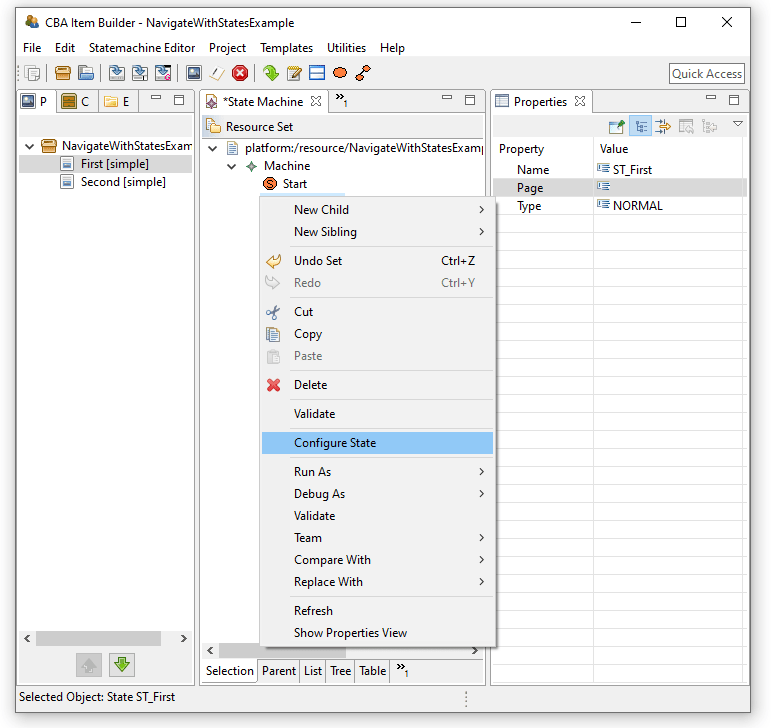
FIGURE 4.65: Context menu Configure State to assign a Page to a State.
The opening dialog Configure State allows to define which page should be opened when changing to this state. One of the defined pages can be selected from the combo box. An empty entry corresponds to the setting that the currently displayed page should not be changed when changing state.
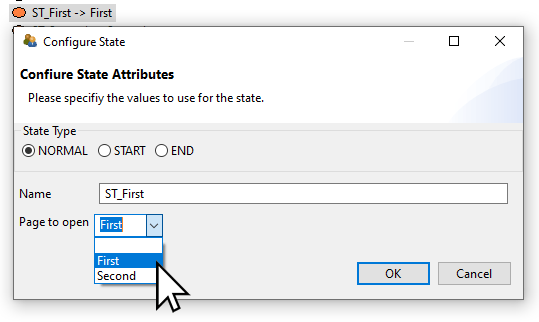
FIGURE 4.66: Dialog Configure State showing Page to open to assign a Page to a State.
After the dialog was closed with OK, the selection is also visible in the tree view of the finite-state machine. The arrow with the reference to a page name indicates that this state is linked to a page.
Advanced Example using X-Pages and Pages Assigned to States: Let us now consider the example, which has already been described and discussed in subsection 3.11.4 to illustrated linking between pages and x-pages (see Figure ??).
In addition to buttons with links to pages and modal dialogs (see section 3.11.2), selected buttons are also linked to events of the finite-state machines. Using two nested finite-state machines (see section 4.4.8), one particular state always corresponds to the current page and one state corresponds to the current x-page. Note the region named X and the region named Regular. Within each region, a start-state and two states are defined, each assigned to a page or a X-Page (see Figure 4.67).
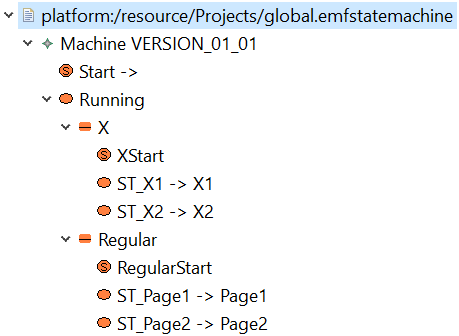
FIGURE 4.67: States Linked to Pages in two Regions as implemented in the item shown in Figure ??.
The buttons in the example item with the labels EV_X1, EV_X2, EV_Page1 and EV_Page2 are assigned to the events of the same name. The events are defined in the finite-state machine syntax and are used in the following rules:
Events:EV_X1, EV_X2, EV_Page1, EV_Page2;  // Definition of events
Rules: Start -> Running{true}             // Start of the Region "Running"

XStart -> ST_X1{true}                     // (Nested) FSM for X-pages in
ST_X1 => ST_X2{EV_X2}                     // thre region "X"
ST_X2 => ST_X1{EV_X1}

RegularStart -> ST_Page1{true}           // (Nested) FSM for pages in
ST_Page1 => ST_Page2{EV_Page2}           // the region "Regular"
ST_Page2 => ST_Page1{EV_Page1}

ST_X2 => ST_X2{EV_X2}                    // Necessary, since the page
ST_X1 => ST_X1{EV_X1}                    // is also changed via links
ST_Page1 => ST_Page1{EV_Page1}
ST_Page2 => ST_Page2{EV_Page2}
Finally, let’s look at the use of state and page linking in the context of dialogs. If you click the XDialog-button in Figure ??, then the page XDialog1 is displayed as a modal dialog (button Dialog and page Dialog1 in parallel). These dialog-pages each contain a button that triggers an event in the finite-state machine, and the defined state transition rules lead to new states that are linked to pages again.
If, for example, on page X1 (the finite-state machine will be in region X in state ST_X1), the event EV_X2 is triggered, and the FSM will change to state ST_X2 because of the rule ST_X1 => ST_X2{EV_X2}. Since the page X2 is assigned to this state, it is displayed. However, page X2 is not configured as a dialog, meaning that the underlying page will be changed even though the event was triggered from a dialog page. The dialog page remains visible. To close the dialog, you have to use the command CLOSE (see subsection 3.12.2 for more information about Runtime Commands), which is only assigned to the button CLOSE in this example. The CLOSE command can either be made available separately via an additional button (as it is implemented in Dialog1 in the example) or the CLOSE command can be linked to the button in addition to the event (as it is implemented in XDialog1 in the example). Not shown in this example: If a dialog is to be exchanged with a page linked via states, it is sufficient if the target page is configured as a dialog.
Change Page and X-Page Simultaneously: The separation of pages into the two categories (regular pages and X-pages) simplifies most scenarios, where Links as well as Pages Linked to States are either affecting the regular page area or the X-page area. To change a page and a X-Page simultaneously in an item at once, the connection of states and pages must be separated into two regions again, since each state can only be linked to one page.
Apart from this procedure, in which the pages are switched via the finite-state machine, the entire layout including the X-Page pages can also be changed by navigating to another task (see 3.6.2 for details on CBA ItemBuilder Tasks and see 3.12 for details on switching between tasks using runtime commands).
Change Page with States and Timed Events: The mechanism to change pages linked to states in the finite-state machine opens up a variety of design possibilities. For example, in combination with timed events (see section 4.4.3) items with controlled presentation time can be implemented.
4.4.10 Timer Component
Time constraints in assessments can be implemented in different ways. The decisive factor is whether the restriction is to be implemented within a task or across several Tasks. In a nutshell: If a Page is to be displayed within an item after the timeout, the time limit must be implemented with the CBA ItemBuilder project. If another task is to be displayed afterward, the time limit must be implemented at the test delivery level. Therefore, in the concrete implementation, it is also essential to consider how assessment content is broken down into ItemBuilder projects (i.e., into individual Tasks, see section 8.2).
Timed behavior of items and time constraints within tasks can be implemented with timed FSM events (see section 4.4.3). Timed events are invisible and defined as recurring events, automatically triggered and processed when rules are defined in the finite-state machine (see section 4.4.4). To visualize selected timed events, a specific component is provided by the CBA ItemBuilder that can be added to pages in the Page Editor. To visualize the remaining time of a timed FSM event (backwards) or the time since the last occurance of a timed event (forwards), the Timer-component shown in Figure 4.70 can be used.
Timer-components must be linked to a timed FSM event (assigned using the context menu entry Link Timer Event) and support the property Vertical Orientation, can show the remaining time automatically (Show Remaining Seconds), and can run either Run Forward=true or false.
If the tab State Machine Rules Editor has been closed, but the tab State Machine Tree View is still open, then the State Machine Rules Editor can only be opened again via the icon
or menu entry Project>Edit State Machine, if the State Machine Tree View has also been closed.↩︎Technically, the empty rule definition is invalid, shown with the symbol
 compared to
  But this is of no importance, as long as the finite-state machine is not used in a CBA ItemBuilder project.↩︎
Some events can only be assigned using the Properties view (i.e., some component, such as
Frames, see section 3.5.1), do not allow to assign events using the Page Editor).↩︎More components support events, but are not shown in Figure 4.35, for instance,
Tree,Table,List, andTimer.↩︎Note that the
variable_in()-operator, that is available for scoring purposes (see section 5.3.5) is not available in conditions of the finite-state machine.↩︎