3.13 Components for Special Page Types

Regular pages of type simple page were described in section 3.4.1. As shown in Table 3.10 additional page types are available in the CBA ItemBuilder for specific purposes. These more specific pages types are listed in Table 3.10 and the components that can only be used with pages of that particular types will be described in subsections 3.13.1 and 3.13.2.
| Page Type | Description |
|---|---|
Task Bar Page 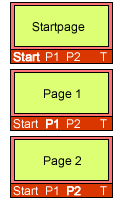 |
Several pages of type simple page can be connected with a Task Bar Page in such a way that the test-taker can switch between pages as if they were fullscreen applications. Buttons are associated with pages, and a home page is displayed when the button of type TaskbarStartButton is clicked, or when an activated button of type TaskbarButton is clicked again. Different layouts can be realized by altering the position of the components of type TaskbarGroup and ChildArea. |
Tab Folder Page 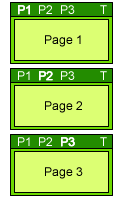 |
Several pages of the simple page type can be connected to a Tab Folder Page in order to simulate multiple tabs. Unlike the Task Bar Page, however, all pages are equal and remain open when clicked again. Different layouts can be realized by altering the position of the components of type TabfolderGroup and ChildArea. |
Web Browser Page & Web Child Page 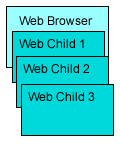 |
A page type that acts as a frame for several subordinate pages is a Web Browser Page. A page of type web browser has an area in which a page of type ‘web child’ can be displayed. Transitions between simple pages and web browser-pages are not possible via links, but require the finite-state machine. Hence, the two page types are mainly used for specific task layouts with browser-like navigation between (simulated) web-pages. |
For each page of a particular type, components of type Frame act as root element. As shown in Figure 3.145, Frame within pages of type Simple Page can contain Panels (see section 3.5.2) and PageAreas (see section 3.5.4). The hierarchy shown in Figure 3.145 illustrates the general concept of containers and nesting elements within container implemented in the CBA ItemBuilder (see section 2.11.4).
FIGURE 3.145: Hierarchy of components for different Page Types.
Figure 3.145 also shows that one specific component is required as the root element for all other pages. Pages of type Tabfolder Page need a TabfolerFrame, pages of type Taskbar Page are designed using a TaskbarFrame as the root element. The frame elements WebBrowserFrame and WebChildFrame are used only for pages of type WebBrowser Page and WebChild Page.
Frame, TabfolderFrame, TaskBarFrame, WebBrowserFrame or WebChildFrame) . The CBA ItemBuilders context-sensitive Palette (see section 3.1.3) automatically shows the element that can be used as the top-level component if a page of a partiular Page Type is clicked in the Page Editor.
Frames are containers that can host the components shown in Figure 3.145. The child elements of frames can themselves be containers (i.e., Panels for SimplePages or the equivalent containers shown in blue for other page types) or components that embed other pages (PageAreas, ChildAreas or WebChildAreas).
3.13.1 Tabfoler and Taskbar Pages
The page types tabfolder and taskbar are special pages for implementing navigation within items with multiple pages. Both page types require an area for displaying simple pages (see ChildArea in Figure 3.145) and an area for displaying the navigation buttons (each button is assigned a page via a link). The main difference between the two Page Types is the behavior of the buttons.
Tabfolder: An item using a page of type tabfolder with three tabs (page1, page2 and page3) is shown in Figure 3.146. A page of type tabfolder can contain a component of type TabfolderGroup and a ChildArea. Only these two component types can be added to TabfolderFrames (i.e., the root elements of pages of type tabfolder). The ChildArea links to a first page of type simpe page and the TabfolderGroup can contain additional TabButton-components. The TabButton link to a simple page, so that clicking the TabButton-components changes pages in the ChildArea.
Taskbar: If an already selected button in a Tab Folder Page is clicked again, nothing happens. In contrast, clicking on an already selected button in a Task Bar Page causes the default page to be shown This default page is called the start page in Task Bar Pages, linked to the corresponding button of type TaskBarStartButton. An item using a page of type taskbar with three pages (startpage, page1 and page2) is shown in Figure 3.147.
The contents of pages of the types tabfolder and taskbar are created as a module of the type simple page (see section 3.3) and bound to buttons via links (see section 3.11). Further links between simple pages are also possible.
It is important to point out that the special page types tabfolder and taskbar are only simplifications for functionality that can also be implemented with PageAreas and the dynamic part introduced in chapter 4.
3.13.2 Browser Pages (Web Browser and Web Child)
The CBA ItemBuilder also supports the implementation of simulated hypertext environments with the page types Web browser and Web child. A page of type Web browser forms the outer frame on which typical browser buttons, an address bar, and an area for displaying pages of type Web child can be placed as components.
An example illustrating an assessment component implemented in the CBA ItemBuilder using Browser Pages can be found in Figure 3.148.
Web Browser: To create a simulated hypertext environment, a page of type web browser can be used that allows to host two types of components. The WebChildArea define the place at which the embedded pages of type web child are shown. The WebBrowserToolbar component hosts the specific browser buttons that simplify the implementation of simulated hypertext environments. Browser pages bring a built-in browsing history, buttons for forward and back navigation, a home button and a bookmark function. Figure 3.149 summarizes all components that can be added to WebBrowserToolbars.
FIGURE 3.149: Overview of components for web browser.
Often, the actual task or instruction should be displayed in addition to the simulated web environment. This example illustrates the use of xPage layouts well. The item in Figure 3.150. uses an xPage to display the Task and next to it a page of type Web browser. The actual simulated hypertext pages of type web child are embedded in the Web browser page via a component of type WebChildArea.
Deprecated Features / Features under Development: The components of type WebBrowserFrame (i.e., the root elements for pages of type web browser) provide the property Is Tabbed that can be used to implement tabbed browsing. However, the layout of tabbed browsers cannot be configured entirely, and links always open a new tab (hence, making the navigation buttons of WebBrowserToolbars obsolete).52
See more examples in file TabedWebBrowserExample.zip.↩︎